“No battery is detected” is one of the more alarming messages Windows can show. Your laptop might be running fine on AC power, but Windows insists there’s no battery at all — no icon, no percentage, nothing. Sometimes it’s accompanied by a red X over the battery icon in the taskbar. Before panicking about a dead battery, know this: in most cases Windows has simply lost communication with a battery that’s physically fine, and re-establishing that communication is straightforward.
The good news is that this is fixable in most cases, and there’s a clean test to tell you whether you’re dealing with software or hardware. That test — checking the BIOS — should be your first move, because it determines everything that follows.
Why this happens
- Corrupted ACPI battery driver: The most common cause. Windows updates frequently break the driver stack that talks to the battery.
- Battery disabled in Device Manager: The battery device can end up disabled, which makes Windows ignore it completely.
- Loose battery connector: On internal-battery laptops, the ribbon cable can work loose over time, especially after drops.
- Dead battery controller: The circuit board inside the battery pack fails, so the battery can’t identify itself to the laptop.
- BIOS/firmware issue: Outdated or corrupted BIOS firmware can lose battery detection.
- Stuck embedded controller: The EC manages battery communication; a bad state can hide the battery from the OS.
- Completely drained battery: A battery at absolute zero for a long time may not wake up until it’s been on the charger for a while.
How to fix it
Work through these in order — the BIOS check first, since it tells you which path you’re on.
Fix 1: Check if the BIOS sees the battery
Restart the laptop and enter BIOS setup — tap F2, Del, or F1 repeatedly during boot (the key varies by brand; Dell uses F2, Lenovo uses Enter then F1, HP uses Esc then F10). Look for battery information on the main screen or under a power/battery section. If the BIOS shows the battery: it’s a Windows/driver problem — continue with Fix 2. If the BIOS also shows no battery: it’s hardware — skip to Fix 5. This single check saves you from wasting time on drivers when the issue is physical.
Fix 2: Reinstall the battery drivers
Press Win + X → Device Manager → expand Batteries. If you see Microsoft ACPI-Compliant Control Method Battery with a warning icon, or it’s missing entirely, right-click each entry under Batteries and choose Uninstall device. Also check that nothing is disabled — a down-arrow icon means disabled; right-click and choose Enable device. It’s worth expanding System devices too and looking for anything battery-related with a warning triangle. Restart the laptop. Windows redetects the battery hardware and reinstalls clean drivers on boot. This resolves the majority of Windows-side detection failures. For more driver troubleshooting, see our guide on updating battery drivers in Windows 11 .
Fix 3: Run the hardware troubleshooter and check for updates
Go to Settings → Windows Update and install all pending updates, then restart. Outdated system firmware delivered through Windows Update is a known cause of detection issues. You can also run the built-in power troubleshooter: Settings → System → Troubleshoot → Other troubleshooters → Power → Run. It won’t fix everything, but it catches misconfigured power settings that sometimes accompany driver problems.
Fix 4: Reset the embedded controller
Shut down completely and unplug the AC adapter and all peripherals. Hold the power button for 30 seconds to drain residual power. On laptops with a battery reset pinhole (common on Acer and Lenovo), press it with a paperclip for 5 seconds instead. Reconnect AC power and boot. The EC reset forces the charging and battery-detection hardware to reinitialize, which clears stuck states where the battery is physically fine but invisible to the system.
Fix 5: Reseat the battery (hardware path)
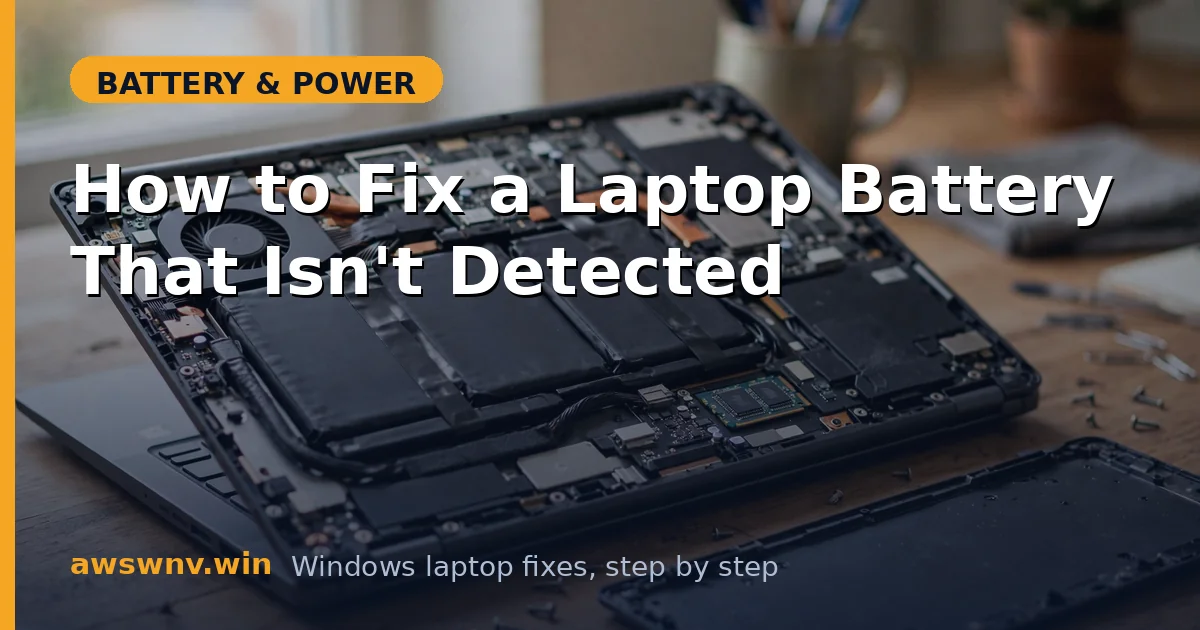
If the BIOS didn’t see the battery, it’s time to check the physical connection. For removable batteries: power off, slide the latch, remove the pack, inspect the contacts for corrosion or dirt, clean gently with a dry cloth, and reseat firmly. For internal batteries: power off, remove the bottom panel, locate the battery cable on the motherboard, disconnect it, wait 30 seconds, and reconnect it firmly. While you’re in there, look for any obviously damaged cables. If reseating doesn’t help, the battery’s controller board has likely failed.
Fix 6: Charge for an extended period
A deeply discharged battery sometimes won’t identify itself until it has some charge. Plug in the AC adapter (with the laptop off) and leave it for 2–3 hours undisturbed. Then power on and check whether Windows detects the battery. This works more often than you’d expect for laptops that sat unused for months. If the battery was removable, make sure it’s properly seated before this long charge.
Fix 7: Replace the battery
If the BIOS never sees the battery, reseating didn’t help, and extended charging changed nothing, the battery pack itself has failed — usually its internal controller board. Order a genuine replacement battery matching your exact model and part number. Third-party batteries are cheaper but are also the most common cause of recurring detection issues. After installing the new pack, verify detection in both BIOS and Windows, and run a battery report to confirm healthy readings — our guide on checking battery health shows you how.
Closing
“Battery not detected” sounds dire, but the BIOS check usually reveals it’s either a quick driver fix or a reseat away from working. The key discipline is doing that BIOS check first — it tells you in thirty seconds whether to troubleshoot Windows or open the laptop. Driver reinstalls fix the software side; reseating or replacement fixes the hardware side. Either way, you’ll have a battery Windows can see again, usually within the hour — and you’ll know exactly which side of the problem you were on, which makes any future battery issue much faster to diagnose.