After a Windows 11 update, your laptop boots up, the taskbar shows a battery icon with a red X, and hovering over it reveals the dreaded message: “No battery is detected.” The laptop works fine on AC power, but the moment you unplug the charger, it dies instantly. Your battery was perfectly healthy before the update, which makes this especially frustrating — Windows simply can’t see hardware that’s still sitting inside the machine.
This happens because updates rewrite the driver layer and firmware interface that Windows uses to talk to the battery’s embedded controller. When the Microsoft ACPI driver corrupts, the battery vanishes from the operating system’s view entirely. The good news is that the battery is almost always still physically fine. The seven fixes below start with the fastest software resets and end with the deeper hardware checks.
Why this happens
- Corrupted ACPI battery drivers. Windows detects batteries through the Microsoft ACPI-Compliant Control Method Battery driver. A Windows 11 update can corrupt it, making the battery invisible to the OS.
- The embedded controller (EC) lost sync. The EC chip manages battery communication at the hardware level. Updates can leave it in a stuck state where it stops reporting the battery.
- A firmware or BIOS mismatch. If the update changed the chipset driver while the BIOS remained old (or vice versa), the battery interface can break.
- Fast startup holding a bad hardware state. Windows fast startup saves a snapshot of hardware states. If the battery state was bad when the snapshot was taken, every boot repeats the problem.
- A physically loose battery. On models with removable batteries, vibration and heat cycles can creep the battery slightly out of its contacts, especially after the update’s restart jolts.
- Actual battery failure. Rare, but a battery whose internal controller board died will show up as “not detected” no matter what drivers you install.
How to fix it
Work through these in order, checking battery detection after each one.
Fix 1: Do a full shutdown to clear fast startup
Fast startup’s cached hardware state is the most common cause of phantom detection failures.
- Press Win + R, type
shutdown /s /t 0, and press Enter for a true full shutdown — not a hybrid shutdown. - Unplug the charger and, if your battery is removable, take it out. Hold the power button for 30 seconds to drain residual power.
- Reinsert the battery (if removable), plug the charger back in, and power on.
- Check the taskbar battery icon. If Windows now detects the battery, the stuck state is cleared. You can leave fast startup as-is, or disable fast startup to prevent battery drain issues permanently under Control Panel > Power Options > Choose what the power buttons do.
Fix 2: Reinstall the battery drivers
This resets the software interface Windows uses to discover the battery.
- Right-click Start and open Device Manager.
- Expand Batteries. Right-click Microsoft ACPI-Compliant Control Method Battery and choose Uninstall device, then confirm.
- Also uninstall Microsoft AC Adapter the same way.
- Expand System devices and uninstall anything labeled ACPI related to the battery only if the Batteries section had nothing — don’t touch chipset entries.
- Shut down fully (Shift + Shut down), unplug the charger, wait 60 seconds, then plug in and boot.
- Windows rediscovers the battery hardware during boot and reinstalls fresh drivers.
Fix 3: Reseat a removable battery
If your laptop has a removable pack, a poor contact can mimic a dead battery.
- Shut down the laptop and unplug the charger.
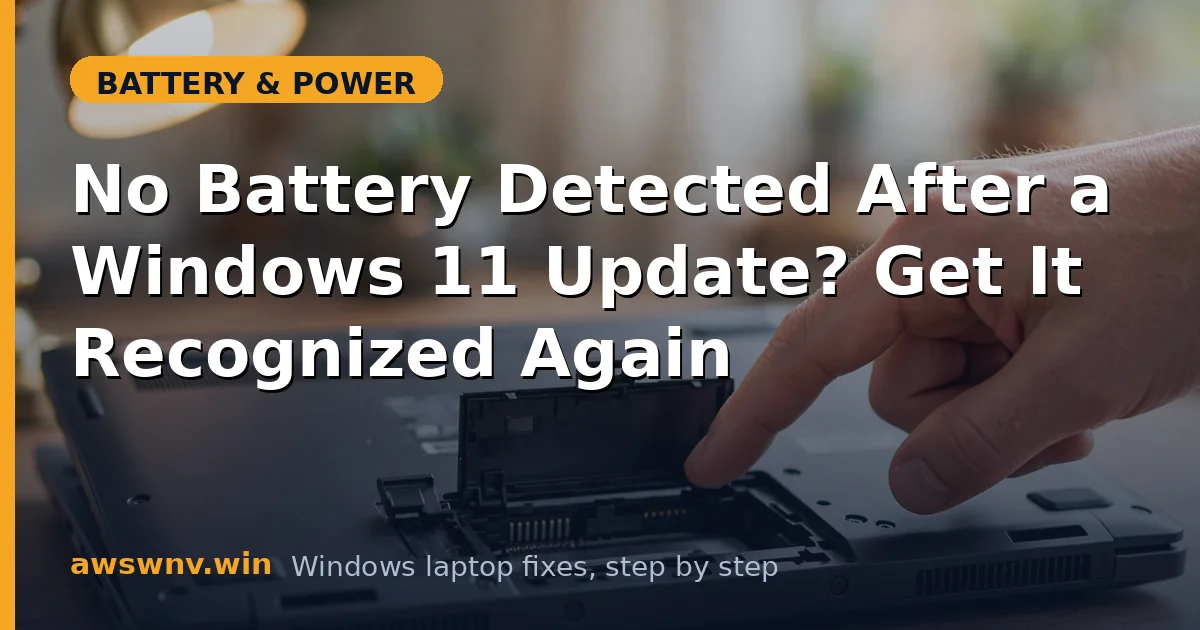
- Flip the laptop over and slide the battery release latches to remove the pack.
- Inspect the metal contacts on both the battery and the laptop for corrosion, dust, or bent pins. Clean them with a dry cloth or a cotton swab with isopropyl alcohol.
- Reinsert the battery firmly until both latches click into place.
- Plug in the charger, wait two minutes, then power on and check whether Windows detects the battery.
Fix 4: Reset the embedded controller
The EC reset forces the hardware-level battery interface back to a known-good state.
- Shut down the laptop and unplug the charger. Remove the battery if it’s removable.
- Press and hold the power button for 60 seconds. This drains the EC’s residual charge.
- Reconnect the charger (leave the battery out if removable), wait one minute, then power on.
- Once Windows boots, shut down again, reinsert the battery, and boot normally.
- On Dell laptops, you can also run the built-in diagnostics: restart and press F12 repeatedly, then choose Diagnostics to test the battery directly. Dell’s support tools are at dell.com/support .
Fix 5: Update the BIOS and chipset drivers
A firmware mismatch after a Windows update needs a matching update on the BIOS side.
- Press Win + R, type
msinfo32, press Enter, and note your BIOS Version/Date and System Model. - Go to your manufacturer’s support site — HP or Lenovo — and enter your model.
- Download and install the latest BIOS update first, keeping the charger plugged in. Do not interrupt the flash.
- Then install the latest chipset driver and Intel Management Engine driver for your model.
- Restart and check battery detection. If Windows now sees the battery but reports a wrong percentage, calibrate the battery to restore accurate readings.
Fix 6: Check whether the battery is detected in BIOS
This tells you whether the problem is Windows-level or hardware-level.
- Restart the laptop and press the BIOS key for your brand — F2 (Dell), F10 or Esc (HP), F2 or Enter then F1 (Lenovo) — during boot.
- Look for a Battery Information or Power section.
- If the BIOS shows no battery either, the issue is hardware: the battery’s controller board has likely failed, or the internal cable is disconnected.
- If the BIOS sees the battery but Windows doesn’t, stay on the software path — Fix 7 is your next step.
Fix 7: Roll back the problematic update
If detection broke immediately after a specific update, rolling it back confirms the cause.
- Open Settings > Windows Update > Update history > Uninstall updates.
- Find the most recent update (by date) that matches when the problem started and uninstall it.
- Restart the laptop and check battery detection.
- If the battery returns, pause updates for a few weeks under Settings > Windows Update > Pause updates so it doesn’t reinstall immediately.
- Report the issue through Feedback Hub (search it in Start) so Microsoft sees the pattern.
Closing
In the vast majority of cases, “no battery detected” after a Windows 11 update is a driver or embedded-controller issue — not a dead battery. If Fix 2 or Fix 4 brought your battery back, you’re done. If even the BIOS can’t see it, the battery pack itself needs professional inspection or replacement.