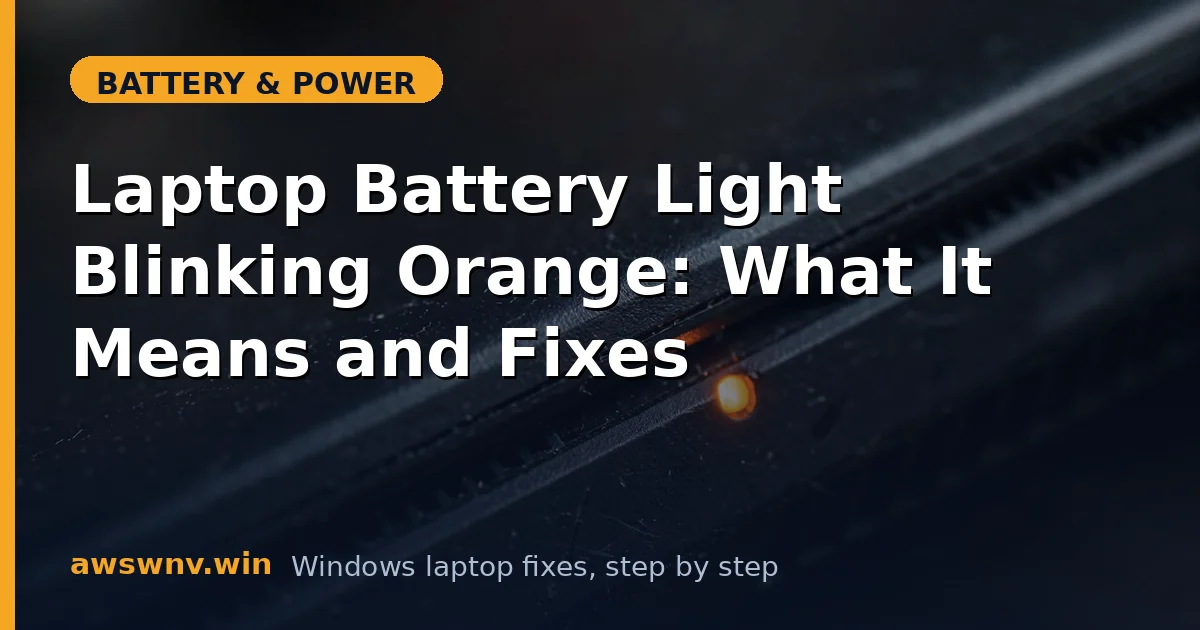
That little LED near your charging port is trying to tell you something. On most laptops, a blinking orange (or amber) battery light is a distress signal — low battery, bad charger, failed battery, or a charging fault. The tricky part: every manufacturer uses the blink pattern slightly differently, so “blinking orange” is a symptom, not a diagnosis.
This guide walks you through decoding the pattern and fixing the underlying cause, step by step, regardless of brand. We’ll cover the universal fixes first, then the brand-specific meanings.
Why this happens
- Critically low battery. The most innocent cause — the battery dropped below ~5-10% and the LED blinks as a warning.
- Failing or underpowered charger. The laptop detects input power below what it needs and signals the problem.
- Dead or disconnected battery. The charge controller can’t communicate with the battery, or the battery failed its internal health check.
- Overheating during charge. Thermal protection interrupts charging and blinks the LED.
- BIOS/charging firmware glitch after an update, leaving the charge controller in a fault state.
- Corroded or loose battery connector (on models with accessible batteries).
- The battery is deeply discharged from months of storage and needs an extended wake-up charge.
How to fix it
Work through these in order. Note your exact blink pattern first — it matters for the brand-specific step later.
Fix 1: Observe the exact blink pattern
Diagnosis starts with careful observation.
- Count the blinks: is it a steady blink-blink-blink, or a coded pattern (e.g., 3 amber + 1 white)? Coded patterns are diagnostic codes — write down the exact sequence.
- Note when it blinks: only on AC? Only on battery? Both? During boot?
- Check your manual’s LED section, or search your maker’s support site for “[model] battery LED blink codes.” Dell, for instance, documents amber/white blink sequences as specific hardware faults.
- A plain steady orange blink usually means low battery or charging fault. A coded pattern usually means a specific component failure — skip to Fix 7 if you have a coded pattern.
Fix 2: Charge it properly for an hour
Rule out the simplest cause: it’s just very, very flat.
- Plug in the original charger (not a random USB-C brick) to a wall outlet directly.
- Leave the laptop off or in sleep for at least 60 minutes. Charging while powered off is faster and avoids thermal complications.
- After an hour, power on and check the battery percentage and the LED.
- If the blinking stops and the percentage climbs, it was just critically low. Let it charge to full before judging anything else.
- If it was dead for months, extend this to several hours — deeply discharged batteries wake slowly.
Fix 3: Test the charger
A surprising number of blinking-orange cases are the brick, not the battery.
- Inspect the charger: frayed cable, loose tip, burnt smell, or a brick that’s stone cold after an hour plugged in.
- Confirm the wattage matches your laptop’s requirement (check the bottom label). A 45W charger on a laptop that wants 90W causes exactly this symptom.
- Borrow an identical-spec charger and test for 30 minutes. If the blinking stops, replace yours.
- Try a different wall outlet — exclude the power strip as a suspect.
- For USB-C charging laptops, try a different port and a proper 100W-rated cable — see our USB-C charging troubleshooting .
Fix 4: Reseat the battery (if removable)
A loose battery connector causes intermittent detection faults.
- Shut down completely and unplug the charger.
- Remove the battery. Inspect the contacts for corrosion, bent pins, or debris — clean gently with a dry cloth.
- Reinsert firmly until it clicks/locks.
- Plug in the charger and power on. Watch the LED for 10 minutes.
- On sealed models, skip this — but a repair shop can reseat internal batteries in minutes if other fixes fail.
Fix 5: Reset the embedded controller
The charge controller can latch into a fault state that survives reboots.
- Shut down, unplug everything including the charger.
- Remove the battery if possible.
- Hold the power button for 20-30 seconds to drain residual power and reset the EC.
- Reconnect the charger (and battery), power on, and observe the LED.
- This clears more blinking-light faults than you’d expect — the EC is involved in nearly every charging decision.
Fix 6: Check battery health in software
Let the numbers confirm or rule out a dying battery.
- Boot into Windows, open Terminal (Admin), and run
powercfg /batteryreport. - Compare Full Charge Capacity to Design Capacity in
C:\Windows\System32\battery-report.html. - Run your maker’s diagnostics: Dell: F12 → Diagnostics. HP: Esc → F2 → Component Tests → Power. Lenovo: Vantage → Device → Power → battery check.
- If the battery reports as failed or weak, the blinking light was telling the truth — plan a replacement. Our low full charge capacity guide covers the decision in detail.
- If health looks good but the light blinks, the issue is the charger, connector, or controller — not the cells.
Fix 7: Decode brand-specific patterns and update firmware
Now use that blink pattern you wrote down.
- Dell: alternating amber/white blink sequences are documented fault codes — look yours up on Dell Support for your model. Common: 2 amber + 1 white patterns indicate battery or adapter faults.
- HP: blinking amber often means the battery is below the minimum charge threshold or failed the BIOS battery check — HP’s UEFI diagnostics (Esc → F2) will confirm.
- Lenovo: rapid amber blinking typically signals a charger wattage mismatch or battery fault — Vantage’s battery details help narrow it.
- Install the latest BIOS from your maker’s site regardless of brand — charge-controller firmware fixes are common in BIOS changelogs.
- After the BIOS update, repeat Fix 5’s EC reset, since flashes can leave the controller in a transitional state.
Closing
A blinking orange battery light is your laptop’s way of filing a complaint — low charge, weak charger, unhappy battery, or confused controller. Work outside-in: charge it properly, verify the brick, reseat and reset, then let the diagnostics and blink codes point at the specific fault. The light stops blinking when the underlying problem is fixed, not before, so treat the pattern as a clue rather than the problem itself.