Windows 11 Automatic Repair Loop: A Complete Step-by-Step Fix
The Automatic Repair loop is Windows at its most helpless-looking: “Preparing Automatic Repair,” a spin, a failure, a reboot — and then the whole sad cycle repeats. But here’s the thing the loop doesn’t tell you: it’s failing the same way every time, which means one specific thing is broken. Find that thing, fix it, and the loop ends. Your files are almost certainly fine — this is a boot problem, not a data problem.
This is the complete, brand-neutral guide: every step from the Recovery Environment, in the order a technician would try them. If your loop shows the SrtTrail.txt message specifically, our SrtTrail.txt fix guide zooms in on that variant.
Why this happens
- Boot Configuration Data (BCD) is corrupted. The BCD is Windows’ startup instruction set; damage means every boot fails identically.
- A Windows update broke booting. Updates that touch boot files can leave the system unbootable, especially if interrupted.
- Core system files are damaged. If Windows can’t load its own components, it triggers repair on every attempt.
- The drive is failing. Bad sectors in boot-critical areas defeat every boot and every automated repair equally.
- A bad driver blocks startup. Disk filter, encryption, or antivirus drivers installed just before the loop can halt the boot.
- Fast Startup saved a corrupt state. A damaged hibernation file can wedge the boot process repeatably.
How to fix it
Work through these in order from the Recovery Environment. Get there via two forced shutdowns during boot, or Shift + Restart.
Fix 1: Let Startup Repair have one clean attempt
Start with the automated tool — occasionally it just works.
- Choose Troubleshoot > Advanced options > Startup Repair.
- Pick your Windows installation, enter your password, and let it run (up to 15 minutes).
- If it succeeds, you’re done — reboot and verify. If it reports failure, click Advanced options to return to the menu.
- Don’t run it repeatedly; one failure means it’s time for manual fixes. Running it over and over just wastes time — the tool tries the same automated steps each pass, so a second attempt fails for exactly the same reason as the first.
Fix 2: Boot into Safe Mode
If Safe Mode works, Windows’ core is intact and something in the normal boot path is the culprit.
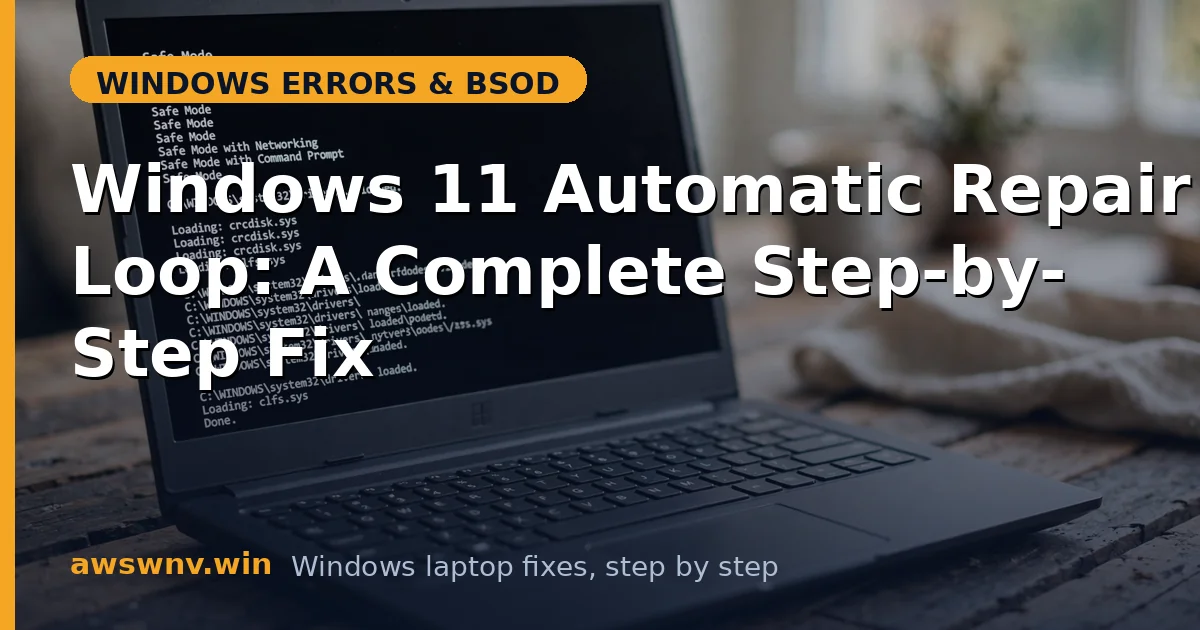
- Go to Troubleshoot > Advanced options > Startup Settings > Restart, press 4.
- If Safe Mode loads: uninstall the latest update (Settings > Windows Update > Update history > Uninstall updates) and roll back recent drivers in Device Manager.
- Run
sfc /scannowfrom Safe Mode’s Command Prompt for good measure. - If Safe Mode also fails, the problem is in boot files or core system — continue below. Our Safe Mode troubleshooting guide covers stubborn cases.
Fix 3: Rebuild the boot files with bootrec
The highest-success fix for repair loops.
- Open Command Prompt from Troubleshoot > Advanced options.
- Run each command, pressing Enter after each:
bootrec /fixmbrbootrec /fixbootbootrec /scanosbootrec /rebuildbcd - Type
Yif asked to add the installation to the boot list. - Type
exit, select Continue, and test.
Fix 4: Rebuild the EFI bootloader manually
For UEFI systems where bootrec alone isn’t enough.
- In the Command Prompt, run
diskpart, thenlist vol— find the FAT32 EFI partition (~100MB). sel vol X(its number),assign letter=Z:,exit.- Run
bcdboot C:\Windows /s Z: /f UEFI— confirm the Windows drive letter first (dir C:; in WinRE it’s often D:). exit, Continue, reboot.
Fix 5: Uninstall the latest Windows update
The most common trigger for sudden-onset loops.
- Go to Troubleshoot > Advanced options > Uninstall Updates.
- Remove the latest quality update, reboot, test.
- If still looping, remove the latest feature update as well.
- Once stable, Pause updates in Settings > Windows Update for a few weeks. Keep the Windows 11 download page bookmarked in case you need fresh media later.
Fix 6: System Restore to before the loop
The gentlest complete fix when a restore point exists.
- Troubleshoot > Advanced options > System Restore.
- Choose the newest point dated before the loop began.
- Let it complete and reboot. Personal files are not touched.
- Afterward, verify System Protection is on (System Properties > System Protection) so you have restore points next time.
Fix 7: Check the disk and repair file systems
Rule out hardware and file-system damage.
- In Recovery’s Command Prompt, run
chkdsk C: /f /r(correct letter as needed) — the/rlocates bad sectors and recovers readable data. - Run your maker’s hardware diagnostics from the boot menu (F2/Del/Esc varies) and test the drive.
- If diagnostics report drive failure, stop: back up via a live USB, replace the drive, and reinstall. No boot command fixes dying hardware.
- If the drive is healthy but Windows still won’t boot, the installation itself is too damaged — proceed to Fix 8. Maker-specific recovery keys are covered in our HP repair loop guide .
Fix 8: Reset Windows, keeping your files
The last resort that almost always works on healthy hardware.
- Troubleshoot > Reset this PC > Keep my files.
- Let it reinstall Windows — apps will need reinstalling, but documents, photos, and settings largely survive.
- Only use Remove everything if the keep-files reset fails too.
- After reset, update fully before reinstalling apps, and set up regular restore points. Microsoft documents all recovery options at Windows support .
Closing
The Automatic Repair loop repeats because the same thing breaks the same way on every boot — and that repeatability is your friend. Rebuild the boot files, remove the bad update, restore to calmer times, and check the drive’s health before anything drastic. It’s methodical work, not magic, and it resolves the overwhelming majority of cases without touching a single one of your files.