Windows 11’s acrylic transparency — the frosted-glass blur behind the Start menu, taskbar, and Settings windows — looks premium, but it’s real GPU work happening constantly. Every blurred surface is a live compositing operation, and on older laptops, integrated graphics, or battery power, that eye candy costs smoothness and battery life you might rather keep.
Disabling transparency is one of the safest, most reversible performance tweaks in Windows 11: a single toggle, instant effect, zero risk. This guide shows the three ways to do it and what else to trim while you’re at it.
Why this happens
- Constant GPU compositing: Every transparent surface forces the GPU to blur and blend in real time.
- Weak integrated graphics: Older Intel/AMD iGPUs spend disproportionate effort on acrylic effects.
- Battery drain: GPU work is power work — transparency measurably shortens battery life.
- Animation stutter: On struggling machines, effects compete with actual app rendering for GPU time.
- Remote desktop overhead: Transparency increases the pixels changing per frame over RDP.
- High-DPI scaling cost: On 4K laptop screens, blurring costs scale with pixel count.
- Compounding visual effects: Transparency plus animations plus shadows stack into real load.
How to fix it
Work through these in order — diagnose first, then act.
Fix 1: Use the Settings toggle (fastest method)
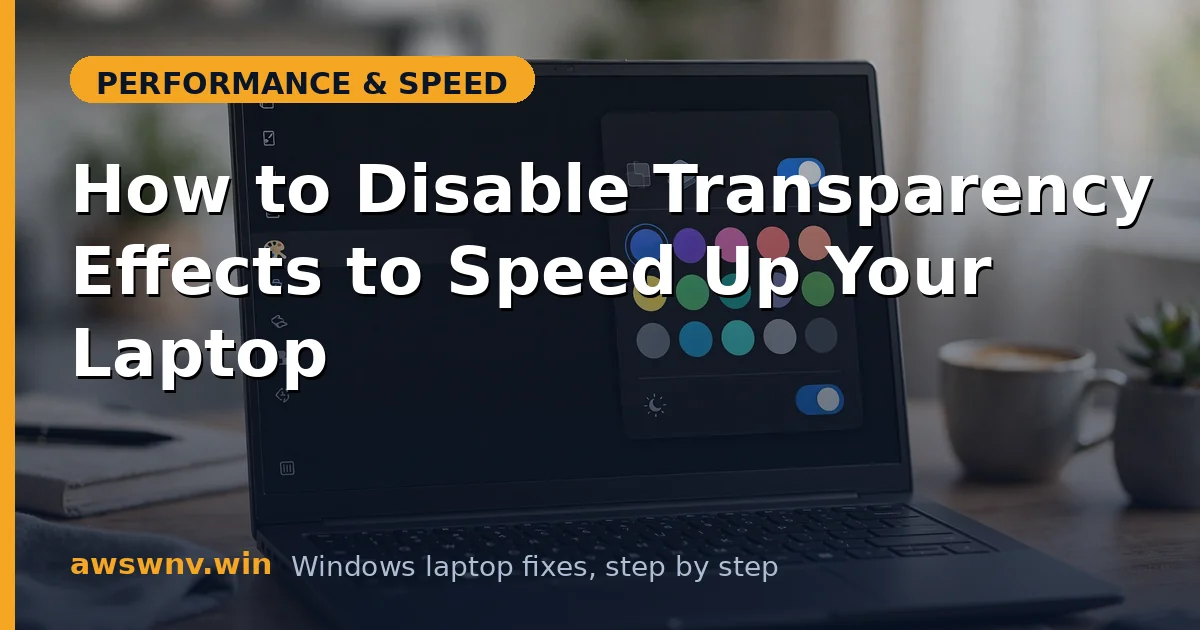
Open Settings → Personalization → Colors and turn off Transparency effects. The change is instant — open the Start menu and you’ll see solid backgrounds instead of blur. This is the complete fix for most users: one toggle, no reboot, fully reversible by turning it back on. If you’re chasing every frame of performance, continue to Fix 2 for the companion toggles. The best-practice transparency guide covers this same toggle with screenshots.
- Open Settings → Personalization → Colors.
- Toggle Transparency effects to Off.
- Open the Start menu to confirm the blur is gone.
- Toggle back on anytime to restore the look.
Fix 2: Disable companion visual effects in Accessibility
Transparency is the biggest saver, but its friends add up. Go to Settings → Accessibility → Visual effects and turn off Animation effects too — this kills the minimize/maximize animations and other motion that stutters on weak GPUs. Leave contrast themes alone unless you need them. The combination of no transparency plus no animations gives the snappiest-feeling Windows 11 on older hardware, and it’s all still one-click reversible. For the 24H2-specific path, see disable transparency in 24H2 .
- Open Settings → Accessibility → Visual effects.
- Turn off Animation effects.
- Optionally disable other motion effects listed there.
- Test window operations for smoothness.
Fix 3: Set performance-first advanced system settings
For the full classic optimization: search Start for Adjust the appearance and performance of Windows, open it, and choose Adjust for best performance — or pick Custom and uncheck everything except Smooth edges of screen fonts and Show thumbnails instead of icons (the two that affect readability, not speed). This disables shadows, fade effects, and other compositing extras in one shot. It’s the old-school tweak that still works, and it stacks with the Settings toggles above. Microsoft documents these options in the Windows support hub .
- Search Start for Adjust the appearance and performance of Windows.
- Choose Adjust for best performance or a Custom selection.
- Keep font smoothing and thumbnails enabled for readability.
- Apply and observe the responsiveness difference.
Fix 4: Verify GPU driver and power settings aren’t fighting you
Visual tweaks help most when the GPU itself is healthy. Open Device Manager → Display adapters and confirm your GPU driver is current — an outdated or generic Microsoft Basic Display Adapter driver makes all compositing slower and can make transparency feel far worse than it should. Get the real driver from your laptop maker or GPU vendor. Then check Settings → System → Power & battery → Power mode: on battery, Best power efficiency reduces GPU clocks, which pairs well with disabled effects for maximum battery life.
- Verify the real GPU driver is installed in Device Manager.
- Update it from the manufacturer if it’s generic or outdated.
- Set Power mode appropriately for your use.
- Re-test animations and battery drain.
Fix 5: Reduce the load transparency was hiding
Sometimes transparency isn’t the problem — it’s just the most visible symptom of a struggling GPU. Open Task Manager’s Performance tab and check GPU utilization at idle: if Desktop Window Manager (dwm.exe) alone holds high GPU, something deeper is wrong — often a browser with hardware acceleration fighting the compositor, or a second monitor at a mismatched refresh rate. Close GPU-heavy background apps, and check Settings → System → Display → Advanced display to confirm your refresh rate is set correctly. Fixing the real GPU hog makes everything smoother, transparency on or off.
- Check GPU utilization at idle in Task Manager.
- Identify GPU-heavy background apps (browsers, overlays).
- Verify the display refresh rate is set correctly.
- Address the real hog before judging the effects.
Fix 6: Apply across user accounts or via policy (shared machines)
If the laptop is shared or you’re standardizing several machines, set it once everywhere. The Settings toggle is per-user, so repeat it on each account — or use Group Policy (User Configuration → Administrative Templates → …) / registry deployment to enforce it. For a single personal laptop this is overkill, but for a family machine where every account should stay snappy, or a small fleet of low-end laptops, enforcement beats asking. Document which machines you’ve set so a future “Windows looks different” question has an answer.
- Repeat the Settings toggle on each user account.
- Or deploy via Group Policy/registry for multiple machines.
- Verify the setting stuck after reboot on each account.
- Document the change for future troubleshooting.
Closing
Transparency effects are pure decoration with a real GPU and battery price — and on Windows 11 the price is one toggle to eliminate. Turn it off, trim the companion animations if your hardware needs it, and enjoy the snappier, longer-lasting laptop underneath. If you ever miss the frosted glass, the toggle is right where you left it.