The neural processing unit is the heart of the Copilot+ PC, powering Recall, Studio Effects, Live Captions, and Cocreator. But there are legitimate reasons to turn it off: diagnosing whether its driver causes game stutter, stopping Recall snapshot processing for privacy, squeezing out battery life, or simply troubleshooting a misbehaving system. Disabling it in Device Manager is quick, safe, and fully reversible.
It is important to understand what disabling does and does not do. It stops the NPU hardware from being used — AI features that need it will report errors or go quiet. It does not uninstall anything, does not affect the CPU or GPU, and does not harm Windows. Think of it as unplugging a peripheral, not removing it.
This guide shows the exact steps to disable the NPU, explains when disabling helps versus when a driver fix is better, and covers re-enabling. If stutter is your motivation, read our NPU causing game stutter fix first, and SSD upgraders should check Copilot+ PC SSD upgrade guide before opening the machine.
Why this happens
- Driver-caused stutter: A buggy NPU driver can cause DPC latency spikes; disabling isolates the cause.
- Privacy concerns: Disabling the NPU stops Recall snapshot processing at the hardware level.
- Battery saving: Stops background AI tasks from consuming power during critical battery situations.
- Troubleshooting isolation: The fastest way to determine whether the NPU is behind a mysterious problem.
- Software conflicts: Rare conflicts between NPU drivers and specialized software.
- Testing and comparison: Benchmarking with and without NPU acceleration.
- Misunderstood “disabling”: Many users expect a Settings toggle; Device Manager is the actual control.
How to fix it
Work through these in order — diagnose first, then act.
Fix 1: Disable the NPU in Device Manager
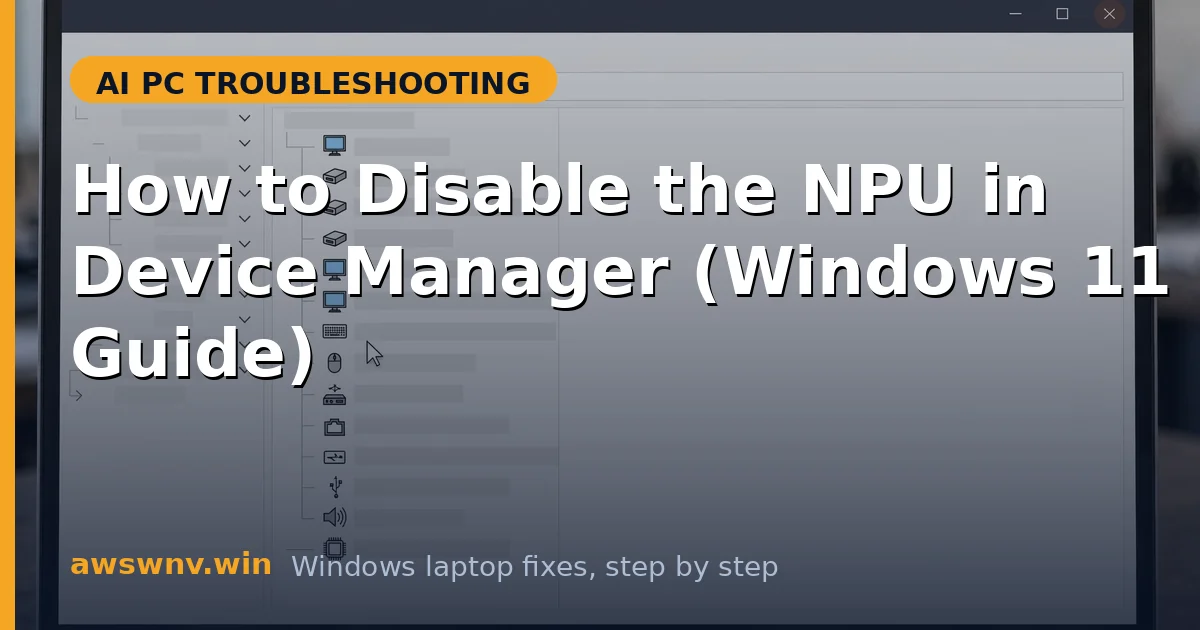
The procedure takes under a minute. The NPU appears under different Device Manager categories depending on your chip vendor — Neural processors on newer Windows builds, System devices on others — so check both locations.
- Press Windows + X and select Device Manager.
- Look for a “Neural processors” category; if absent, expand “System devices”.
- Identify your NPU entry (names include NPU, AI Boost, Ryzen AI, Hexagon, or neural processor).
- Right-click the NPU entry and choose “Disable device”.
- Confirm the warning dialog — Windows warns you the device will stop functioning, which is exactly what you want.
- The entry will show a down-arrow icon; restart the laptop to make the change fully effective.
Fix 2: Verify the NPU is actually off
Device Manager’s icon is not always the full story — confirm the NPU is truly inactive through Task Manager and by testing an AI feature. This verification also establishes your baseline for comparing behavior with the NPU off.
- Open Task Manager (Ctrl + Shift + Esc) and go to the Performance tab.
- The NPU tile should be gone or show as disabled, with no activity.
- Try opening an NPU-dependent feature like Studio Effects or Live Captions — it should report an error or be unavailable.
- Check that everything else (apps, browsing, games) works normally.
- Note CPU and battery behavior for comparison against the NPU-enabled state.
- If the NPU still shows activity, you may have disabled the wrong device — recheck Device Manager.
Fix 3: Decide whether disabling actually helped
Disabling is often a diagnostic step, not a destination. Compare your original problem with the NPU off: if it is fixed, the NPU driver was involved and deserves a proper fix; if nothing changed, look elsewhere. Do not leave the NPU disabled permanently without a reason.
- Test the exact problem that motivated disabling (stutter, battery drain, crashes).
- If the problem is gone with the NPU off, the NPU driver is implicated — proceed to Fix 4.
- If the problem persists unchanged, the NPU was not the cause; re-enable it (Fix 5) and continue troubleshooting elsewhere.
- For privacy-motivated disabling, verify Recall snapshots have stopped in Settings, Privacy & security.
- For battery testing, compare drain over identical usage periods with the NPU on versus off.
- Document your findings so you do not repeat the experiment later.
Fix 4: Fix the NPU driver instead of leaving it disabled
When disabling proves the NPU driver is the problem, the right move is fixing the driver — not permanently losing AI features. A clean reinstall of the vendor-validated driver usually resolves DPC latency, crashes, and stutter while keeping everything working.
- Re-enable the NPU in Device Manager first (right-click, Enable device).
- Download the latest NPU/chipset driver from your laptop maker’s support site — not a generic download.
- In Device Manager, right-click the NPU, choose Uninstall device, and tick “delete the driver software” if offered.
- Restart, then install the downloaded vendor driver package.
- Restart again and verify the NPU is healthy in Task Manager.
- Retest your original problem; for persistent driver issues see reinstall NPU driver clean install .
Fix 5: Re-enable the NPU when you are done
Re-enabling is the mirror of disabling and just as safe. Do this after diagnostic testing, after fixing the driver, or whenever you want AI features back. Always verify health afterward rather than assuming.
- Open Device Manager and find the disabled NPU entry (down-arrow icon).
- Right-click it and choose “Enable device”.
- Restart the laptop to let the driver initialize cleanly.
- Open Task Manager’s Performance tab and confirm the NPU tile is back with activity.
- Test an AI feature like Live Captions or Studio Effects to confirm functionality.
- If the NPU fails to enable or shows a warning, reinstall the driver as described in Fix 4.
Fix 6: Alternatives to fully disabling the NPU
Full disable is a blunt tool. For privacy, battery, or stutter concerns, targeted alternatives often achieve the goal while keeping AI features available for when you want them.
- For Recall privacy: turn off snapshots in Settings, Privacy & security, Recall & snapshots — no need to disable hardware.
- For battery: use Best power efficiency mode and pause snapshots instead of disabling the NPU.
- For stutter: update the NPU driver and set gaming power profiles rather than disabling hardware.
- For Studio Effects issues: disable the effects per-app in Camera settings instead.
- Check BIOS/UEFI for an NPU toggle — some laptops offer a firmware-level switch that is cleaner than Device Manager.
- Microsoft’s Windows support hub documents which features depend on the NPU if you want the full list.
Closing
Disabling the NPU is a safe, reversible troubleshooting tool — not a permanent setup. Use it to diagnose stutter, test battery impact, or pause AI processing, then fix the driver or re-enable the hardware. Creators may also like our best AI laptop for video editing guide.