The WinSxS folder sits at C:\Windows\WinSxS, often reporting 10, 15, even 20+ GB, and every disk-space guide points at it like a suspect. Here’s the truth: WinSxS is supposed to be big, most of its reported size is an illusion (hard links counted multiple times), and deleting it manually is one of the fastest ways to destroy a Windows installation.
But “don’t touch it” isn’t the whole story either. Windows provides official, safe cleanup commands that remove genuinely superseded components — and on systems with years of update history, they free real gigabytes. This guide covers what WinSxS actually is, how to measure what’s reclaimable, the safe cleanup sequence, and the one variant you should think twice about.
Why this happens
- Update accumulation: Every cumulative and feature update adds new component versions while keeping old ones for rollback.
- Hard-link size illusion: Files in WinSxS are hard-linked from system directories — Explorer counts them multiple times, inflating the apparent size.
- Superseded components retained: Old update payloads linger until cleanup runs, sometimes for years.
- Feature update leftovers: Each annual feature update deposits gigabytes of replaced components.
- Disabled features still stored: Optional features (like Hyper-V or .NET versions) keep payloads in the store even when turned off.
- Never-run maintenance: The automatic component cleanup task may be disabled or failing silently.
- Staging bloat: Interrupted updates leave staged components that never got cleaned.
How to fix it
Work through these in order — diagnose first, then act.
Fix 1: Measure what’s actually reclaimable
Don’t clean blind — get the real numbers first.
- Open Command Prompt as administrator.
- Run
DISM /Online /Cleanup-Image /AnalyzeComponentStoreand wait for the report. - Read the key lines: Component Store size, Actual size (the honest number after hard-link adjustment), and reclaimable packages.
- If reclaimable is under 1 GB, cleanup isn’t worth your time — your disk pressure is elsewhere (check our disk usage guide ).
- Note the Last cleanup date — if it’s ancient, the automatic maintenance task isn’t running (see Fix 6).
Fix 2: Run the standard component cleanup
The safe, Microsoft-approved cleanup.
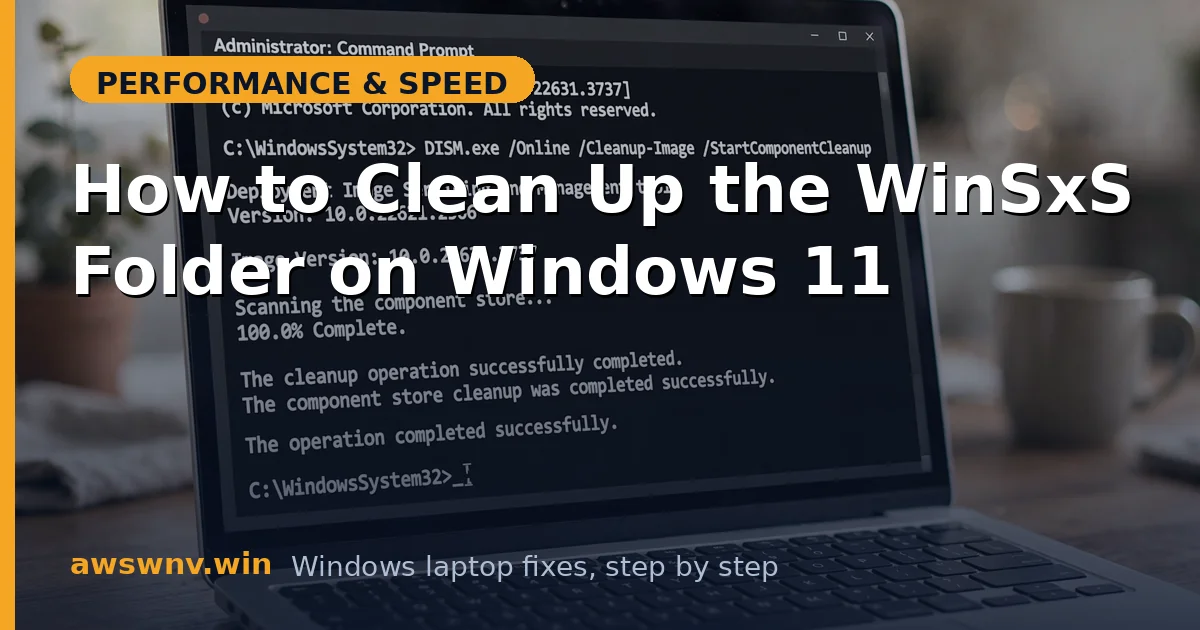
- In the elevated prompt, run
DISM /Online /Cleanup-Image /StartComponentCleanup. - This removes superseded components — old update payloads replaced by newer ones — while preserving the ability to uninstall recent updates.
- It takes 5–20 minutes and uses significant CPU/disk; run it when you don’t need the machine.
- Don’t interrupt it — killing DISM mid-cleanup can leave the store in an inconsistent state.
- Re-run AnalyzeComponentStore afterward to confirm the reclaimable amount dropped to near zero.
Fix 3: Use Disk Cleanup for the update leftovers
The graphical companion that catches what DISM misses.
- Press
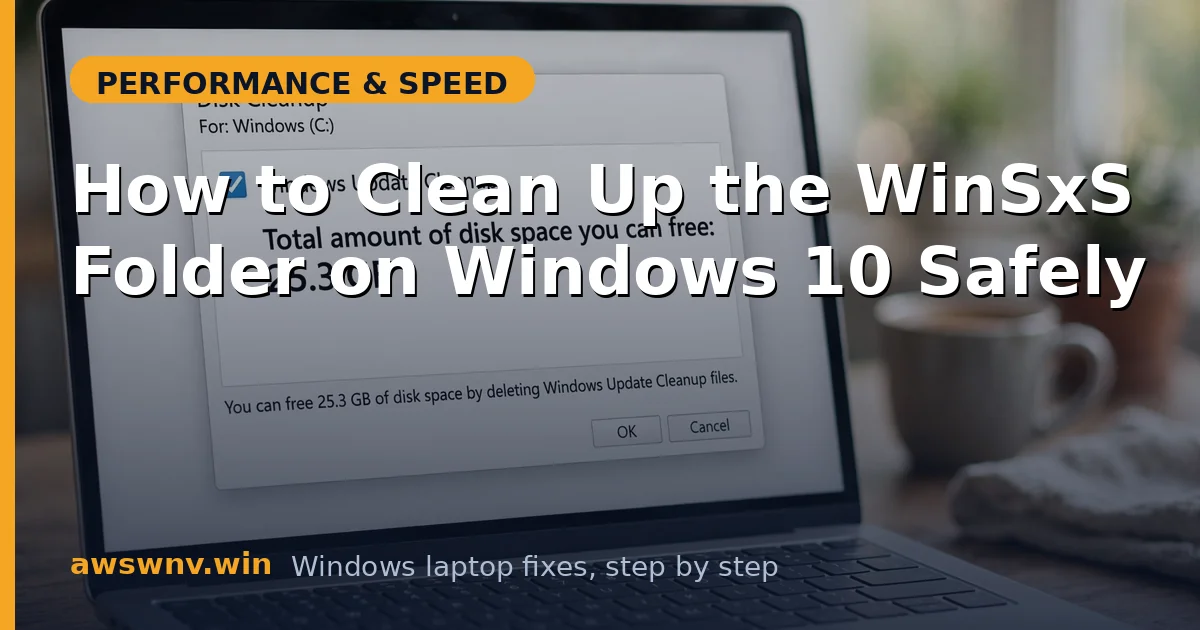
Win + R, typecleanmgr, select C:, and click Clean up system files. - Check Windows Update Cleanup, Delivery Optimization Files, Previous Windows installations (if present — that’s Windows.old, often 15–25 GB), and Temporary files.
- Click OK and let it run — Windows Update Cleanup is the GUI equivalent of component cleanup for update payloads.
- Alternatively: Settings > System > Storage > Temporary files offers the same categories in the modern UI.
- Caution with “Previous Windows installations”: deleting Windows.old removes your 10-day rollback option after a feature update — only delete it when you’re confident in the new build.
Fix 4: Consider /ResetBase — carefully
The deep clean with a real tradeoff.
- Only consider this when: the system is fully updated, stable for at least two weeks, and AnalyzeComponentStore still shows large reclaimable amounts.
- Run
DISM /Online /Cleanup-Image /StartComponentCleanup /ResetBase(elevated). - This removes all superseded component versions, including the baselines needed to uninstall updates — installed updates become permanent.
- The space gain over standard cleanup is usually modest (1–3 GB extra) — weigh it against losing rollback ability.
- After /ResetBase, immediately verify Windows Update still works (Settings > Windows Update > Check for updates) — it should, but confirm.
Fix 5: Clean up optional features and languages
Payloads for things you don’t use.
- Settings > Apps > Optional features — remove features you don’t need (extra language packs, legacy components, unused tools).
- Each removal also removes its WinSxS payload, shrinking the store.
- Check Settings > Time & language > Language — remove keyboard layouts and language packs you never use.
- For advanced users:
DISM /Online /Get-Featureslists all features;DISM /Online /Disable-Feature /FeatureName:Name /Removestrips a feature and its payload entirely. - Don’t remove features you might need (like .NET Framework versions or media features) — reinstalling them re-downloads the payload anyway.
Fix 6: Fix the automatic maintenance task
Stop the bloat from returning.
- Open Task Scheduler > Microsoft > Windows > Servicing — check the StartComponentCleanup task.
- It should be enabled with a regular trigger. If disabled, re-enable it — this is the automatic monthly cleanup.
- Check Task History for recent runs and their results — failed runs (often due to corrupt components) explain endless growth.
- If the task fails, run
DISM /Online /Cleanup-Image /RestoreHealthfirst, then trigger the task manually. - Microsoft documents servicing-stack maintenance at their Windows support hub if you need deeper troubleshooting.
Fix 7: Address the real disk pressure
WinSxS is rarely the actual disk hog — check the usual suspects.
- Run Settings > System > Storage and sort by category — user files (Documents, Downloads, videos) usually dwarf WinSxS.
- Check for Windows.old (previous installation) — often bigger than all of WinSxS combined.
- Clear Delivery Optimization cache and Temporary files via Storage settings.
- Move large personal files to external storage or cloud — no system tweak substitutes for managing your own data.
- If C: is still critically full after all cleanup, the honest fix is a larger drive — our slow laptop guide covers storage upgrade considerations.
Closing
The WinSxS folder looks like a problem and mostly isn’t — its size is inflated by hard links, and it’s supposed to be large. But the safe cleanup path is real: analyze with DISM, run StartComponentCleanup, use Disk Cleanup for update leftovers, and consider /ResetBase only when stable. Never delete WinSxS manually. Free the 2–8 GB that’s genuinely reclaimable, fix the automatic maintenance task so it stays clean, and look at your actual user files if disk pressure persists.