Every disk-space investigation on Windows eventually leads to the same suspect: C:\Windows\WinSxS, the component store, cheerfully reporting 12 or 15 gigabytes. It looks like the obvious thing to delete, and the internet is full of people asking whether they can. The short answer is no, you cannot delete it, but you can shrink it considerably with the right tools.
WinSxS is Windows’ parts warehouse. Every update, every optional feature, every repair operation draws from it. Its reported size is also misleading: much of it consists of hard links, where one physical file is counted multiple times by Explorer. The real disk cost is smaller than it looks, but on neglected systems it still grows large enough to matter.
This guide shows the two supported cleanup methods, Disk Cleanup and the DISM component cleanup commands, how much space to expect back, and the one command you should think twice about before running.
Why this happens
- Years of superseded updates: Each cumulative update leaves its replaced components in the store until cleanup runs.
- Hard-link size illusion: Explorer counts hard-linked files multiple times, making the folder look far bigger than its true cost.
- Never-run component cleanup: Windows 10 does not aggressively self-clean the store; manual cleanup is often years overdue.
- Staged optional features: Features like language packs and .NET versions keep their payloads in the store.
- Update backups retained: Superseded update packages are kept so updates can be uninstalled if they cause problems.
- Driver packages accumulated: Old driver versions staged by updates linger in the component store.
How to fix it
Work through these in order — diagnose first, then act.
Fix 1: Analyze the real WinSxS size first
Before cleaning, get the true number. DISM reports actual disk usage, cutting through the hard-link illusion.
- Open Command Prompt as administrator.
- Type Dism.exe /Online /Cleanup-Image /AnalyzeComponentStore and press Enter.
- Wait for the analysis to complete.
- Read the actual size versus the Explorer-reported size.
- If cleanup is recommended, proceed with the steps below.
Fix 2: Clean up with Disk Cleanup
The graphical method handles the common case and is the safest starting point.
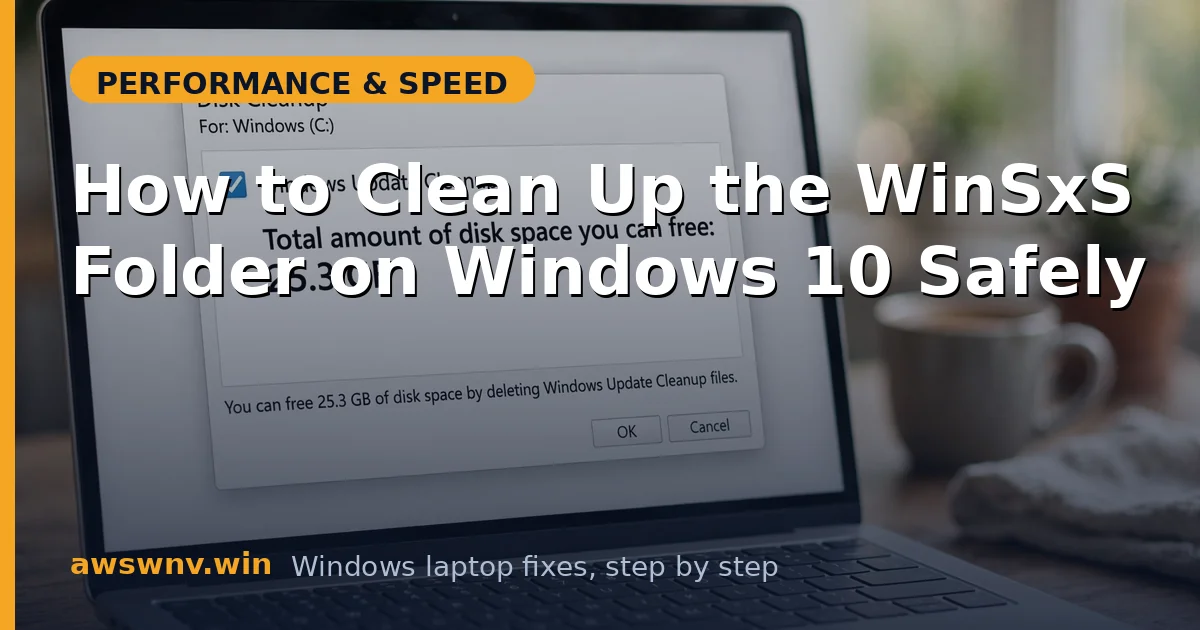
- Press Win+R, type cleanmgr, and press Enter.
- Select the C drive, then click Clean up system files.
- Check Windows Update Cleanup in the list.
- Click OK and confirm the deletion.
- This removes superseded update backups from the component store.
Fix 3: Run the DISM component cleanup
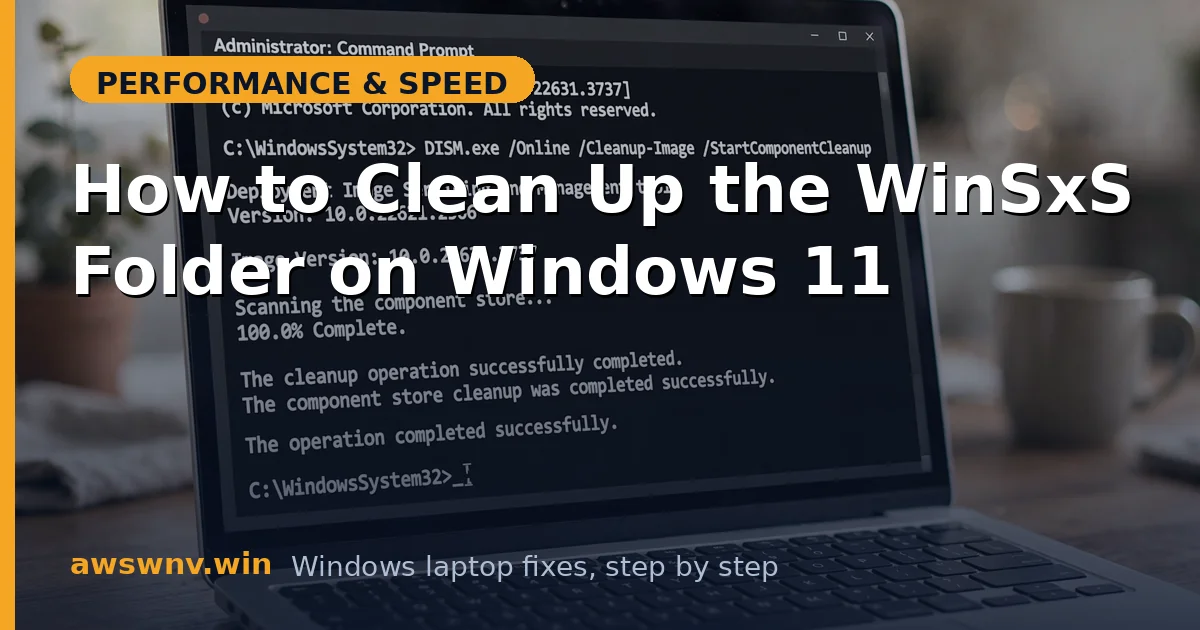
The command-line cleanup goes deeper than Disk Cleanup, removing superseded components directly from the store.
- Open Command Prompt as administrator.
- Type Dism.exe /Online /Cleanup-Image /StartComponentCleanup and press Enter.
- Let it run; it can take 10 to 30 minutes on a neglected system.
- Do not interrupt it or shut down while it works.
- Re-run the AnalyzeComponentStore command to see the new size.
Fix 4: Consider ResetBase only when desperate
ResetBase removes the ability to uninstall updates, freeing maximum space. It is irreversible, so weigh it carefully.
- Confirm the system is stable with all current updates for at least two weeks.
- Open Command Prompt as administrator.
- Type Dism.exe /Online /Cleanup-Image /StartComponentCleanup /ResetBase and press Enter.
- Wait for completion without interrupting.
- Understand that installed updates can no longer be uninstalled afterward.
Fix 5: Schedule automatic component cleanup
Windows includes a scheduled task for this, but verifying it runs prevents the store from ballooning again.
- Press Win+R, type taskschd.msc, and press Enter.
- Navigate to Task Scheduler Library, Microsoft, Windows, Servicing.
- Confirm StartComponentCleanup is present and enabled.
- Check its history to see when it last ran successfully.
- Leave it enabled; it handles maintenance quietly going forward.
Fix 6: Free space around WinSxS too
WinSxS is rarely the only hog. A broader cleanup multiplies the recovered space.
- Run Disk Cleanup with Temporary files and Delivery Optimization Files checked.
- Cap System Protection as described in our low disk space guide .
- Uninstall unused programs under Settings, Apps.
- Move large user folders to a second drive if available.
- Re-measure free space after the full pass.
Fix 7: Remove unused optional features
Optional features keep their payloads in the component store. Removing features you never enabled as capabilities still trims staged payloads.
- Open Settings, Apps, Optional features.
- Remove features like Internet Explorer mode helpers or legacy media components you never use.
- Open Control Panel, Programs, Turn Windows features on or off.
- Uncheck legacy components such as old .NET versions if nothing needs them.
- Run the DISM component cleanup again to purge the freed payloads.
Fix 8: Measure before and after to prove the savings
Documenting the numbers keeps you honest about what worked and gives you a baseline for next year.
- Run Dism.exe /Online /Cleanup-Image /AnalyzeComponentStore and note the actual size.
- Perform the cleanup steps from the fixes above.
- Re-run the analysis command and record the new size.
- Typical savings on a neglected system run 3 to 8 GB.
- Repeat the analysis yearly as part of routine maintenance.
Fix 9: Remove unused optional features
Optional features keep their payloads in the component store. Removing features you never enabled as capabilities still trims staged payloads.
- Open Settings, Apps, Optional features.
- Remove features like Internet Explorer mode helpers or legacy media components you never use.
- Open Control Panel, Programs, Turn Windows features on or off.
- Uncheck legacy components such as old .NET versions if nothing needs them.
- Run the DISM component cleanup again to purge the freed payloads.
Fix 10: Measure before and after to prove the savings
Documenting the numbers keeps you honest about what worked and gives you a baseline for next year.
- Run Dism.exe /Online /Cleanup-Image /AnalyzeComponentStore and note the actual size.
- Perform the cleanup steps from the fixes above.
- Re-run the analysis command and record the new size.
- Typical savings on a neglected system run 3 to 8 GB.
- Repeat the analysis yearly as part of routine maintenance.
Closing
WinSxS looks scary but responds well to the official tools: analyze first so you know the real number, clean with DISM, and reserve ResetBase for genuine emergencies. Never delete the folder by hand no matter what a forum post claims; the servicing stack depends on it. Pair the component cleanup with general disk hygiene and the C drive stays healthy for years. Our companion guide to reclaiming C drive space covers everything around the component store. Keep the scheduled component cleanup enabled and you will rarely need to think about WinSxS again. Microsoft documents the component store in its Windows support hub . Keep the scheduled component cleanup enabled and you will rarely need to think about WinSxS again. Microsoft documents the component store in its Windows support hub . For the broader picture beyond the component store, this disk-space checklist covers the other big wins.