Every laptop owner eventually finds it: C:\Windows\WinSxS, a folder reporting 10, 12, sometimes 15+ gigabytes, growing with every Windows update. The instinct is to delete it. Don’t — that instinct breaks Windows. But the frustration is legitimate, because WinSxS genuinely accumulates obsolete component versions that serve no purpose once updates are settled. The trick is removing only what’s truly superseded, using Microsoft’s own tools, in the right order.
This guide walks through the safe cleanup ladder: from the one-click Disk Cleanup to the deeper DISM commands, with clear notes on what each step sacrifices. If your whole drive is full, also see our 100% disk usage guide ; for general speed, speeding up Windows 11 .
Why this happens
- Every update keeps old component versions: Windows retains superseded files so updates can be uninstalled and repairs can run.
- Feature updates are the biggest growers: Each annual update leaves behind a full set of replaced components.
- Hard links inflate the reported size: Explorer counts shared files multiple times — the real footprint is smaller than shown.
- Cleanup never runs automatically: Without Storage Sense or manual cleanup, superseded components pile up for years.
- Failed updates leave debris: Interrupted updates can orphan component versions that normal servicing never reaps.
- Optional features and languages: Installed features and language packs each add their component sets to the store.
- Driver packages accumulate: Old driver versions staged in the component store add up over time.
How to fix it
Work through these in order — diagnose first, then act.
Fix 1: Measure the real WinSxS size
Know what you’re actually dealing with before cleaning.
- Open an elevated Command Prompt and run:
Dism.exe /Online /Cleanup-Image /AnalyzeComponentStore. - Read the output carefully: Actual size of component store is the truth; Explorer’s number is inflated by hard links.
- Note Backups and disabled features and Cache and temporary data — these are the reclaimable portions.
- The report also tells you whether a cleanup is recommended — if it says no, your store is already lean and the big number is mostly hard-link illusion.
- Typical real sizes: 6–9 GB is normal on an established system; much above that with cleanup recommended means real gains await.
Fix 2: Run Disk Cleanup with system files
The safest first pass — built into Windows.
- Press Win+R, type
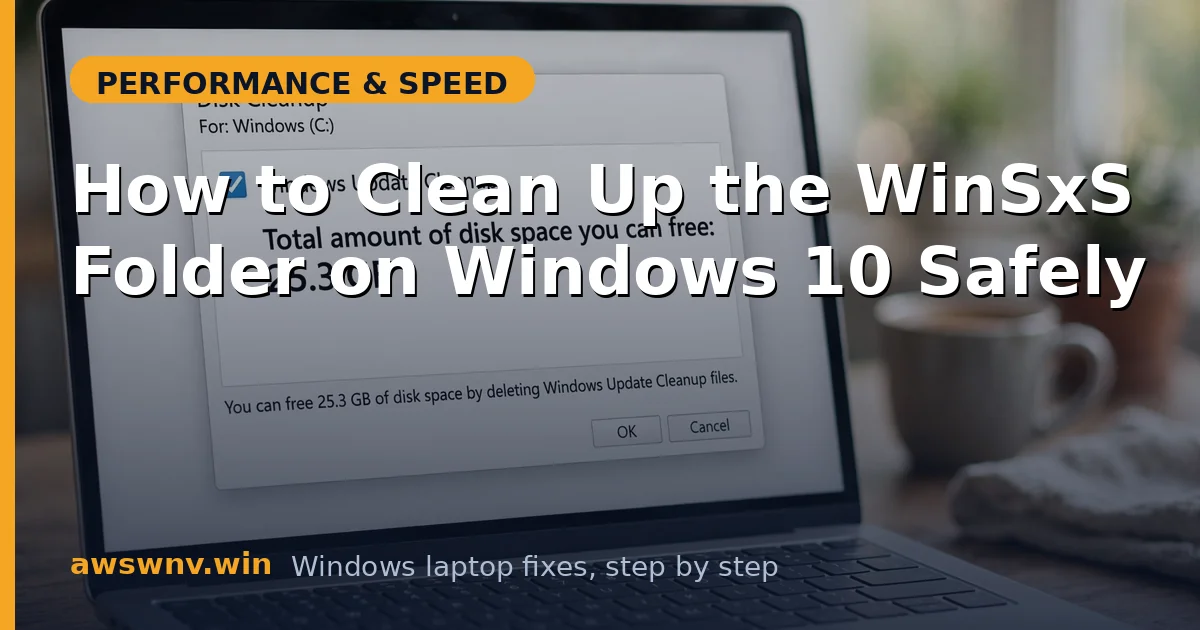
cleanmgr.exe, select your system drive, and click OK. - Click Clean up system files, select the drive again, and wait for the scan.
- Check Windows Update Cleanup, Temporary Windows installation files, and Delivery Optimization Files — these are the big WinSxS-related wins.
- Also check Previous Windows installations if present (that’s Windows.old — gigabytes of old system) — but only if you’re sure you won’t roll back.
- Click OK > Delete Files and let it finish — this alone often reclaims several gigabytes. Microsoft documents this on Windows support .
Fix 3: Run DISM component cleanup
The deeper, still-safe cleanup.
- Open an elevated terminal (right-click Start > Terminal (Admin)).
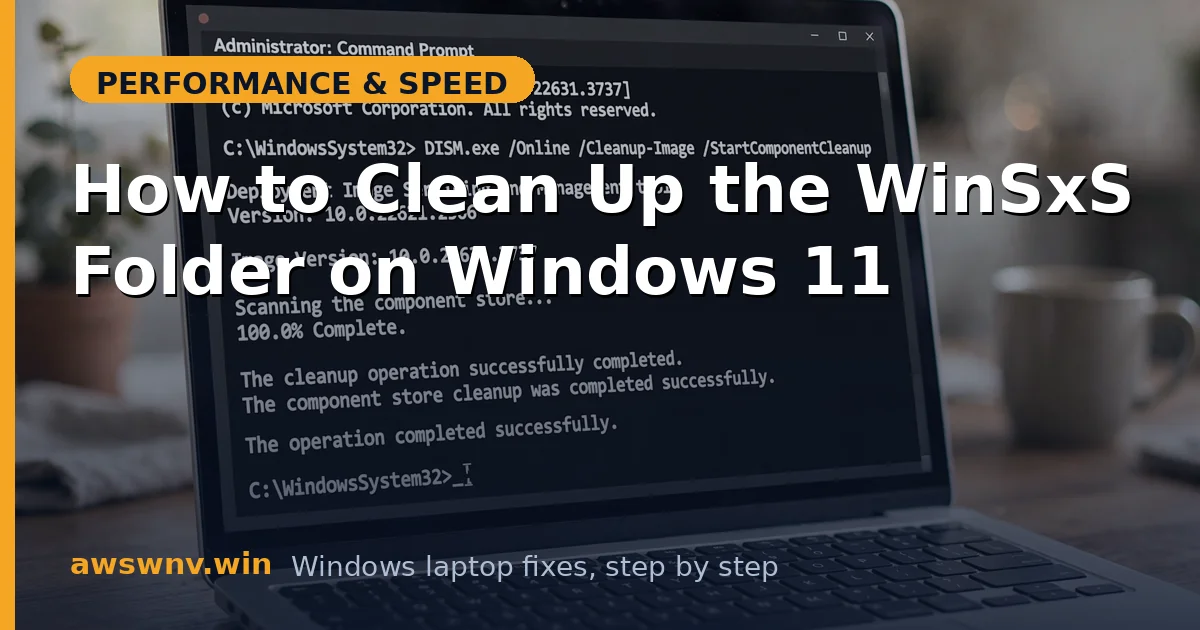
- Run:
Dism.exe /Online /Cleanup-Image /StartComponentCleanup— this removes superseded components but keeps the latest servicing state so you can still uninstall recent updates. - Wait for completion — it can take 10–30 minutes on a heavily bloated store. Don’t interrupt it.
- Re-run the analyze command from Fix 1 to measure what you gained.
- This is safe to run periodically — monthly is reasonable on an actively updated laptop.
Fix 4: Enable Storage Sense for automatic maintenance
Stop the problem from recurring.
- Go to Settings > System > Storage and turn on Storage Sense.
- Click into Storage Sense settings and configure it to run every month (or when disk space is low).
- Enable Delete previous versions of Windows if you never roll back feature updates — this auto-clears the massive Windows.old.
- Storage Sense runs the equivalent of component cleanup automatically, so WinSxS stays lean without you thinking about it.
- Check back in a month: run the DISM analyze command again to confirm the store is staying stable.
Fix 5: Remove unused optional features and languages
Shrink the store at the source.
- Go to Settings > Apps > Optional features and review the installed list.
- Remove anything you don’t use — extra language packs, legacy tools, XPS services — each removal shrinks future component store growth.
- In an elevated terminal, you can also run
Dism.exe /Online /Cleanup-Image /StartComponentCleanup /ResetBase— warning: this permanently removes the ability to uninstall current updates. Only do this on a stable system you’re confident about. - After ResetBase, verify Windows Update still works by checking for updates — it should, just without rollback for installed ones.
- For most users, the standard cleanup (Fix 3) plus feature pruning is plenty — ResetBase is for the space-desperate.
Fix 6: Clean up staged driver packages
Old drivers linger in the component store.
- In an elevated terminal, run
pnputil /enum-driversto list all staged third-party driver packages. - Identify old versions of drivers you’ve since updated (same device, older version/date) — be careful to only target true duplicates.
- Remove a specific old package with
pnputil /delete-driver oemXX.inf /uninstall(replace oemXX.inf with the actual published name). - Never remove drivers for hardware you still use — only superseded versions of the same driver.
- This is advanced; when in doubt, skip it — the gains are modest compared to component cleanup, and mistakes can disable hardware.
Fix 7: Consider the nuclear storage options
When WinSxS cleanup isn’t enough because the whole drive is tiny.
- Move personal files (Documents, Pictures, Videos) to an external drive or cloud storage — user data dwarfs WinSxS on most full drives.
- Uninstall large apps and games you don’t use: Settings > Apps > Installed apps, sort by size.
- If your laptop has a 128GB or smaller SSD that’s perpetually full, consider upgrading the SSD — prices have fallen dramatically and it’s the real fix for chronic space pressure.
- As a last resort, a clean Windows install from Microsoft’s Windows 11 download page starts with the leanest possible component store.
- After any major cleanup, re-run the DISM analyze to document your new baseline — future growth is then easy to spot.
Closing
The WinSxS folder looks scary but it’s mostly Windows doing its job — keeping the parts it needs to repair and update itself. Clean it with DISM and Disk Cleanup, automate it with Storage Sense, prune what you don’t need, and never delete it by hand. A lean component store and a laptop with breathing room are the same thing.