The C:\Windows\WinSxS folder: 15 GB, 20 GB, sometimes 30 GB, sitting on your SSD and growing with every update. It’s the number one “what is this and can I delete it” folder in Windows — and the answer is nuanced. You can’t delete it, you shouldn’t touch it manually, but you absolutely can (and should) clean it with the right tools. On Windows 11 24H2, the built-in cleanup is better than ever.
One important note before starting: Explorer lies about WinSxS size. The folder is full of hard links — multiple directory entries pointing to the same physical data — so Explorer counts shared files multiple times. The real disk cost is smaller than reported. Still, genuine bloat accumulates, and the safe cleanup below reclaims it. If disk space is your broader problem, also see freeing disk space on Windows 11 ; for update-component issues, Windows Modules Installer fixes .
Why this happens
- Superseded components accumulate: Every cumulative update leaves old component versions behind for rollback safety.
- Feature updates keep the old build: 24H2 upgrades retain previous-version components until cleanup runs.
- Hard links inflate reported size: Explorer’s number is misleading — but real growth still happens underneath.
- Cleanup tasks never ran: The automatic component cleanup task may be disabled or failing silently.
- Failed updates leave debris: Partially installed updates leave orphaned components the automatic cleanup misses.
- Language packs and features on demand: Unused languages and optional features each add their component weight.
- Driver packages in the driver store: Old driver versions staged in WinSxS-adjacent stores add up (separate cleanup below).
How to fix it
Work through these in order — diagnose first, then act.
Fix 1: Measure the real WinSxS size with DISM
Get the truth before cleaning.
- Open Terminal (Admin) and run:
DISM /Online /Cleanup-Image /AnalyzeComponentStore. - Read the output carefully: Actual Size of component store (the real disk cost) vs Shared with Windows (hard-linked, counted elsewhere too). The reclaimable amount is shown as Number of reclaimable packages.
- If reclaimable packages is 0 and actual size is modest, there’s nothing meaningful to clean — your “huge” WinSxS is mostly hard-link illusion. Skip to Fix 6 for other space wins.
- Note the Last Cleanup Date — if it’s ancient or “Unknown,” the scheduled cleanup isn’t running (Fix 5).
- This analysis is read-only and safe — run it anytime to check whether cleanup is worthwhile.
Fix 2: Run the standard component cleanup
The safe, reversible cleanup.
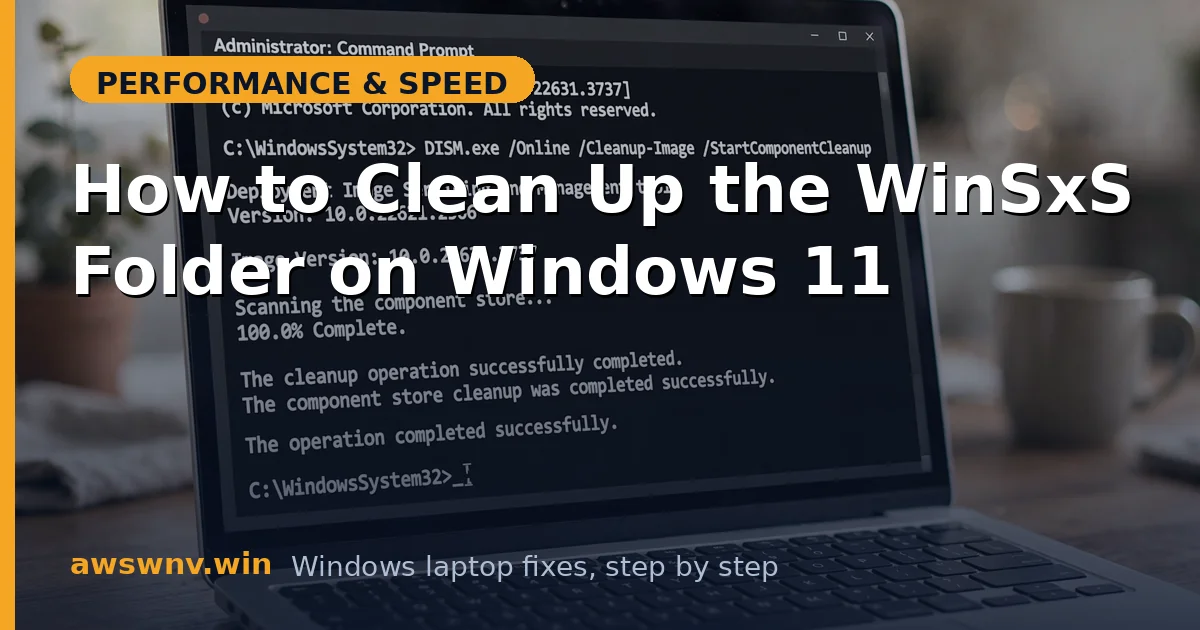
- In the same elevated terminal, run:
DISM /Online /Cleanup-Image /StartComponentCleanup. - This removes superseded component versions while keeping the ability to uninstall current updates — the safe middle ground.
- It takes 5–20 minutes and uses noticeable CPU/disk (TiWorker.exe will be busy — that’s the cleanup working, not a problem).
- When it finishes, re-run
/AnalyzeComponentStoreto see the new numbers — expect the reclaimable count to drop to near zero. - Do not interrupt it mid-run — killing DISM during component cleanup can leave the store in a worse state than you started with.
Fix 3: Disk Cleanup with system files
The GUI route that catches WinSxS-adjacent junk.
- Run
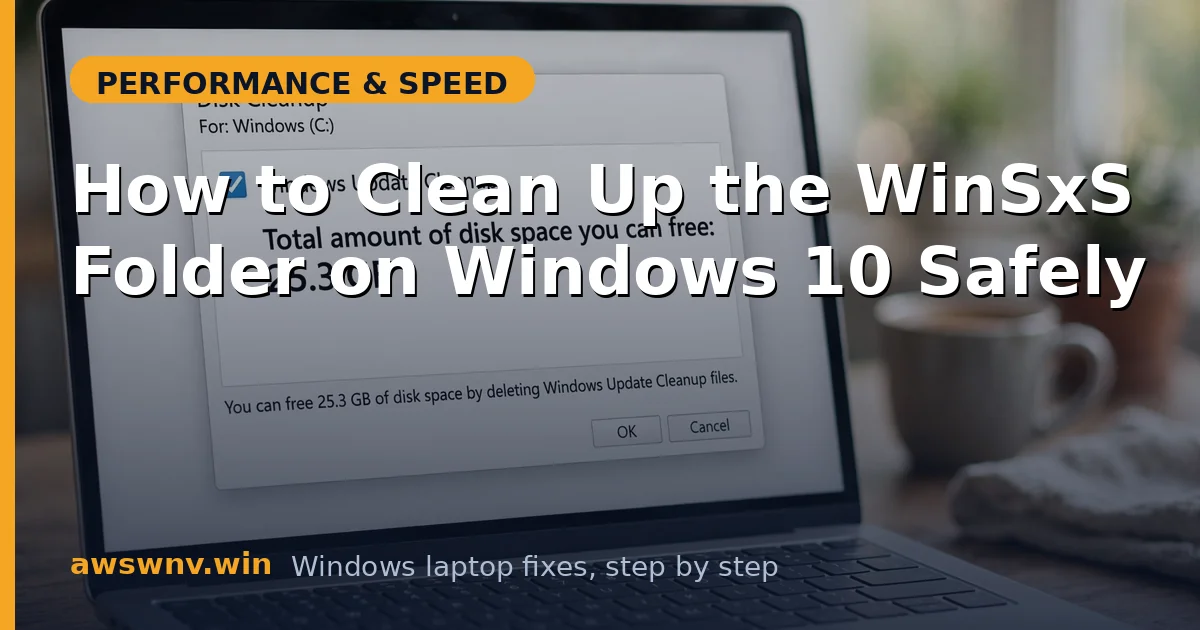
cleanmgr.exe, select your system drive, then click Clean up system files (this elevates and rescans). - Check Windows Update Cleanup — this is the GUI equivalent of the DISM component cleanup, often worth several GB.
- Also check Previous Windows installation(s) if present — after a 24H2 feature update this alone can be 15–25 GB (it’s the old Windows kept for 10-day rollback).
- Check Delivery Optimization Files and Device driver packages — both safe to remove (driver packages only removes old staged versions).
- Click OK and let it run — the “Windows Update Cleanup” phase is the slow one. Microsoft documents this tool on the Windows support hub .
Fix 4: The deep clean — StartComponentCleanup with ResetBase
Maximum reclaim, with a tradeoff.
- Understand the tradeoff first:
DISM /Online /Cleanup-Image /StartComponentCleanup /ResetBaseremoves the rollback data for currently installed updates — you won’t be able to uninstall them afterward. Future updates remain uninstallable. - Only run this when your system is stable and you’re happy with the current update set — ideally a week after Patch Tuesday with no issues.
- Run it elevated:
DISM /Online /Cleanup-Image /StartComponentCleanup /ResetBase. It takes longer than the standard cleanup. - Follow with
sfc /scannowto verify system integrity after the aggressive cleanup. - Re-run
/AnalyzeComponentStore— the component store should now be near its minimum maintainable size.
Fix 5: Fix the scheduled automatic cleanup
Stop the bloat from returning.
- Open Task Scheduler > Task Scheduler Library > Microsoft > Windows > Servicing — find StartComponentCleanup.
- Check its History tab — if it shows failures or hasn’t run in months, that’s why WinSxS grew unchecked.
- Right-click > Run to execute it manually now, and verify the Triggers tab has it scheduled (default: automatic maintenance).
- Ensure Automatic Maintenance itself runs: Control Panel > Security and Maintenance > Maintenance > check the scheduled time isn’t set to 3 AM on a laptop that’s always asleep — set it to a time the laptop is actually on.
- With automatic cleanup healthy, WinSxS growth stays bounded going forward — this is the “never think about it again” fix.
Fix 6: Clean the driver store and other space hogs
WinSxS isn’t the only system folder that bloats.
- The driver store (
C:\Windows\System32\DriverStore) holds old driver versions — clean it with Disk Cleanup > Device driver packages, or in Device Manager by uninstalling old device instances. - Run Storage Sense: Settings > System > Storage > Storage Sense > turn it on and click Run Storage Sense now — it clears temp files, recycle bin, and old downloads automatically.
- Check
C:\Windows\SoftwareDistribution\Download— stale update downloads; safe to clear via stopping the Windows Update service, renaming the folder, and restarting (covered in our update-cache guide). - Review installed optional features: Settings > Apps > Optional features — remove languages and features you don’t use; each carries component-store weight.
- For the full disk-space battle plan beyond WinSxS, see our SSD and storage optimization guide .
Fix 7: Verify health after cleanup
Make sure the cleanup didn’t break servicing.
- Run
DISM /Online /Cleanup-Image /ScanHealth— should report no corruption after a successful cleanup. - Run
sfc /scannow— verifies system files against the now-leaner component store. - Open Settings > Windows Update > Check for updates — confirm the update pipeline still works (install any pending update as the ultimate test).
- If DISM reports unfixable corruption after cleanup (rare), run
/RestoreHealthto re-download clean components. - Record your new WinSxS actual size from
/AnalyzeComponentStore— that’s your baseline; check it quarterly, not weekly.
Closing
WinSxS looks terrifying in Explorer and is mostly harmless — but the real bloat inside it is absolutely worth cleaning with DISM and Disk Cleanup. Measure with AnalyzeComponentStore, run the standard cleanup, use ResetBase only when you’re confident in your current updates, and make sure the scheduled task keeps it trimmed automatically. Never delete the folder by hand; let Windows’ own tools do the surgery. Your SSD gets gigabytes back, and Windows Update keeps working — everybody wins.