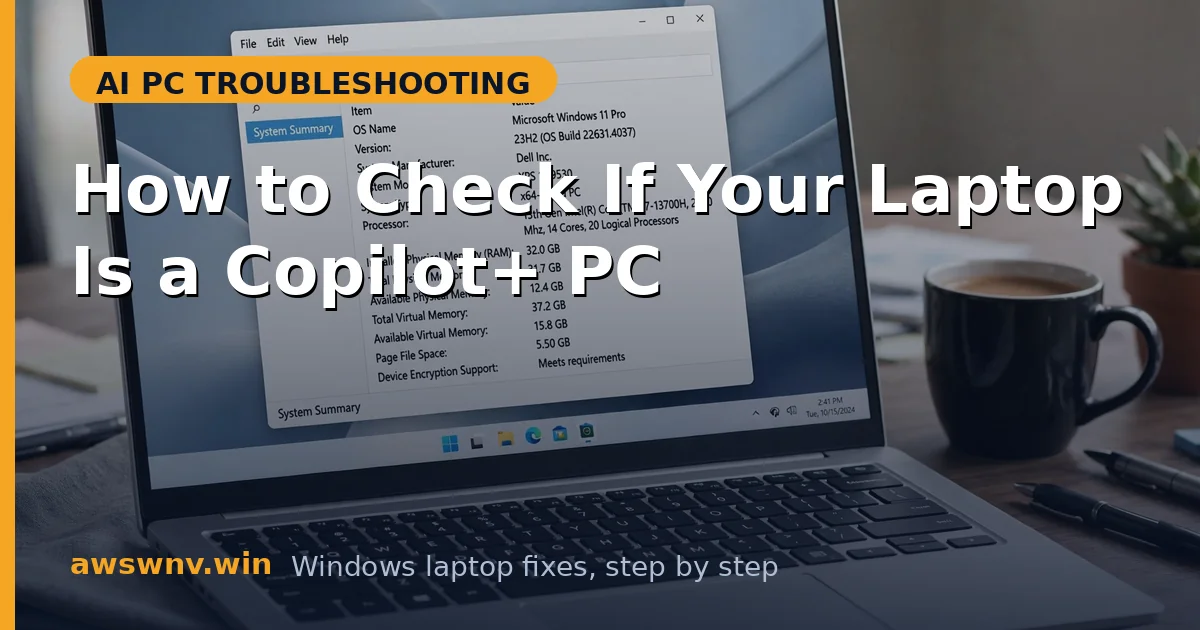
“Copilot+ PC” is printed on boxes, stickers, and ads — but what if you are not sure about your own machine? Maybe you bought it secondhand, or the listing was vague, or you just want to know whether those AI features Microsoft advertises will actually run on your hardware. Checking takes about five minutes.
A Copilot+ PC is not a vibe; it is a certification with hard requirements: an NPU delivering at least 40 TOPS, 16 GB of RAM, and 256 GB of storage, running Windows 11. Miss any one and the badge does not apply — even if the laptop has a Copilot key. If you want the full requirements breakdown, our Copilot+ PC requirements guide lists them in detail; for the broader question of AI compatibility, see is my laptop AI PC compatible .
Here are five checks, from fastest to most definitive.
Why this happens
- Confusing marketing: “AI laptop,” “AI-ready,” and “Copilot+ PC” are used loosely by sellers, often interchangeably and incorrectly.
- Copilot key confusion: The key appears on many non-Copilot+ laptops, misleading buyers.
- Secondhand purchases: Used listings rarely specify NPU TOPS, the key spec.
- Silent hardware revisions: The same model name can ship with different chips across regions or years.
- Missing stickers: The Copilot+ badge sticker may be absent even on qualifying machines.
How to fix it
Work through these in order — diagnose first, then act.
Fix 1: Look for the physical tells
Start with what you can see without opening anything.
- Check the keyboard for a dedicated Copilot key (usually near the right Alt or arrow keys). Its presence is a hint, not proof.
- Look for a “Copilot+ PC” sticker or badge on the palm rest or box.
- Find the exact model number on the bottom sticker or in Settings > System > About.
- Search that model number on the manufacturer’s website and check the specs page for “Copilot+ PC” branding or NPU details.
- If the manufacturer’s page does not mention Copilot+, be skeptical of any seller claim.
- Physical tells are fast but never definitive — always confirm with the hardware checks below.
Fix 2: Check the NPU in Task Manager
The NPU is the heart of the certification. No qualifying NPU, no Copilot+ PC.
- Press Ctrl + Shift + Esc to open Task Manager.
- Go to the Performance tab and look for an “NPU” entry in the left column.
- If present, click it — Task Manager shows the NPU’s current activity and sometimes its TOPS rating.
- If there is no NPU entry, your laptop lacks the required neural processor.
- Cross-check in Device Manager: expand “Neural processors” and note the exact device name (e.g., Intel AI Boost, AMD Ryzen AI, Qualcomm Hexagon).
- Knowing the exact NPU model lets you look up its TOPS rating, which is the next check.
Fix 3: Verify the 40 TOPS threshold
Microsoft’s line in the sand is 40 trillion operations per second from the NPU.
- Take the NPU model name from Fix 2 (for example, “Intel Core Ultra 7 155H” or “Snapdragon X Elite”).
- Search the chipmaker’s official specs: Intel, AMD, and Qualcomm all publish NPU TOPS figures.
- Compare against 40 TOPS. Snapdragon X series (45 TOPS) qualifies; Intel Core Ultra 100 series (~11 TOPS NPU) does not; Core Ultra 200 series (up to 48 TOPS) does; AMD Ryzen AI 300 series (50+ TOPS) does.
- If your NPU is under 40 TOPS, the laptop cannot be a Copilot+ PC regardless of branding.
- Our guide on how to check NPU TOPS on Windows 11 walks through reading the exact figure from your system.
- Write the number down — you will need it for any future AI-feature troubleshooting.
Fix 4: Confirm RAM and storage minimums
The NPU gets the attention, but RAM and storage are also certification requirements.
- In Task Manager > Performance > Memory, check total installed RAM. Copilot+ requires 16 GB minimum.
- In Settings > System > Storage, confirm at least 256 GB of storage.
- Also confirm you are running Windows 11 (Settings > System > About) — Copilot+ features do not exist on Windows 10.
- A machine with a 45-TOPS NPU but only 8 GB of RAM still fails certification.
- If RAM is the only miss and your laptop has upgradeable slots, a RAM upgrade is the cheapest path closer — though it still will not conjure a faster NPU.
- All three (NPU, RAM, storage) plus Windows 11 must pass together.
Fix 5: Run Microsoft’s PC Health Check
For an official verdict, use Microsoft’s own tool.
- Download the PC Health Check app from Microsoft’s official site.
- Install and run it, then check the Windows 11 eligibility section and any AI/Copilot+ indicators.
- The tool reads your exact hardware and reports compatibility directly.
- Compare its verdict with your manual checks — they should agree.
- If they disagree, trust the manual NPU TOPS figure; marketing tools occasionally lag behind new chips.
- Screenshot the results for your records, especially useful when buying secondhand or disputing a listing.
Fix 6: Know what to do with the answer
The check is only useful if you act on it.
- If your laptop qualifies: enable and enjoy Recall, Studio Effects, Live Captions, and Click to Do — and troubleshoot them with our AI-feature guides when needed.
- If it falls short on NPU: no software, update, or settings change will fix that. See our honest take on whether you can upgrade a laptop to a Copilot+ PC .
- If it falls short only on RAM: check whether your model allows RAM upgrades.
- If you were misled by a listing, you now have documented specs to support a return or dispute.
- Either way, also verify the subtler question with check if your laptop has an NPU — some AI features work with weaker NPUs even without the full badge.
Closing
Checking Copilot+ status is a specs exercise, not a guessing game: NPU at 40+ TOPS, 16 GB RAM, 256 GB storage, Windows 11. The Copilot key and marketing stickers are hints at best. Five minutes with Task Manager and the chipmaker’s spec sheet gives you a definitive answer — and tells you exactly which AI features you can expect to work.