On a Snapdragon laptop, not all apps are created equal. Some run natively on your ARM chip — fast, cool, efficient. Others run through Prism emulation — slower, hotter, thirstier. The difference is invisible in the Start menu but enormous in daily use, and most owners never check which is which. They just feel that “some apps are slow” without knowing why.
Knowing how to check an app’s architecture turns vague frustration into an actionable list: these five apps are native and fine, these three are emulated and worth replacing. It takes about two minutes to audit your most-used programs, and the payoff is immediate — every emulated heavyweight you swap for a native build is free performance. This matters doubly because emulated apps are also the ones most likely to hit missing drivers on Windows on ARM when they talk to hardware.
This guide shows three reliable methods, from quickest to most thorough. If you discover that a key app is emulated and sluggish, our guide to x86 apps running slow on Snapdragon picks up where this one leaves off. And if you’re setting up displays or docks, note that architecture also affects peripheral software — covered in external monitor issues on Snapdragon laptops . Security software deserves the same scrutiny, since antivirus drivers are architecture-sensitive too — see antivirus on Windows on ARM .
Why this happens
- Two architectures, one Start menu: Windows on ARM runs ARM64-native and emulated x86/x64 apps side by side with no visual distinction, so you can’t tell by looking.
- Vendors ship mixed builds: Many developers offer ARM64 installers buried on their download pages while the default download button still serves x64.
- Store apps auto-select: The Microsoft Store silently picks ARM64 when available, which is convenient but hides what’s actually installed.
- Hybrid ARM64EC binaries: Some apps mix native and emulated code, making their architecture ambiguous in simple checks.
- Updates can regress: An app that’s native today might get replaced by an x64 build during a sloppy update, silently reintroducing emulation.
- 32-bit leftovers persist: Old utilities and plugins install as x86 without warning, taking the slowest emulation path.
How to fix it
Work through these in order — diagnose first, then act.
Fix 1: Check architecture in Task Manager (fastest)
This is the one method every Snapdragon owner should know. It shows the live architecture of every running process in seconds.
- Press Ctrl + Shift + Esc to open Task Manager.
- Switch to the Details tab (click “More details” first if you see the simple view).
- Right-click any column header and choose “Select columns.”
- Scroll down and check the box for “Architecture,” then click OK.
- Read the new column: ARM64 = native, x64 = emulated 64-bit, x86 = emulated 32-bit.
Fix 2: Inspect the executable file directly
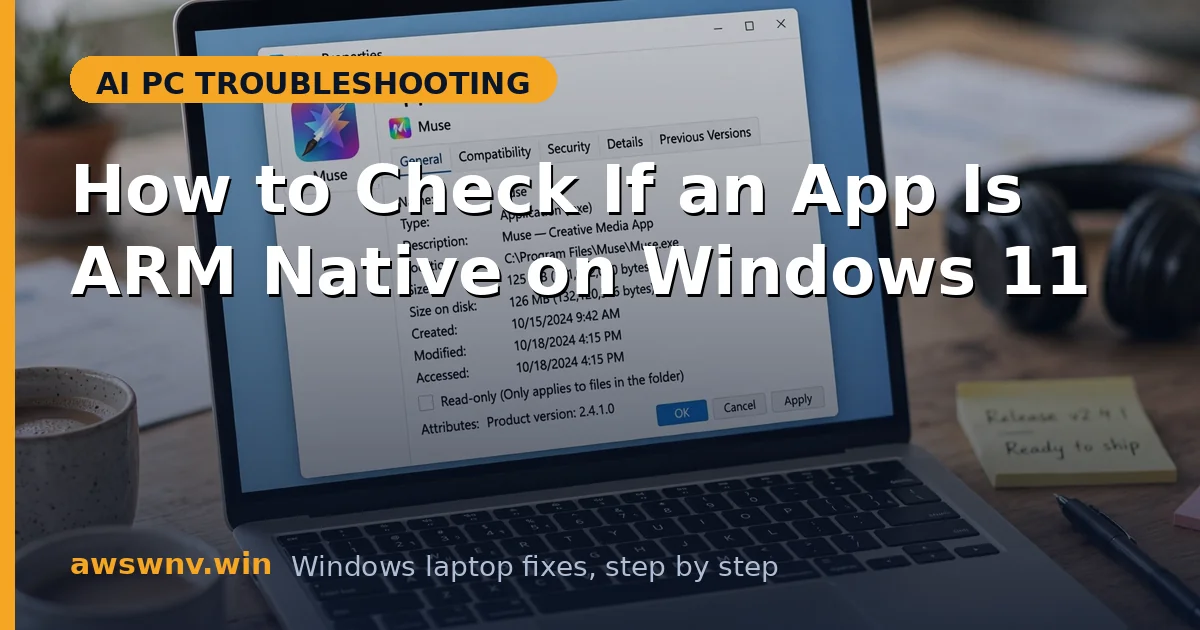
Task Manager only shows running apps. To check a program before launching it — or to confirm what an installer will deploy — inspect the file itself.
- Navigate to the app’s .exe (usually in Program Files or Program Files (x86)).
- Right-click the .exe > Properties. (There’s no architecture tab, so this is just step one.)
- Note the folder: “Program Files (Arm)” or an “arm64” subfolder strongly suggests native.
- “Program Files (x86)” means 32-bit x86 — the slowest path, worth replacing.
- Plain “Program Files” is ambiguous — combine with the Task Manager check while the app runs.
Fix 3: Audit your daily apps and make a hit list
One-off checks are useful; a systematic audit is transformative. Spend ten minutes once and you’ll know exactly where your emulation tax goes.
- List the 8–10 apps you use daily (browser, Office, chat, creative tools, IDE).
- Launch each one and record its Architecture column value from Task Manager.
- Mark every x64 result as “replace candidate” and every x86 as “replace urgently.”
- For each candidate, search “[app name] ARM64 download” — most major apps have one now.
- Re-audit after major updates, since installers sometimes regress to x64.
Fix 4: Replace emulated apps with native builds
Finding the problem is half the job; the fix is installing the right build. Prioritize by how heavy the app is — browsers and creative tools first.
- Download the ARM64 build from the vendor’s site (look for “ARM64,” “Windows on ARM,” or “Snapdragon” labels).
- Uninstall the x64 version first to avoid duplicate entries and file-association fights.
- Install the ARM64 build and confirm in Task Manager that it reports ARM64.
- For apps with no ARM64 build, evaluate native alternatives (e.g., ARM64-native browsers and editors abound).
- Keep a short list of irreplaceable x64-only tools — these are your candidates for remote-desktop offloading.
Fix 5: Verify Store apps installed natively
Microsoft Store apps should auto-select ARM64, but “should” isn’t “did.” A quick verification catches the exceptions.
- Open the Microsoft Store > Library and note your installed apps.
- For any heavy Store app that feels slow, check its running architecture in Task Manager.
- If it shows x64, uninstall and reinstall from the Store — the reinstall usually corrects the architecture.
- Check the app’s Store listing for system requirements mentioning ARM — its absence hints the dev never shipped ARM64.
- Report x64-only Store apps to the developer; ARM64 demand drives their roadmap.
Fix 6: Watch for architecture regressions after updates
An app that’s native today can silently become emulated tomorrow if an updater pulls the wrong build. A periodic re-check keeps you honest.
- After any major app update, glance at the Architecture column for your key apps.
- If a previously ARM64 app now shows x64, reinstall from the vendor’s ARM64 installer.
- Disable auto-update for apps with a history of regressing, updating manually instead.
- Keep the ARM64 installer files in a folder so reinstalls are quick.
- Set a quarterly reminder — five minutes, four times a year, keeps the whole system native.
Closing
Checking app architecture is the highest-leverage two minutes in Windows-on-ARM ownership. Task Manager’s Architecture column turns “my laptop feels slow” into a precise, fixable list — and every x64 heavyweight you convert to ARM64 pays back in speed and battery life daily. Make the audit a habit after updates, and your Snapdragon laptop will keep feeling like the fast, cool machine it’s supposed to be. If an app shows ARM64 and still misbehaves, the problem lies elsewhere — drivers, settings, or the app itself — and deserves its own diagnosis.