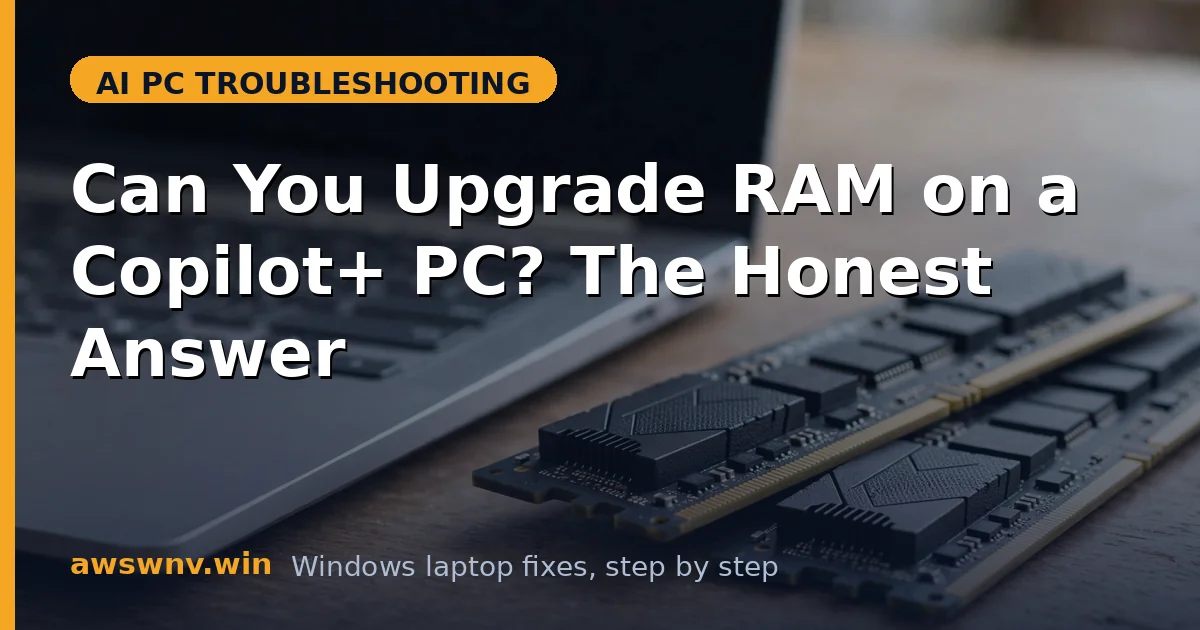
RAM is the quiet gatekeeper of the AI PC era. Everyone obsesses over NPU TOPS, but it is memory that determines whether those AI models actually run — or stutter, or refuse to load at all. Microsoft drew the line at 16 GB for Copilot+ PCs, and unlike some marketing numbers, this one is grounded in how AI workloads physically work.
The reason is architectural. An AI model is a giant file of numbers (weights) that must sit in memory while the feature runs. Windows’ on-device models are gigabytes in size, and they share RAM with everything else your laptop is doing. Drop below the floor and the system starts paging to disk — at which point your “AI PC” feels slower than a normal laptop. For the full hardware picture, see our Copilot+ PC requirements ; for the buying context, our AI laptop buying guide .
Here is how to think about RAM for AI PCs, honestly.
Why this happens
- Resident models: On-device AI keeps multi-gigabyte models loaded in RAM continuously.
- Shared memory: The NPU, CPU, and GPU all draw from the same system RAM pool on most laptops.
- Multitasking reality: AI features run alongside browsers, Office, and calls — not instead of them.
- Future growth: Models get larger over time; today’s comfortable margin is tomorrow’s minimum.
- Soldered decisions: Most AI laptops solder RAM, making the purchase choice permanent.
How to fix it
Work through these in order — diagnose first, then act.
Fix 1: Understand the 16 GB floor
Why Microsoft chose this number, and why it is real.
- Windows itself needs roughly 4 GB for comfortable operation with modern apps open.
- A browser with real tabs open easily claims another 2-4 GB.
- On-device AI models (the ones behind Recall, live translation) need several GB resident.
- Add headroom for spikes and you land at 16 GB as the genuine minimum for AI features plus normal work.
- At 8 GB, enabling AI features means constant paging — the machine feels worse, not smarter.
- This is why the Copilot+ spec mandates 16 GB: below it, the features cannot deliver their promised experience.
Fix 2: Decide if you need 32 GB
The step up is real but narrow in audience.
- You need 32 GB if: you run local LLMs (7B+ parameter models), Stable Diffusion, or heavy ML development.
- You need 32 GB if: you edit 4K video or huge Photoshop files while AI features run in the background.
- You do not need 32 GB for: Recall, Studio Effects, Live Captions, Copilot chats, or any built-in Windows AI feature — 16 GB handles all of these.
- Price the difference: if 32 GB costs little extra on your chosen model, it is cheap future-proofing.
- If it costs a lot, skip it — put the money toward a better screen or larger SSD instead.
- Our do I need an NPU laptop guide pairs with this: match memory to your actual AI workload, not anxiety.
Fix 3: Check whether your RAM is upgradeable
Before worrying, see if the question is even permanent.
- Find your laptop’s service manual on the manufacturer’s support site.
- Look for SODIMM slots versus “soldered” / “onboard” memory.
- Two SODIMM slots: fully upgradeable — buy RAM later if needed, no stress now.
- One soldered + one slot (common on some models): partially upgradeable.
- Fully soldered (most thin-and-lights): the purchase-time choice is forever — choose carefully now.
- If upgradeable and you are at 8 GB, a 16 GB kit is one of the cheapest meaningful upgrades in computing.
Fix 4: Measure your actual usage before deciding
Data beats speculation. See what you really consume.
- Open Task Manager > Performance > Memory during your heaviest normal workload.
- Note the “In use” figure and the percentage. Sustained usage above 80% means you are tight.
- Now enable the AI features you use (Studio Effects on a call, Live Captions) and watch the number climb.
- If 16 GB keeps you under ~75% at your heaviest, you are comfortable.
- If you are buying and cannot test, assume your usage will grow — software bloat is the one constant.
- Students and office workers: 16 GB. Creators and local-AI tinkerers: 32 GB. That covers nearly everyone.
Fix 5: Optimize what you have
If you are stuck at 8 GB or a tight 16 GB, make every gigabyte count.
- In Task Manager > Startup apps, disable everything you do not need at boot — each one eats resident RAM.
- Browser discipline matters most: each tab is 100-300 MB. Use tab sleep features and close what you are not reading.
- Disable AI features you do not use — Recall snapshots and background AI services consume memory even idle.
- In Settings > Apps, check background app permissions and set unused apps to Never.
- Consider a clean Windows install if the machine came bloated — OEM bloatware is a RAM tax.
- These optimizations recover gigabytes, but they cannot conjure what soldered 8 GB lacks for real AI work.
Fix 6: Buy right next time
RAM regrets last the life of the laptop. Avoid them.
- Default to 16 GB for any AI-capable laptop purchase in 2026 — treat 8 GB configurations as non-starters.
- Choose 32 GB if you identified a real need in Fix 2, or if the price gap is small.
- Prefer models with at least one SODIMM slot if upgradability matters to you — check before buying, not after.
- Do not let a low price on an 8 GB “AI laptop” tempt you — the NPU cannot compensate for starved memory.
- When comparing two models, RAM differences outweigh small NPU TOPS differences for real-world smoothness.
- And if the budget forces a choice between 32 GB RAM and a bigger NPU, take the RAM — it benefits every single task, AI or otherwise. For the full value question, see is a Copilot+ PC worth it .
Closing
RAM for AI PCs is refreshingly uncomplicated: 16 GB is the real floor, 32 GB is for defined heavy workloads, and 8 GB is a trap no NPU can rescue. Because most AI laptops solder their memory, this is a buy-once decision — so make it with your actual usage in mind, not the sticker. Get the memory right and the NPU has room to do its job; get it wrong and even 50 TOPS will feel sluggish. On Snapdragon X laptops specifically, RAM pressure can also masquerade as app failures — see app not working on Snapdragon X laptop if programs misbehave.