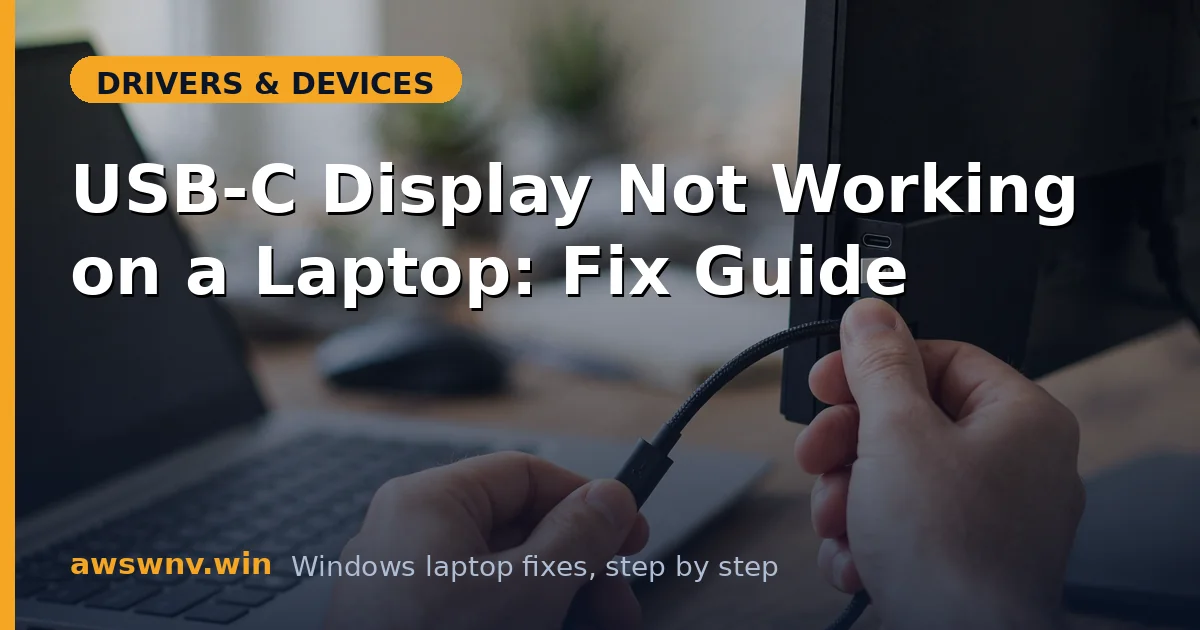
USB-C promised one cable for everything — power, data, and video. When the video part doesn’t work, the causes hide in a negotiation most users never see: the laptop and monitor must agree on DisplayPort Alt Mode over specific high-speed lanes, and any weak link — port, cable, driver, dock, or monitor setting — breaks the handshake silently. This guide works through each link.
The single most important fact: USB-C is a connector shape, not a capability guarantee. Two identical-looking ports on the same laptop can differ — one with Alt Mode, one without. Always start by confirming your specific port supports video output before troubleshooting anything else. For monitors connected over HDMI or DisplayPort instead, see external monitor not detected .
Why this happens
- Port lacks DisplayPort Alt Mode: The USB-C port is data/charging only and physically cannot output video.
- Wrong cable: A charging-only or USB 2.0 cable lacks the high-speed lanes that carry the video signal.
- Alt Mode negotiation failure: The laptop and monitor fail to agree on video mode, often due to driver issues.
- Outdated graphics or Thunderbolt driver: The GPU or Thunderbolt controller driver doesn’t handle the Alt Mode handshake correctly.
- Dock limitations: The dock can’t pass through the required bandwidth or needs a firmware update.
- Monitor input misconfigured: The monitor’s USB-C input is set to the wrong mode or has video disabled in its menu.
- Too much bandwidth demanded: Resolution plus refresh rate exceeds what the cable, port, or dock can carry.
- Power delivery conflicts: The monitor tries to charge the laptop at a wattage the laptop rejects, stalling the whole negotiation.
How to fix it
Work through these in order — diagnose first, then act.
Fix 1: Verify the port supports video output
Check your laptop’s specifications on the maker’s site for each USB-C port — look for “DisplayPort Alt Mode,” “DP Alt Mode,” or the Thunderbolt symbol (a lightning bolt) next to the port. Ports marked with only a battery/charging icon or “SS” (SuperSpeed) may not carry video. If you have multiple USB-C ports, test each one; manufacturers often make only one port video-capable. If no port supports Alt Mode, stop here — use HDMI or a DisplayLink-based dock instead.
- Look up your exact model’s port specifications.
- Identify ports marked with DP Alt Mode or Thunderbolt symbols.
- Test each USB-C port with the monitor.
- Check for charging-only markings on the ports.
- Use HDMI as fallback if no port supports video.
Fix 2: Use a full-featured cable
Swap to a cable explicitly rated for video: a Thunderbolt 3/4 cable, or a USB-C cable marked USB 3.2 Gen 2 / 10Gbps or higher. Keep it short — under 1 meter is ideal for high resolutions. Avoid the thin cable that came with your phone charger; it’s almost certainly charging-only. If you’re buying, a certified Thunderbolt 4 cable is the safest universal choice for USB-C video. Retest after the swap before touching any software.
- Replace the cable with a Thunderbolt or 10Gbps-rated USB-C cable.
- Keep the cable under 1 meter for high resolutions.
- Avoid phone charger cables (usually charging-only).
- Try the cable in both orientations (USB-C is reversible but test anyway).
- Retest before changing any software settings.
Fix 3: Update graphics and Thunderbolt drivers
Download the latest graphics driver from your GPU maker — NVIDIA’s download page , AMD’s driver support , or Intel’s Driver & Support Assistant for integrated graphics. If your laptop has Thunderbolt ports, also update the Thunderbolt controller driver and firmware from the laptop maker’s support page. Reboot with the monitor connected so the fresh drivers negotiate Alt Mode from a clean state.
- Identify your GPU and Thunderbolt controller in Device Manager.
- Install the latest graphics driver with clean install option.
- Update Thunderbolt drivers/firmware from the laptop maker.
- Reboot with the monitor connected via USB-C.
- Check whether the display is detected.
Fix 4: Configure the monitor’s USB-C input
Open the monitor’s on-screen menu and find the USB-C input settings. Enable any “USB-C video,” “Alt Mode,” or “DP Alt Mode” option; some monitors default the USB-C port to data-only. Check for a “USB-C priority” or bandwidth setting — options like “High Resolution” vs “High Data Speed” split the port’s bandwidth, and choosing High Data Speed can starve video. Also verify the monitor isn’t trying to deliver more charging wattage than the laptop accepts, which can stall negotiation.
- Open the monitor’s OSD menu.
- Enable USB-C video / Alt Mode on the input.
- Set USB-C priority to High Resolution if available.
- Check the monitor’s USB-C power delivery setting.
- Save and let the monitor re-detect the input.
Fix 5: Lower the bandwidth demand
If the monitor is detected but shows nothing (or flickers), you may be asking for more bandwidth than the chain supports. In Windows Display settings, lower the external monitor to 1080p at 60Hz as a test. If that works, step up gradually to find the ceiling. In the GPU control panel, try a lower refresh rate or disable HDR on that display. This is especially relevant through docks, which often halve the available video bandwidth. For flicker specifically, see second monitor flickering .
- Set the external display to 1080p 60Hz as a test.
- Increase resolution step by step to find the ceiling.
- Disable HDR on the USB-C display.
- Try a lower refresh rate in Advanced display settings.
- Note the working ceiling for daily use.
Fix 6: Bypass or update the dock
Connect the monitor directly to the laptop with your full-featured cable, bypassing any dock. If direct connection works, the dock is the bottleneck: check the dock maker’s site for firmware updates (many docks update via a Windows utility), try different ports on the dock, and confirm the dock’s own specifications support your resolution. Some docks need their power adapter connected to pass video reliably; Microsoft’s Windows support pages cover the multiple-display setup basics.
- Connect the monitor directly to the laptop, bypassing the dock.
- If direct works, update the dock’s firmware.
- Try different video ports on the dock.
- Ensure the dock’s power adapter is connected.
- Verify the dock’s rated resolution support.
Fix 7: Reset the display configuration
In Windows, press Win + Ctrl + Shift + B to restart the graphics driver — the screen will blink and the driver renegotiates all connected displays, including Alt Mode. If that fails, open Device Manager, uninstall the display adapter (keeping driver files), and reboot. As a final software step, test with a different monitor or TV over USB-C if available; success with another display points at the original monitor’s USB-C implementation rather than your laptop. For laptops that won’t detect any second screen, see second monitor not detected .
- Press Win + Ctrl + Shift + B to restart the graphics driver.
- Uninstall the display adapter in Device Manager and reboot.
- Test with a different USB-C display if available.
- Try the monitor on a different laptop to isolate the fault.
- Contact the monitor maker if their USB-C input is the problem.
Closing
USB-C video failures are negotiation failures, and the fix is almost always in the physical chain: the right port, the right cable, current drivers. Verify Alt Mode support first, use a proper full-featured cable, and keep graphics and Thunderbolt drivers fresh. Once the handshake succeeds, USB-C single-cable setups are genuinely convenient — it’s just the getting there that needs this checklist.