You plug in the USB-C charger, the connector clicks in satisfyingly, and… nothing. No charging icon, no LED change, no percentage movement. USB-C charging is a negotiation between three parties — the laptop, the charger, and the cable — and when any one of them cannot hold up its end, the deal falls through silently. The good news: the negotiation leaves clues, and working through them systematically finds the weak link fast.
This guide is the hands-on companion to the general troubleshooting walkthrough. Start with the thirty-second physical checks, because hardware causes the vast majority of USB-C charging failures.
Why this happens
- Wrong port: Only specific USB-C ports on many laptops accept charge; the rest are data-only.
- Underpowered charger: Phone chargers and weak adapters cannot meet a laptop’s Power Delivery requirements.
- Inadequate cable: Cables without proper PD rating or a damaged e-marker chip fail the wattage handshake.
- Dirty or worn port: Lint, dust, or bent pins break the negotiation contacts.
- Driver corruption: USB host controller or battery driver faults block charging in software.
- BIOS/EC issue: Disabled Type-C charging in firmware, or a PD negotiation bug awaiting an update.
How to fix it
Work through these in order — hardware first, software second, firmware last.
Fix 1: Use the correct port and check the connection
Thirty seconds that solves a surprising number of cases.
- Identify the charging-capable USB-C port by the battery or plug icon printed beside it.
- Plug the charger firmly into that port — USB-C should seat with a solid click, not feel loose.
- Flip the connector over and try again; one side’s contacts may be worn or dirty.
- Try every USB-C port on the machine, waiting 10 seconds each, in case the icon is misleading.
- If one port works and others do not, you have your answer — use the working port and treat the others as data-only.
Fix 2: Match the wattage properly
Power Delivery only works when the charger can actually deliver.
- Read your laptop’s required wattage from the original charger label or the spec sheet.
- Read your USB-C charger’s label and confirm it lists USB-PD output at or above that wattage — not just a total that includes lower-voltage modes.
- Remember that docks and monitors with USB-C often supply only 15 to 65W, which may be too little for your machine.
- Test with a charger you know meets the requirement — a borrowed laptop brick is ideal for this.
- If a proper-wattage charger works, your old charger was the problem all along. Our guide on underpowered chargers explains the wattage math.
Fix 3: Replace the cable with a rated one
The cable is guilty more often than people expect.
- Swap in a cable explicitly labeled for 60W or 100W USB Power Delivery.
- Prefer shorter cables from reputable brands — long, thin, no-name cables are the worst offenders.
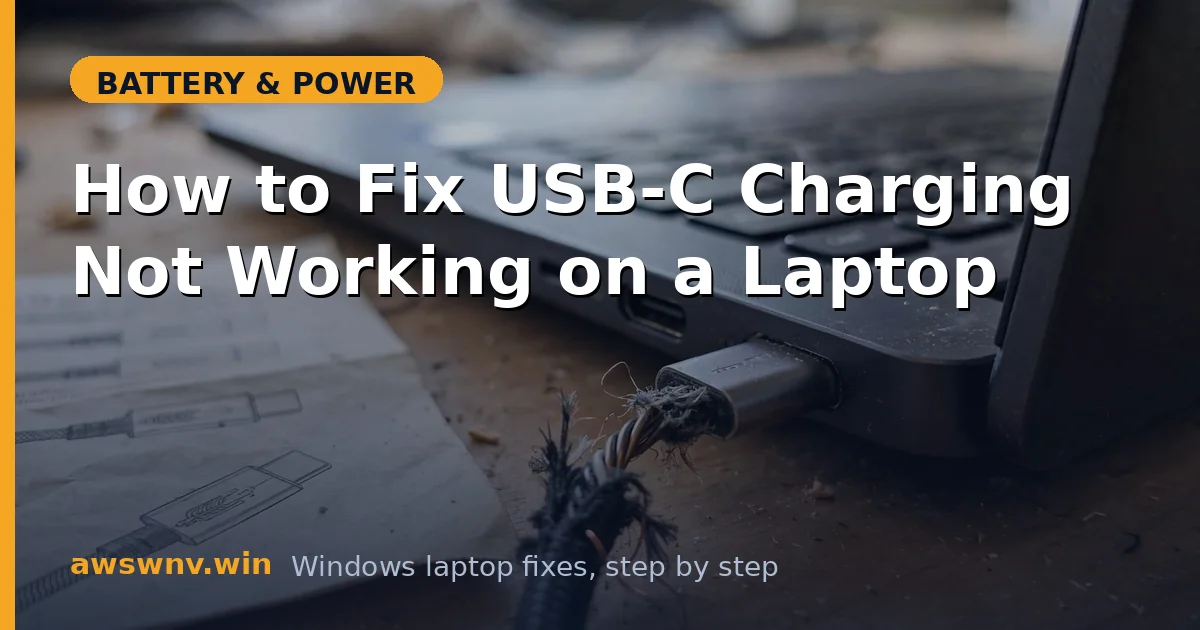
- Check the old cable for kinks, fraying, or a loose connector housing.
- Test the new cable flipped both ways and in the confirmed charging port.
- Keep the known-good cable as your dedicated charging cable so the problem does not recur.
Fix 4: Clean the USB-C port
A speck of lint can defeat a 100-watt handshake.
- Power off the laptop and unplug everything.
- Inspect the port with a flashlight for lint, dust, or visibly bent pins.
- Remove debris gently with a wooden toothpick — never anything metal.
- Use short bursts of compressed air, holding the can upright to avoid moisture.
- Reconnect and test. If the plug wobbles loosely in the port, the port itself may be worn and need professional replacement.
Fix 5: Reinstall USB and battery drivers
Software-side blocks are the next layer down.
- Press Win + X and open Device Manager.
- Under Universal Serial Bus controllers, uninstall each USB Root Hub and host controller (right-click → Uninstall device).
- Under Batteries, uninstall Microsoft ACPI-Compliant Control Method Battery.
- Restart — Windows reinstalls everything automatically.
- After the desktop loads, plug in the USB-C charger and watch for the charging indicator. For the Windows 11-specific version of this process, see USB-C charging fixes for Windows 11 .
Fix 6: Do a full power reset
This clears stuck state in the charge controller.
- Shut down completely and unplug the charger and all peripherals.
- Hold the power button for 30 seconds to drain residual power.
- Wait two full minutes — rushing this step is the most common reason resets “do not work.”
- Plug the charger into the confirmed charging port, then power on.
- Check the battery icon within a few minutes of reaching the desktop.
Fix 7: Update firmware and verify with the maker
When hardware and drivers check out, suspect firmware.
- Visit your manufacturer’s support site — Dell support , HP support , or Lenovo support — and install the latest BIOS for your exact model.
- Enter the BIOS setup and confirm any USB-C charging, Type-C power, or Power Delivery option is enabled.
- Check the support site for a dedicated USB-C or Thunderbolt firmware update, which some brands ship separately from the BIOS.
- After updating, retest with your known-good charger and cable.
- If charging still fails on every port with verified-good gear, the port or charging circuit likely needs a repair shop — you have eliminated everything else, which is valuable diagnostic work.
Closing
USB-C charging failures are negotiations that fell apart, and the fix is finding which party walked away: the wrong port, a weak charger, a tired cable, a dirty connector, or confused software. Test with known-good gear at each step and you will isolate it without guesswork. The general USB-C charging troubleshooting guide covers the same ground from a diagnostic angle if you want a second pass.