So your laptop won’t detect your headphones — let’s fix it, step by step, starting with the checks that take seconds and ending with the ones that actually require effort. The single most useful thing to know upfront: test your headphones on another device first. If they work on your phone, your laptop is the problem; if they don’t, you’ve been troubleshooting the wrong device. Assuming the headphones are fine, the problem lives in one of three places: Windows’ sound settings (where devices get disabled or hidden), the audio driver (which handles the actual jack detection), or the jack hardware itself. We’ll eliminate them in that order because each step takes progressively more time. A related symptom — headphones detected but no sound — is covered in our no-sound troubleshooting . This walkthrough complements our broader headphone detection troubleshooting guide — consider that the reference manual and this the hands-on procedure. If your audio driver itself keeps crashing rather than just missing the jack, see our guide on audio drivers that keep crashing .
Why this happens
- Plug not fully seated. New or tight jacks need firm pressure; a plug that’s 90% in gives no detection at all.
- Headphones disabled in Sound settings. Windows disables endpoints silently after updates; disabled devices are hidden by default.
- Wrong default output device. Sound keeps routing to speakers because Windows never switched to the newly detected headphones.
- Audio driver lost jack detection. The driver’s insertion-sensing logic breaks after updates or partial installs.
- Realtek console popup disabled. The ‘what did you plug in?’ dialog is suppressed, and auto-switching stops with it.
- Debris in the jack. Lint prevents full insertion — the plug looks seated but the detection switch never triggers.
- Worn jack detection switch. The mechanical switch inside the port wears out on heavily used laptops.
- Conflicting audio software. Third-party equalizers and ‘audio enhancers’ intercept device-change events.
How to fix it
Work through these in order — diagnose first, then act.
Fix 1: Do the 60-second hardware sanity check
Before touching software, prove the hardware chain works. This step alone resolves or correctly diagnoses a third of cases.
- Plug the headphones into your phone — confirm they produce sound there.
- Plug them into the laptop with firm, even pressure until you feel the plug seat fully.
- Try a second pair of headphones on the laptop if available.
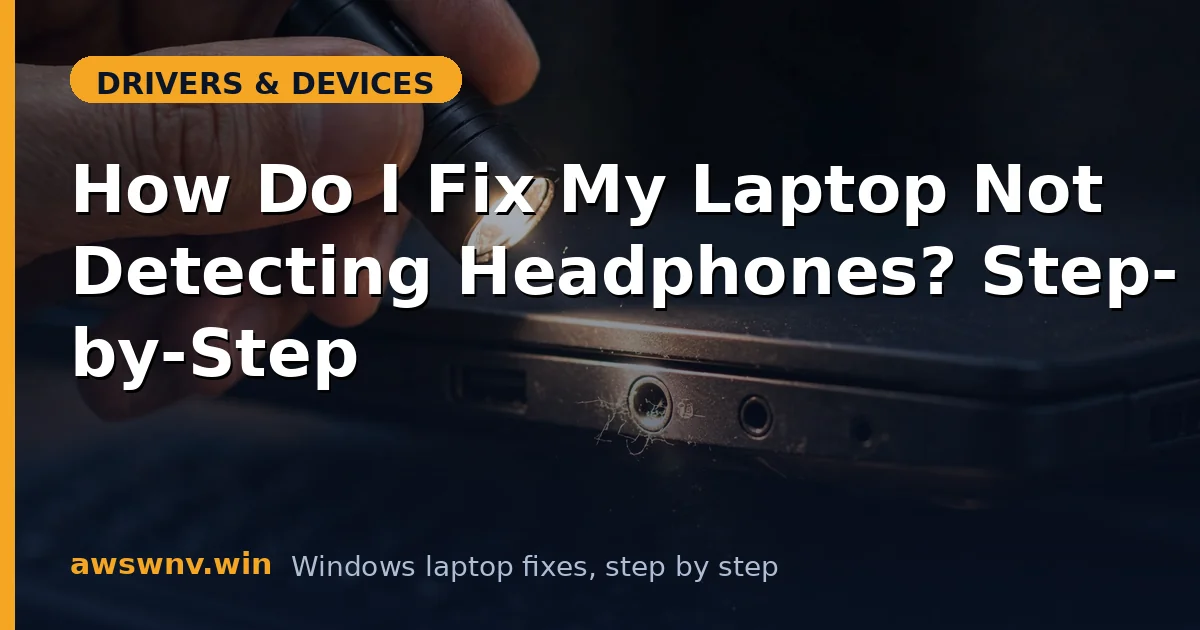
- Inspect the jack with a flashlight and pick out any lint with a wooden toothpick.
- Wiggle the plug gently while audio plays — crackling or cutouts mean worn contacts, not software.
Fix 2: Manually select headphones in Sound settings
Windows sometimes detects the headphones but stubbornly keeps playing through the speakers. Manual selection overrides that.
- With headphones plugged in, right-click the speaker icon → Sound settings.
- Under Output, click each listed device and test — your headphones may be listed under an unexpected name.
- Select the headphones entry and click ‘Set as default’ if the option appears.
- Open ‘More sound settings’ → Playback tab → right-click → ‘Show Disabled Devices’ and ‘Show Disconnected Devices.’
- Right-click any grayed-out headphone entry → Enable → Set as Default Device → Apply.
Fix 3: Run the audio troubleshooter
Windows’ built-in audio troubleshooter is genuinely useful for endpoint problems — it re-enables devices and restarts services automatically.
- Open Settings → System → Sound → scroll down and click ‘Troubleshoot’ under the Output section (or Troubleshoot → Other troubleshooters → Playing Audio).
- Select your headphones if the troubleshooter lists them; otherwise choose the default output.
- Let it apply fixes — it commonly re-enables disabled devices and restarts the audio service.
- Test playback immediately after it finishes.
- If it reports it couldn’t identify the problem, continue — manual steps below go further.
Fix 4: Restart audio services and re-plug
A stale audio endpoint cache can persist across reboots of the app but not of the service — restarting forces re-enumeration.
- Press Windows + R, type services.msc, press Enter.
- Restart ‘Windows Audio’ and ‘Windows Audio Endpoint Builder’ (right-click → Restart).
- Unplug your headphones, wait five seconds, and plug them back in firmly.
- Watch for the Realtek insertion popup — its appearance confirms detection is working.
- Check Sound settings again for the headphone device.
Fix 5: Reinstall the audio driver from scratch
When detection is truly broken at the driver level, only a clean reinstall restores the jack-sensing logic.
- Open Device Manager → ‘Sound, video and game controllers.’
- Right-click your audio device → Uninstall device → check ‘Attempt to remove the driver for this device.’
- Expand ‘Audio inputs and outputs’ and uninstall the speaker/headphone entries too.
- Restart the laptop and let Windows install its base driver.
- Install the audio driver from your laptop maker’s support site for the full jack-detection features — Dell, HP, and Lenovo all provide model-specific packages; HP’s support portal is a good example of where to find them.
Fix 6: Configure the Realtek Audio Console properly
The console controls the popup dialog and auto-switching that make plug-and-play actually work.
- Launch Realtek Audio Console from the Start menu (get it from the Microsoft Store if it’s missing).
- Find Device advanced settings and enable ‘Enable auto popup dialog when device has been plugged in.’
- When you plug in, choose ‘Headset’ or ‘Headphone’ accurately in the popup — the wrong choice misroutes the mic pin.
- Turn off any third-party audio enhancers temporarily to rule out interference.
- Test hot-plugging several times — detection should now be consistent, not intermittent.
Fix 7: Accept the hardware verdict and work around it
If every headset fails but USB audio works, the jack is worn — stop fighting it and route around it.
- Confirm with the wiggle test and multiple headsets that the jack itself is at fault.
- Buy a USB-to-3.5mm audio adapter — inexpensive, and Windows treats it as a separate sound card.
- Alternatively, switch to USB or Bluetooth headsets for daily use.
- If the laptop is under warranty, report the faulty jack — it’s a valid hardware defect claim.
- Out of warranty, a repair shop can replace the jack on models where it isn’t soldered directly to the mainboard.
Closing
Fixing headphone detection is a process of elimination: prove the headset works, force Windows to show hidden devices, restart the audio plumbing, reinstall the driver, and configure the console. Follow the steps in order and you’ll know within half an hour whether it’s software — or time for a USB adapter.