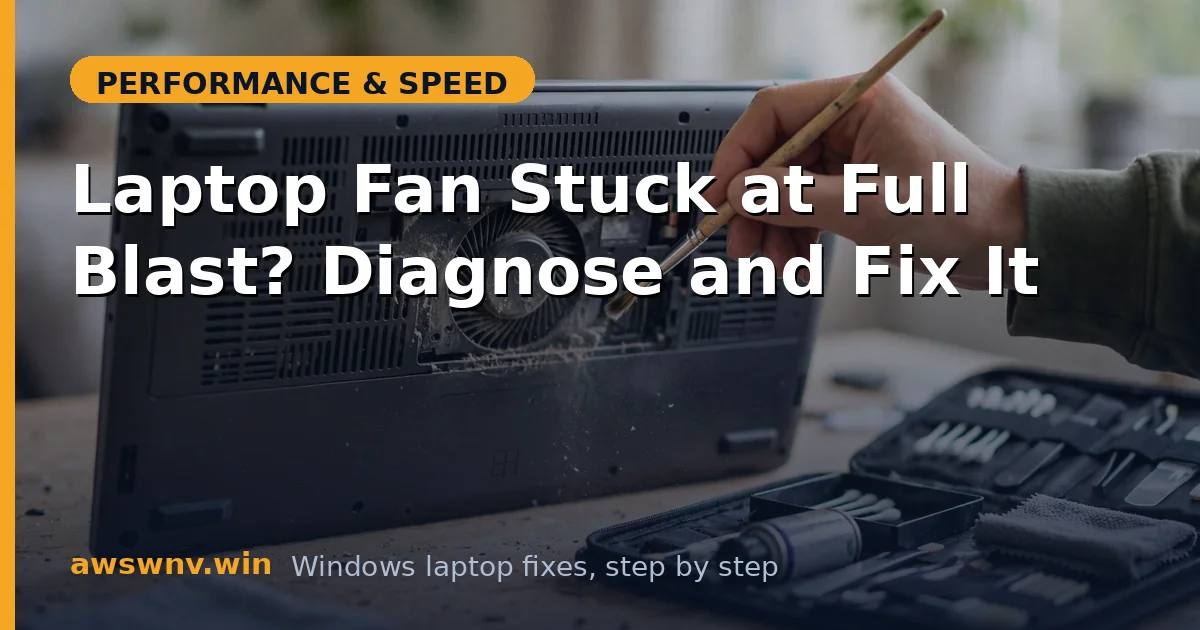
A laptop fan that never stops is telling you something. Fans do not run for fun — they run because a temperature sensor says the internals are hot. The question is whether the heat is legitimate (a heavy workload) or pathological (dust, dried thermal paste, or a runaway process generating heat for no reason). Answering that question correctly is the entire diagnosis.
Most always-on fans I have encountered trace back to software, not hardware. Some process is quietly burning CPU in the background, the cooling system dutifully responds, and the user assumes the fan is broken. Start with the software hunt — it is free and fixes the majority of cases — then move to the physical causes.
Why this happens
- Runaway background process — a stuck service or app pins CPU, generating constant heat.
- Dust-clogged vents and fans — restricted airflow forces the fan to work harder for the same cooling.
- Dried thermal paste — after 3–5 years, paste between CPU and heatsink stops transferring heat efficiently.
- Aggressive fan curve in firmware — some BIOS versions spin fans up at low temperature thresholds.
- Blocked ventilation — using the laptop on a bed or couch smothers the intake vents.
- High ambient temperature — a 35°C room leaves the cooling system little headroom.
- Failing fan bearing — a dying fan runs loud at speeds that would be quiet if the bearing were healthy.
How to fix it
Work through these in order — diagnose first, then act.
Fix 1: Find the heat source in Task Manager
The fan follows temperature, and temperature follows CPU load. Find the load.
- Open Task Manager (
Ctrl + Shift + Esc) and sort the Processes tab by CPU. - Let it sit for two minutes at idle — anything consistently above 10–15 percent CPU at idle is suspicious.
- Note the culprit: browsers with many tabs, updaters, and security scans are the usual suspects.
- Check the Performance → CPU tab for temperature if your laptop exposes it, or install HWiNFO for full sensor readings.
- If idle CPU is under 5 percent but the fan still screams, the cause is physical — skip to Fix 5.
A common offender is security software stuck scanning; see how to fix Antimalware Service Executable high CPU after a Windows 11 update if MsMpEng.exe is the culprit.
Fix 2: Kill or fix the runaway process
Once identified, deal with the process rather than the fan.
- Right-click the offending process in Task Manager and choose End task — if the fan spins down, you found it.
- If it is a browser, close excess tabs and disable heavy extensions, then retest.
- If it is a Windows service like Search Indexer, let it finish its initial indexing pass — it settles down.
- For a stuck updater (Windows Update, Store apps), let updates complete or pause them temporarily.
- If the same process respawns and hogs CPU daily, uninstall or replace the application.
The fan is a symptom; the process is the disease. Treat the disease.
Fix 3: Check power and performance settings
Aggressive performance modes keep clocks — and heat — high even at idle.
- Go to Settings → System → Power & battery → Power mode and select Balanced instead of Best performance for daily use.
- Open your maker’s control app (Lenovo Vantage, Armoury Crate, HP Omen Hub) and check for a Performance or Turbo mode that is keeping fans high.
- Switch to Quiet or Balanced mode in the maker app for everyday tasks.
- In Control Panel → Power Options → Change plan settings → Change advanced power settings, check Processor power management → Maximum processor state — 99 percent disables boost and drastically cuts heat on some laptops.
- Test for an hour of normal use and listen.
Many “fan always on” complaints vanish the moment a Turbo mode is switched off.
Fix 4: Update the BIOS and thermal-related drivers
Manufacturers regularly refine fan curves and thermal management in firmware updates.
- Visit your maker’s support page — HP , Lenovo , or Dell — and check for a newer BIOS for your exact model.
- Read the release notes for mentions of fan, thermal, or cooling improvements.
- Install following the maker’s instructions exactly, with the charger connected.
- Also update chipset drivers, which govern CPU power states.
- After updating, re-check fan behavior at idle for a full day.
Do not interrupt a BIOS update for any reason — a failed flash can brick the laptop.
Fix 5: Clean the vents and improve airflow
If software is innocent, the cooling system is struggling physically.
- Power off the laptop and blow short bursts of compressed air through the exhaust vents (hold the can upright).
- Blow into the intake vents on the bottom to dislodge dust from the fan blades.
- Always use the laptop on a hard, flat surface — beds and couches block intakes.
- Consider a cooling pad for sustained heavy workloads; even a passive stand that lifts the rear helps airflow.
- Keep room temperature reasonable — cooling systems are rated for normal indoor conditions, not heatwaves.
You should hear an immediate difference if dust was the issue. Microsoft’s hardware care guidance is in the Windows support hub .
Fix 6: Repaste the CPU (advanced, for older laptops)
On laptops over 3–4 years old, dried thermal paste is a prime suspect for rising temperatures.
- Confirm the diagnosis first: idle temps above 70°C with clean vents and low CPU usage point to paste failure.
- Check your warranty status — if covered, let the manufacturer do it.
- If out of warranty and you are comfortable opening the chassis, follow a teardown guide for your exact model.
- Clean off old paste with isopropyl alcohol and apply a pea-sized dot of quality paste (or a graphite pad).
- Reassemble carefully, ensuring the heatsink sits flat and all screws are evenly tightened.
This typically drops temperatures 10–20°C on old laptops — often returning the fan to near-silent at idle.
Fix 7: Rule out a failing fan
Sometimes the fan itself is the problem, not the heat.
- Listen closely: grinding, rattling, or clicking indicates a dying bearing, not normal airflow noise.
- Check whether fan speed correlates with temperature — a fan at full blast on a cool laptop suggests sensor or control failure.
- Run the maker’s hardware diagnostics to test the fan specifically.
- A failing fan needs replacement — order the exact part for your model or use authorized service.
- Do not run the laptop hard with a dead fan; modern CPUs will throttle, but sustained overheating still risks damage.
If search indexing was the hidden CPU hog all along, see how to tame Windows Search indexer high CPU .
Closing
An always-on fan is a messenger, not the problem: find what is generating the heat first with Task Manager, then work outward through power settings, firmware, dust, and thermal paste. Most cases resolve at the software stage — a runaway process or an overzealous performance mode. Only when the laptop is cool, clean, and idle yet still roaring should you suspect the fan hardware itself.