When Windows reports no battery detected, the machine has lost all communication with the pack — it’s not a low battery or a charging quirk, it’s silence. The encouraging news: this is one of the highest-fix-rate battery problems out there, because the usual causes (crashed controller, corrupted driver, loose connector) are all reversible. Only the last cause on the list — dead pack electronics — costs money, and you only conclude that after the reversible fixes fail.
This is the hands-on fix sequence: no-tools steps first, opening the machine only if needed, with a clear test after each step. For the broader explainer covering what the message means, see what to do if the battery is not detected .
Why this happens
- EC crash: The embedded controller that manages battery communication locks up and needs a cold reset.
- Driver corruption: The ACPI battery driver breaks (often after a Windows update), severing the software path.
- Loose connector: Thermal cycling and vibration walk the battery connector loose over time.
- BIOS regression: A firmware update breaks battery detection until fixed or rolled back.
- Deep-discharge coma: A pack drained to absolute zero needs a long trickle charge before its electronics wake up.
- Dead pack electronics: The fuel-gauge board inside the battery fails outright — the end of the fixable list.
How to fix it
Work through these in order — test for detection after each step.
Fix 1: The 30-second EC reset
The fix that resolves most cases — no tools, two minutes.
- Shut the laptop down completely (not sleep, not hibernate — full shutdown).
- Unplug the charger and every peripheral, including USB devices and docks.
- If the battery is externally removable, remove it; if internal, leave it in.
- Press and hold the power button for a full 30 seconds — this drains residual power and forces the embedded controller to cold-boot.
- Reconnect the battery (if removed), then the charger, then power on — check the taskbar for the battery icon within a minute or two of reaching the desktop.
Fix 2: Reinstall the battery driver stack
Clear corrupted driver state.
- Open Device Manager, expand Batteries.
- Right-click Microsoft ACPI-Compliant Control Method Battery and choose Uninstall device — uninstall every entry under Batteries.
- Also expand System devices and update (or uninstall/reinstall) chipset entries related to power management.
- Shut down fully, wait 30 seconds, then power on with the charger connected — Windows redetects everything fresh.
- Open Device Manager again to confirm the battery entries returned without warning icons, and check the taskbar icon.
Fix 3: The long trickle charge
Wake a deeply discharged pack.
- Power the laptop off completely and connect the original charger.
- Leave it untouched for 3-4 hours — a pack in deep-discharge protection needs sustained trickle current before its electronics wake enough to identify themselves.
- Don’t press the power button during this time; just let it sit.
- After the wait, power on while still plugged in and check for detection.
- If the battery appears at 0% and begins charging, leave it — some packs take several more hours to reach a reportable state after deep discharge.
Fix 4: Reseat the battery connector
Fix the physical communication path.
- For removable batteries: take it out, inspect and clean the contact pads with a dry cloth, and reinsert firmly until latches click.
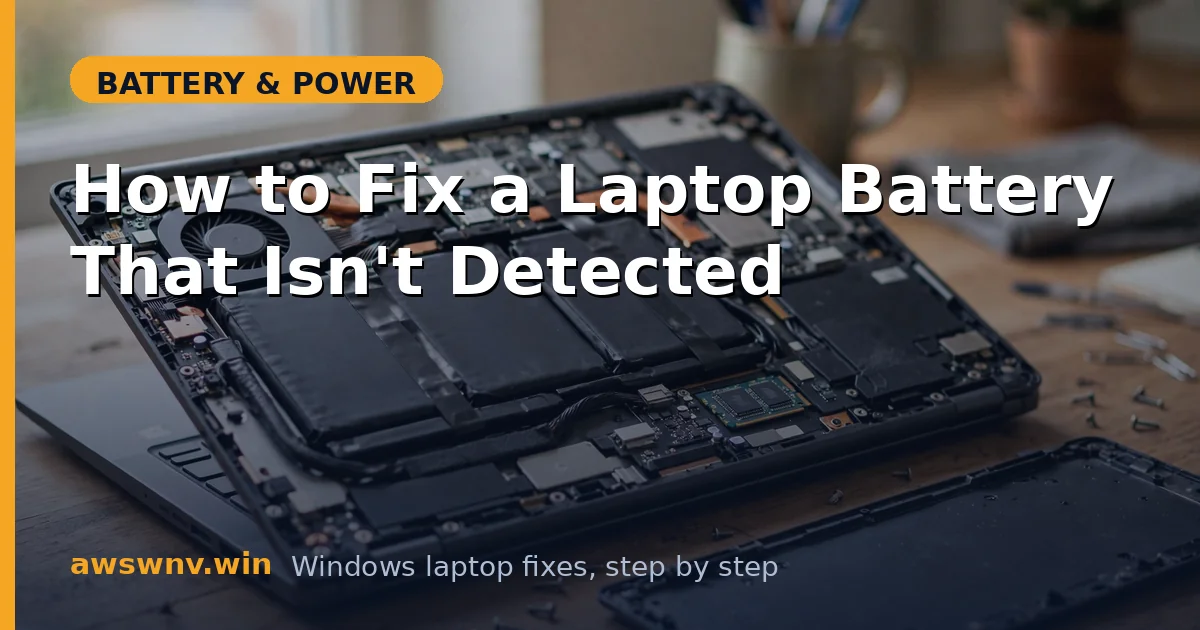
- For internal batteries: power off, unplug, remove the bottom panel (keep track of screw positions), and locate the battery connector on the motherboard.
- Disconnect it gently, wait a full minute, then reconnect firmly — listen/feel for a positive seat.
- Reassemble and boot on charger power; check detection.
- Inspect the cable and connector for damage while you’re in there — a pinched or frayed battery cable explains intermittent detection.
Fix 5: Check BIOS detection and defaults
Separate Windows problems from hardware problems.
- Reboot into BIOS/UEFI Setup and find the battery information page.
- If the BIOS sees the battery but Windows doesn’t, the fault is software-side — revisit drivers, and consider pending Windows updates or a repair install as a last resort.
- If the BIOS doesn’t see it either, stay in BIOS and choose Load Setup Defaults / Restore Defaults, save, and recheck.
- Check the manufacturer’s site for a BIOS update — detection fixes ship in firmware updates; if the problem started after a BIOS update, look into rolling back.
- The BIOS check is the single most informative fork: it tells you whether to keep fighting software or start shopping for hardware.
Fix 6: Rule out a Windows-level block
The less common software causes.
- Check Windows Update history — if a driver update coincides with the problem’s start, roll back that specific driver in Device Manager.
- Boot into Safe Mode and check Device Manager there — if the battery appears in Safe Mode but not normal mode, a third-party driver or service is interfering.
- Try a new local user account — corrupted user-profile power settings are rare but real.
- As a heavier step, use System Restore to roll back to before the problem started, if a restore point exists.
- Only consider a Windows reinstall after the BIOS check (Fix 5) confirmed the battery is visible below Windows — never reinstall Windows for a hardware detection failure.
Fix 7: Verify the verdict and replace if needed
When the pack is truly gone.
- If the battery remains undetected across EC reset, driver reinstall, reseat, trickle charge, and BIOS checks — and the BIOS can’t see it — the pack’s electronics have failed.
- Confirm with the OEM’s pre-boot diagnostics if available (Dell F12, HP F2) — they test below Windows.
- Order a replacement matching the exact battery model number on the old pack’s label.
- After installing, verify detection in both BIOS and Windows, then run one full charge cycle.
- For the complete swap walkthrough, see how to replace a laptop battery . General hardware troubleshooting reference: Microsoft Support .
Closing
“Not detected” is a communication problem until proven otherwise — and communication problems are fixable. The EC reset and driver reinstall take ten minutes combined and resolve the majority of cases; the reseat and BIOS checks catch most of the rest. Only when every layer stays silent do you conclude the pack itself is done — and by then, it’s a verdict, not a guess.