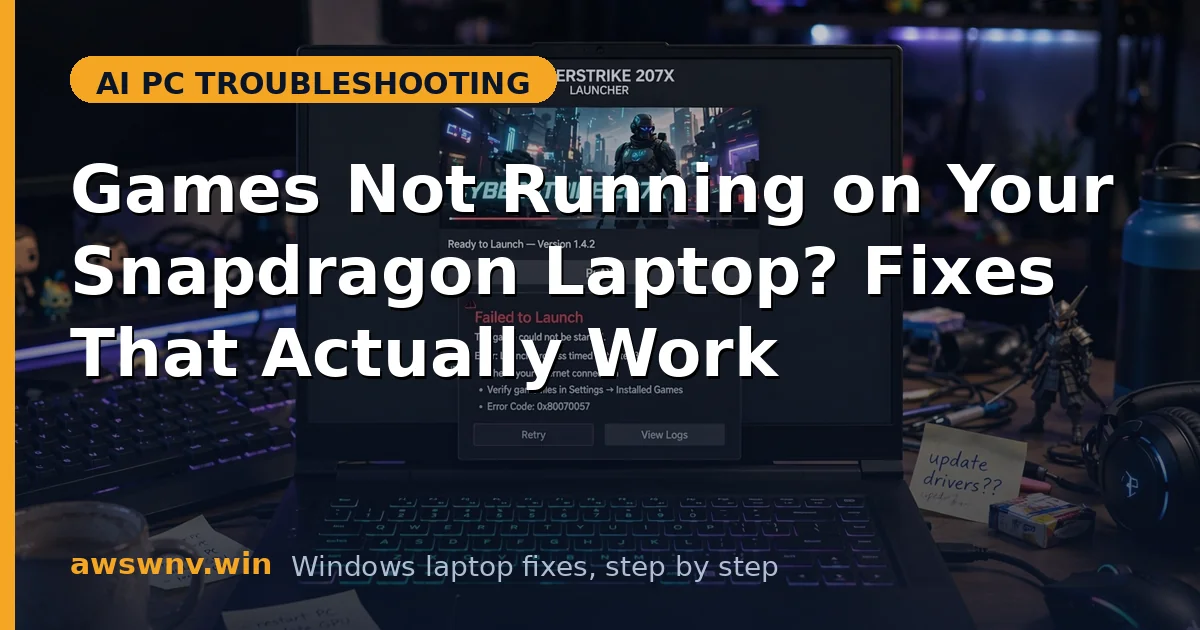
So you bought a Snapdragon laptop — great battery life, cool and quiet — and then tried to launch a game. Nothing happens, or it crashes, or an anti-cheat error pops up. Before you assume the laptop is broken: most game failures on Snapdragon machines are compatibility problems, not hardware defects. Your laptop is fine; the game wasn’t built for its processor.
Snapdragon laptops run Windows on ARM, and Windows bridges the gap with its Prism emulator — but games expose every crack in that translation. If regular programs feel sluggish too, our guide to x86 apps running slow on Snapdragon explains the emulation penalty. And when a game isn’t the only thing misbehaving, apps not working on Snapdragon X laptops helps separate game-specific issues from system-wide ARM problems.
This guide walks you through diagnosing why your game won’t run and fixing it in technician order — with honesty about the hard limits. If a game’s launcher misbehaves, you may also be hitting missing drivers on Windows on ARM .
Why this happens
- x86 games need real-time translation: Prism emulates x86 on the ARM CPU, adding overhead that tips demanding games into crashes.
- Kernel anti-cheat refuses ARM: Vanguard, kernel-mode EAC, and BattlEye load x86-only drivers that can’t be emulated — the game blocks itself.
- Adreno driver gaps: Qualcomm’s drivers lag NVIDIA/AMD in game-specific optimizations; some games crash on shader compilation.
- Old DRM and 16-bit installers: Legacy DRM and ancient installers rely on x86 kernel components that fail on ARM.
- AVX requirements: Games hard-requiring AVX512 or specific x86 extensions can crash on Snapdragon chips.
- Overlay conflicts: Discord/Steam overlays inject code into the game process — a common crash vector under emulation.
How to fix it
Work through these in order — diagnose first, then act.
Fix 1: Check whether the game is simply incompatible
Search “[game name] Snapdragon X” or “Windows on ARM” before changing anything — community reports tell you in minutes whether it’s a lost cause (kernel anti-cheat) or solvable. This check saves you from chasing a fix that doesn’t exist.
- Search the game name plus “Snapdragon” or “Windows on ARM.”
- Check system requirements for any ARM support mention.
- Look for anti-cheat mentions — Vanguard or kernel EAC usually means “won’t run.”
- Prefer recent posts; Prism improves yearly, so old reports may be outdated.
- If the consensus is incompatible, skip to Fix 5 for realistic alternatives.
Fix 2: Update the Adreno GPU driver and Windows
Many “crashes on launch” reports are fixed by a recent Adreno driver. Check both Windows Update and your OEM — OEMs sometimes hold drivers back.
- Install all Windows updates and restart.
- Check your laptop maker’s support page for a newer Adreno/graphics driver.
- For Intel-based Copilot+ PCs, use Intel’s driver support page .
- Choose “clean install” if the installer offers it, then reboot.
- Retest the game before changing anything else.
Fix 3: Tune compatibility settings
A few targeted tweaks resolve a surprising number of launch failures.
- Right-click the game’s .exe > Properties > Compatibility > “Run as administrator.”
- Check “Disable fullscreen optimizations” on the same tab.
- In Settings > System > Display > Graphics, add the game and set “High performance.”
- Apply the same settings to the launcher executable (Steam, Epic).
- Try launching the .exe directly once to isolate launcher crashes.
Fix 4: Strip out overlays
Overlays inject code into the game process — under emulation, that’s a prime crash suspect when games die seconds after the menu.
- Disable the Steam overlay (Settings > In-Game).
- Disable Discord’s overlay (User Settings > Game Overlay).
- Close RGB/control software before launching.
- Disable FPS counters and screen recorders temporarily, then retest.
Fix 5: Lower settings or route around ARM limits
Emulation plus an integrated GPU means less headroom than the spec sheet suggests. Dial things back — or bypass ARM entirely for incompatible titles.
- Drop to 1080p or lower and reduce texture/shadow quality one notch.
- Cap the frame rate at 30–60 FPS to smooth translation spikes.
- Try borderless windowed mode if exclusive fullscreen crashes; try DX11 mode if offered.
- For structurally incompatible games (kernel anti-cheat), use cloud gaming — GeForce NOW or Xbox Cloud Gaming run in a browser.
- Before buying new games, verify ARM compatibility first.
Closing
Most Snapdragon game failures come down to three things: kernel anti-cheat that can’t be emulated, Adreno driver gaps, and real-time translation overhead. Work the fixes in order and a solid slice of your library will run. For titles that structurally can’t work on ARM — especially competitive multiplayer — cloud gaming is the honest answer, not another driver reinstall. If problems persist across many games after driver updates, have the hardware checked, but that’s rarely the cause.