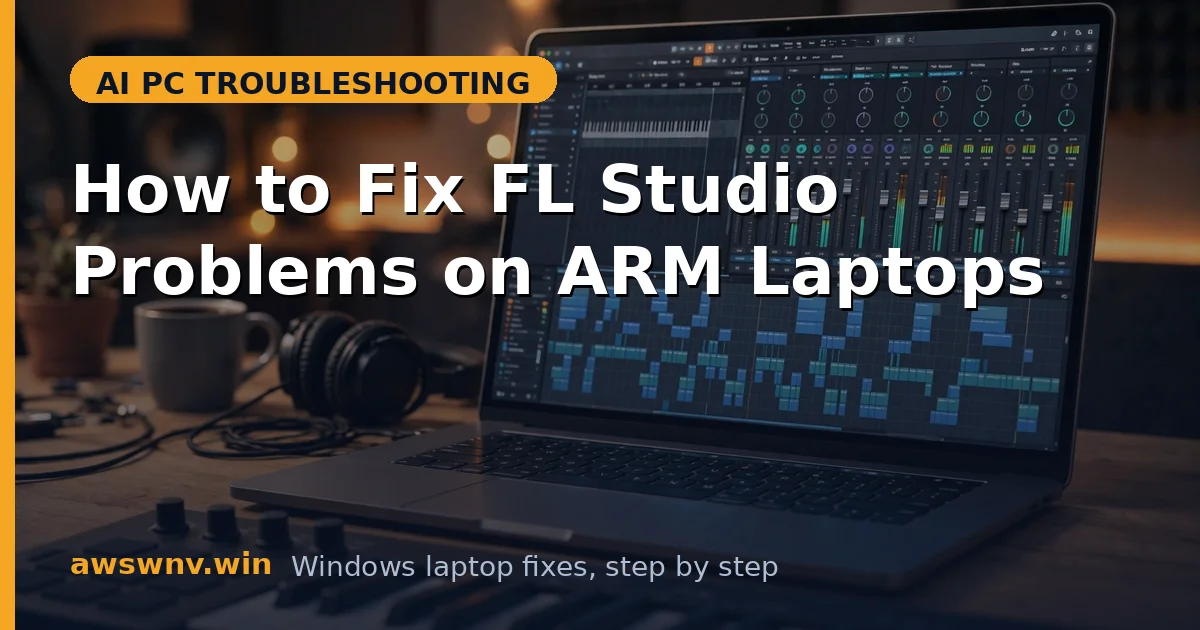
You’re mid-session in FL Studio on your Snapdragon laptop — the project that ran fine on your old machine now crackles, the CPU meter slams into the red, or a favorite synth shows “couldn’t be loaded.” The laptop has plenty of power on paper, so the glitching feels wrong. It isn’t a weak machine; it’s a mixed-architecture setup that needs tuning.
FL Studio’s ARM story is genuinely mixed: the DAW core may be native ARM64 while many third-party VST plugins, wrappers, and audio drivers still run through emulation or bridging. That mixed layer is where dropouts, bridge crashes, and meter spikes come from — compounded by ARM laptops’ aggressive power and thermal policies, which a desktop never applies to a DAW.
These six fixes go in the order a producer-troubleshooter would try them: audio driver selection first, then buffer and CPU settings, then the plugin layer, then drivers and power policy, ending with a clean settings reset. Play back the heaviest part of your project after each step; most sessions are clean by fix three.
Why this happens
- Emulated or bridged plugins: x64 VSTs inside a native ARM64 host run through a bridge process, and heavy synths can overload that bridge long before the CPU is actually busy.
- Wrong audio device selected: The default Primary Sound Driver routes through Windows’ slowest audio path; without FL Studio ASIO or a proper ASIO driver, underruns are guaranteed.
- Buffer too small for the workload: Buffer defaults tuned for desktops cause underruns on laptops that are constantly juggling power states and background tasks.
- Aggressive power and thermal throttling: ARM laptops drop clocks on battery or under heat — the CPU meter redlines because the CPU is being throttled, not because it’s weak.
- Outdated audio or GPU drivers: DPC latency spikes from a misbehaving driver interrupt the audio stream and show up as glitches no buffer setting can fix.
- Corrupt settings or plugin database: A bad plugin scan can poison the database so the same plugins fail on every launch and in every project.
How to fix it
Work through these in order — diagnose first, then act.
Fix 1: Pick the right audio device
The default “Primary Sound Driver” routes through Windows’ slowest audio path. Switching to FL Studio ASIO (bundled with FL Studio) or your interface’s dedicated ASIO driver is the single biggest dropout fix available.
- Open Options > Audio settings and set Device to FL Studio ASIO — or your audio interface’s ASIO driver if you own one.
- Click “Show ASIO panel” and set the buffer length — start at 512 samples as a baseline.
- Play the heaviest part of your project and watch the underrun counter next to the CPU meter.
- If underruns appear, raise the buffer to 1024 — but raise only until playback is clean, since bigger buffers mean more latency when recording.
- Never use MME or DirectSound for production work; keep those only for quick checks on laptop speakers.
Fix 2: Tame the CPU meter
When the meter redlines but Task Manager shows headroom, it’s usually bridging overhead or throttling rather than a genuine lack of power. These settings cut both down to size.
- In Audio settings, enable “Multithreaded generator processing” and “Multithreaded mixer processing” so all cores share the audio load.
- Open the Plugin Manager and check which plugins load as “bridged” — freeze or consolidate the heaviest ones (Ctrl+Alt+C consolidates a track to audio).
- Lower the mixer resampling quality where it doesn’t matter; “6-point hermite” is fine for most tracks and far cheaper than 512-point sinc.
- Use Tools > Macros > Switch smart disable for all plugins so idle plugins stop burning CPU in the background.
- If the meter still spikes on battery, plug in — ARM laptops cap clocks hard on battery, and no setting fully offsets that. If the machine also struggles to hold a charge during long renders, the smart charging fix is worth a look.
Fix 3: Fix plugins that won’t load or crash the bridge
A plugin compiled for x64 loading into a native ARM64 host goes through FL Studio’s bridge, and some plugins simply hate the bridge. The goal is to identify them and give each one a working configuration.
- Run a verified plugin scan (Options > Manage plugins > Find plugins with “Verify plugins” on) and note exactly which ones fail.
- For a failing plugin, try toggling its bridged versus native mode in the Plugin Manager — some load fine one way only.
- Keep 32-bit plugins out entirely; the 32-to-64 bridge stacked on top of ARM translation is a crash factory.
- Check each key vendor’s site for an ARM64-native build of your essential plugins — native instruments skip the bridge tax completely.
- If one plugin kills projects on load, delete its
.fstpreset cache entry and rescan; a corrupt entry poisons every project that references it.
Fix 4: Update audio and graphics drivers
Audio glitches aren’t always the audio driver’s fault — a misbehaving GPU driver causes DPC latency spikes that interrupt the audio stream. Update both, and check which one actually helped.
- Update your audio interface driver from the vendor’s site, or the laptop’s audio driver from Dell , HP , or Lenovo support.
- Update the GPU driver too, using the same driver-crash hygiene as the Intel Arc Lunar Lake guide : OEM driver first, clean install where offered, restart after.
- Check for chipset and BIOS updates on the same support page — DPC latency fixes frequently ship there rather than in the audio driver.
- If the OEM page lags behind on a specific driver version, the Microsoft Update Catalog (https://www.catalog.update.microsoft.com/ ) carries the same packages.
- Recheck the underrun counter after each driver change so you know which update actually moved the needle.
Fix 5: Stop throttling from ruining sessions
ARM laptops chase efficiency by default; a DAW wants sustained clocks. Align the power policy with production work and the meter stops lying to you.
- Set Settings > System > Power & battery > Power mode to Best performance while producing — switch back when you’re done.
- In the OEM control app (Dell Optimizer, OMEN Gaming Hub, Legion Zone, or your maker’s equivalent), pick the performance thermal profile.
- Keep the charger connected — throttling on battery is by design, not a bug, and fighting it wastes your time.
- Give the laptop air: a stand or cooling pad prevents the slow thermal slide that shows up as gradual meter creep over a long session. Sustained-load heat behaves the way the NPU overheating guide describes — clocks drop, meters rise, and it looks like a software problem.
- Close background apps — browsers, updaters, game launchers — since they steal both CPU time and audio priority.
Fix 6: Reset FL Studio settings cleanly
When nothing above helps, a corrupt settings file or plugin database is the likely holdout. A reset takes five minutes and doesn’t touch your projects or samples.
- Back up your projects and the “FL Studio > User data” folder to a safe location first.
- Run the FL Studio installer again and choose the reset-settings option, or manually rename the settings folder so a fresh one is generated on launch.
- Rescan plugins from scratch with verification on — do not restore the old plugin database, since it may be the corrupt part.
- Reopen your project and test before reinstalling third-party content; add libraries back in batches so a bad one is easy to spot.
Closing
FL Studio on ARM rewards the same discipline as any laptop DAW — the right ASIO driver, sane buffers, bridged plugins kept under control, and power settings that let the CPU actually run. Nail those four and the Snapdragon machine keeps up with projects that used to need a desktop.