MEMORY_MANAGEMENT (stop code 0x0000001A) on an HP laptop means Windows caught corruption in the memory manager’s own structures — and on HP hardware, the investigation has brand-specific steps worth taking first. HP’s built-in diagnostics (F2 at boot) test memory faster than any download, HP’s support site hosts matched driver sets for your exact model, and HP BIOS updates have a history of changing memory-related settings that trigger this exact stop code.
The general causes are the familiar ones: faulty RAM, buggy drivers, corrupt system files, bad updates, overclocked memory. But start with the HP-native tools — they’re designed for this hardware and their results carry weight if you end up filing a warranty claim. For the update-triggered variant, see memory management after Windows 11 updates ; for the page-fault sibling, page fault in nonpaged area in 24H2 .
Why this happens
- Faulty RAM: Bad memory cells corrupting memory-manager structures — the leading hardware cause.
- HP/Windows driver mismatch: HP driver packages conflicting with Windows Update-installed versions.
- HP BIOS update side effects: Firmware updates altering memory timing or virtualization settings.
- Buggy graphics or storage drivers: Heavy memory-manager users with corruption bugs.
- Corrupt system files: Damaged Windows memory-management components.
- Failed Windows update: Update-introduced driver or file corruption.
- Overclocked/XMP memory: Unstable timings corrupting management structures under load.
How to fix it
Work through these in order — diagnose first, then act.
Fix 1: Run HP’s built-in memory diagnostics
HP’s own test, fastest path to a hardware answer.
- Power off the laptop completely.
- Power on and immediately tap F2 repeatedly to open HP PC Hardware Diagnostics.
- Go to Component Tests > Memory > run the Extensive Test (takes 30+ minutes — let it finish).
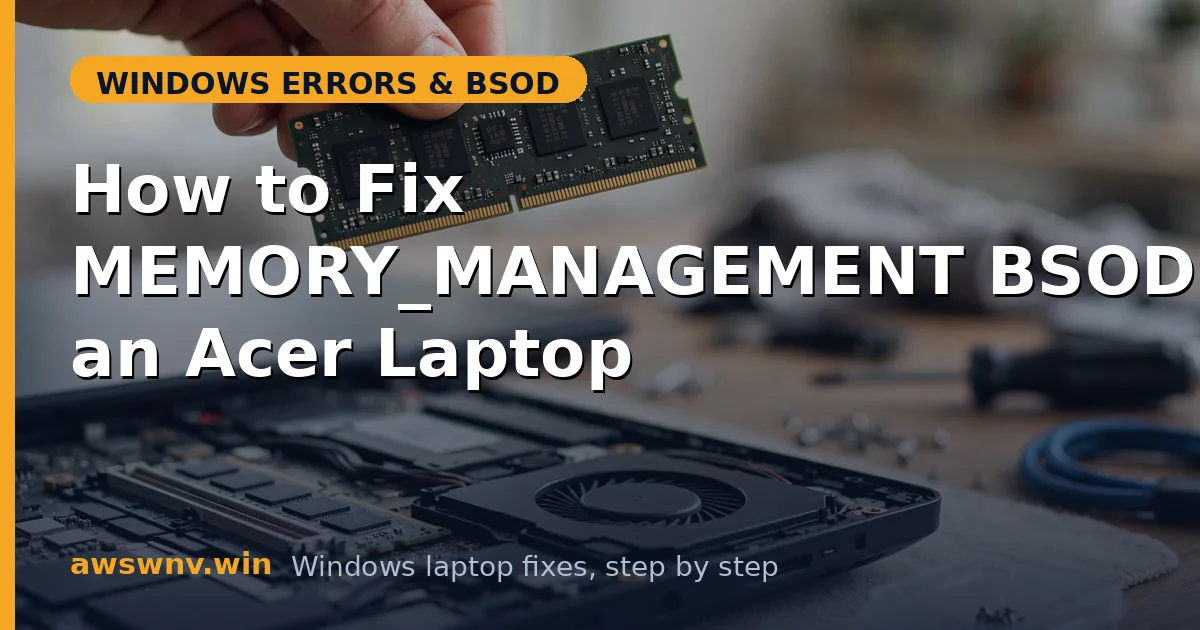
- If it reports failure, note the failure ID and the test timestamp — HP’s support portal asks for both when you open a warranty case. Reseat the RAM (if accessible) and retest; replace the module if it fails again.
Fix 2: Install HP’s matched driver set
Eliminate driver-mismatch corruption with HP’s own builds.
- Go to HP’s support site , enter your exact model (or serial number), and open the Drivers section.
- Download the latest chipset, storage/IRST, graphics, and network drivers for Windows 11.
- Install them in order: chipset first, then storage, then graphics, then network — restarting when prompted.
- This replaces any mismatched Windows Update drivers with HP’s tested set. Retest for a day of normal use.
Fix 3: Check for HP BIOS updates — carefully
Firmware fixes memory-management bugs, but BIOS updates can also cause them.
- On the same HP support page, check the BIOS section for updates newer than yours (compare with your version in System Information,
msinfo32). - If the crash started right after an HP BIOS update, check the release notes for memory-related changes and consider whether settings were reset — enter BIOS (F10 on HP) and Load Defaults, then re-enable only what you need.
- If your BIOS is old, update it: run the installer on AC power with everything closed, and don’t touch the laptop until it finishes.
- After any BIOS change, retest thoroughly — firmware is a common 0x1A variable on HP machines.
Fix 4: Run Windows Memory Diagnostic as a second opinion
Confirm HP’s result with Microsoft’s test.
- Press Win + R, type
mdsched.exe, press Enter, choose Restart now and check for problems. - If HP’s test passed but crashes continue, run MemTest86 overnight from USB (4+ passes) — it catches heat-dependent faults both quick tests miss.
- Consistent failures across two different tests = definitive RAM fault. Replace the module.
- If all tests pass, RAM is cleared — focus on drivers and files with confidence.
Fix 5: Repair system files and check the disk
Fix Windows-side corruption.
- Open Terminal (Admin). Run
sfc /scannow. - Run
DISM /Online /Cleanup-Image /RestoreHealth. - Run
chkdsk C: /f /rand restart to let it scan. - Retest. On HP laptops with HP’s driver set installed and passing RAM, file corruption is the next most likely 0x1A source.
Fix 6: Clean-boot to find conflicting HP software
HP preloads utilities that can conflict.
- Win + R >
msconfig> Services tab > tick Hide all Microsoft services > Disable all. - Task Manager > Startup apps > disable everything. Restart.
- If crashes stop, re-enable in halves — HP utilities (Support Assistant updaters, audio enhancers, “optimizers”) and third-party antivirus are usual suspects.
- Uninstall the culprit from Settings > Apps rather than leaving it disabled. Keep HP Support Assistant itself updated rather than removed — it’s useful for future driver updates.
Fix 7: Reset memory settings and consider a repair install
The final software steps.
- Enter BIOS (F10) and Load Defaults to clear any XMP or custom memory timings.
- Disable Fast Startup (Control Panel > Power Options > Choose what the power buttons do) to eliminate hybrid-shutdown state corruption.
- Install all pending Windows updates, checking Microsoft’s support site for known 0x1A issues with your build.
- If crashes persist: in-place upgrade repair with the Windows 11 ISO (setup > Keep personal files and apps) — rebuilds Windows around your files and HP’s drivers.
Closing
MEMORY_MANAGEMENT on HP laptops is very solvable because HP gives you the tools: F2 diagnostics for a fast hardware verdict, and a support site with matched drivers for your exact model. Work the HP-native steps first — they resolve a large share of cases and produce warranty-ready evidence when they don’t. If RAM passes every test, HP’s driver set is installed, the BIOS is current, and the crash still comes, the in-place repair in Fix 7 is the clean finish before considering board-level service. Document each step you tried; if the issue reaches HP support, that log shortens the process considerably.