A quiet laptop is one of the main reasons people buy an AI PC. The promise is simple: the neural processing unit handles background intelligence efficiently, so the machine stays cool and silent while you browse, write, or read. When the fan starts roaring the moment you stop typing, that promise feels broken, and the constant noise quickly becomes distracting in a quiet room or on a video call.
The good news is that idle fan noise on an AI laptop is almost always a software problem rather than a failing fan. Modern Windows 11 AI features run quietly in the background by design, but a stuck indexing job, a misbehaving driver, or an aggressive performance profile can keep the processor working hard long after you have stopped. Because the fan responds to heat, anything that keeps the chip busy at idle will keep the fan spinning.
This guide walks you through the diagnosis first, then the fixes in order. You will learn how to find the exact process driving the heat, calm the background AI services, correct your power and cooling settings, and update the drivers that control the fan. Work through the steps in sequence and check the noise after each fix, so you know exactly which change solved it.
Why this happens
- Background AI indexing: Windows Search semantic indexing and Recall snapshots use the NPU and CPU in the background, and a stuck or endlessly re-running job keeps temperatures high at idle.
- Aggressive performance mode: A “Best Performance” or manufacturer performance profile lets the processor boost to high speeds for trivial background tasks, creating heat that the fan must clear.
- Outdated chipset or NPU drivers: Old drivers can misreport temperatures or fail to park the NPU properly, leaving the chip in a high-power state when it should be idle.
- A runaway app or service: A single app with a memory leak, a syncing cloud drive, or a stuck update service can pin one core at high usage without any visible window.
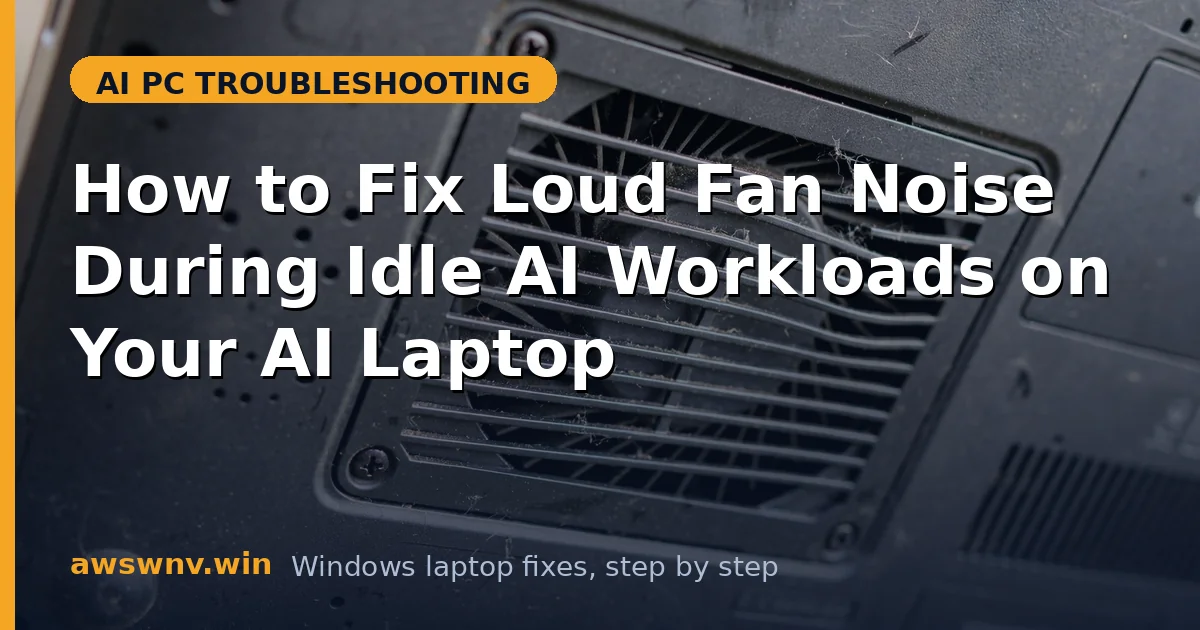
- Blocked vents or dust buildup: Dust in the intake, or using the laptop on a soft surface, traps heat so the fan must work harder to hold the same temperature.
- BIOS fan-curve bug: Some early AI laptop BIOS versions spin the fan too aggressively at low temperatures, so the fan is loud even when the machine is barely warm.
How to fix it
Work through these in order — diagnose first, then act.
Fix 1: Find the process heating the laptop
Before changing settings, identify what is actually busy. Guessing wastes time, and a single culprit is usually responsible for most of the heat.
- Press Ctrl + Shift + Esc to open Task Manager and click the Processes tab.
- Click the CPU column header to sort by usage, then watch for a minute to see which process stays high at idle.
- Click the Power usage column if visible, and note any app marked Very high.
- If a background AI service such as SearchIndexer or an NPU-related service tops the list, note its name before moving on.
- Right-click a suspicious non-system process and choose End task, then listen to see whether the fan calms within a minute.
If you find that Cocreator brush lag style creative workloads are not the issue, the culprit is more likely a background service than an app you opened. A similar background-task problem can also make Webex meeting summaries fail when AI services stall, and the same diagnostic habit applies here. For a related background-health check, see how Copilot key long-press issues are traced to stuck services.
Fix 2: Switch to a balanced or efficiency power plan
An aggressive power plan is the fastest single change that quiets most AI laptops, because it stops the processor from boosting for background work.
- Open Settings, go to System, then Power and battery.
- Set Power mode to Balanced or Best Power Efficiency.
- If your laptop maker installed its own control app, open it and choose Silent, Quiet, or Balanced mode there too.
- Close the lid settings check: make sure the laptop is not set to Maximum Performance on battery and plugged in.
- Wait five minutes at idle and listen — the fan should step down noticeably if the plan was the cause.
Fix 3: Pause and reset Windows Search indexing
Semantic indexing is the most common idle-load culprit on Copilot+ PCs, because it re-scans files and uses the NPU to build its index.
- Open Settings, go to Privacy and security, then Searching Windows.
- Check the indexing status; if it shows a large number of items pending, let it finish while plugged in, or click Pause.
- Click Advanced indexing options, then Troubleshooter if the index appears stuck.
- To rebuild a corrupt index, click Advanced, then Rebuild, and let it complete overnight.
- After the rebuild, monitor Task Manager at idle to confirm SearchIndexer settles near zero CPU.
Fix 4: Update chipset, NPU, and BIOS drivers
Driver updates fix the low-level power management that decides when the NPU sleeps and how the fan responds to temperature.
- Open Device Manager and expand System devices and Neural processors.
- Right-click the NPU and chipset entries and choose Update driver, then Search automatically.
- Visit your laptop maker’s official support page — for example Dell support — and download the latest chipset and BIOS updates for your exact model.
- Install chipset and NPU drivers first, restart, and then install a BIOS update only if the release notes mention fan, thermal, or NPU fixes.
- After restarting, check idle temperatures and fan noise again before changing anything else.
Fix 5: Clean the vents and improve airflow
Even perfect software cannot cool a laptop that cannot breathe, and AI laptops with thin chassis are especially sensitive to blocked intakes.
- Shut the laptop down and unplug it before cleaning.
- Use short bursts of compressed air through the intake and exhaust vents, holding the can upright.
- Avoid using a vacuum cleaner, which can spin the fan too fast and damage its bearings.
- Use the laptop on a hard, flat surface, or on a simple cooling stand, rather than on a bed or blanket.
- If the laptop is more than a year old and the noise persists, ask an authorized service center to clean internal dust properly.
Fix 6: Tame Recall and other background AI features
If you rarely use Recall or Studio Effects, their background activity is pure overhead that keeps the machine warm for no benefit.
- Open Settings, go to Privacy and security, then Recall and snapshots, and pause snapshot saving.
- Turn off Studio Effects you do not use, such as automatic framing or eye contact, in Settings under Bluetooth and devices, then Cameras.
- In Task Manager’s Startup tab, disable apps you do not need at boot.
- Restart the laptop and watch idle CPU for ten minutes to confirm the change held.
- If the fan is now quiet, re-enable features one at a time to find which one was responsible.
Closing
Idle fan noise on an AI laptop feels like a hardware fault, but in practice it is usually a background task, a power setting, or a driver that has drifted out of shape. By finding the hot process first, then calming the power plan, the indexer, and the background AI features, most laptops return to the near-silent idle they were designed for. If the fan stays loud after every fix here, especially alongside high temperatures or sudden shutdowns, treat it as a hardware issue and get the cooling system checked before it causes lasting damage.