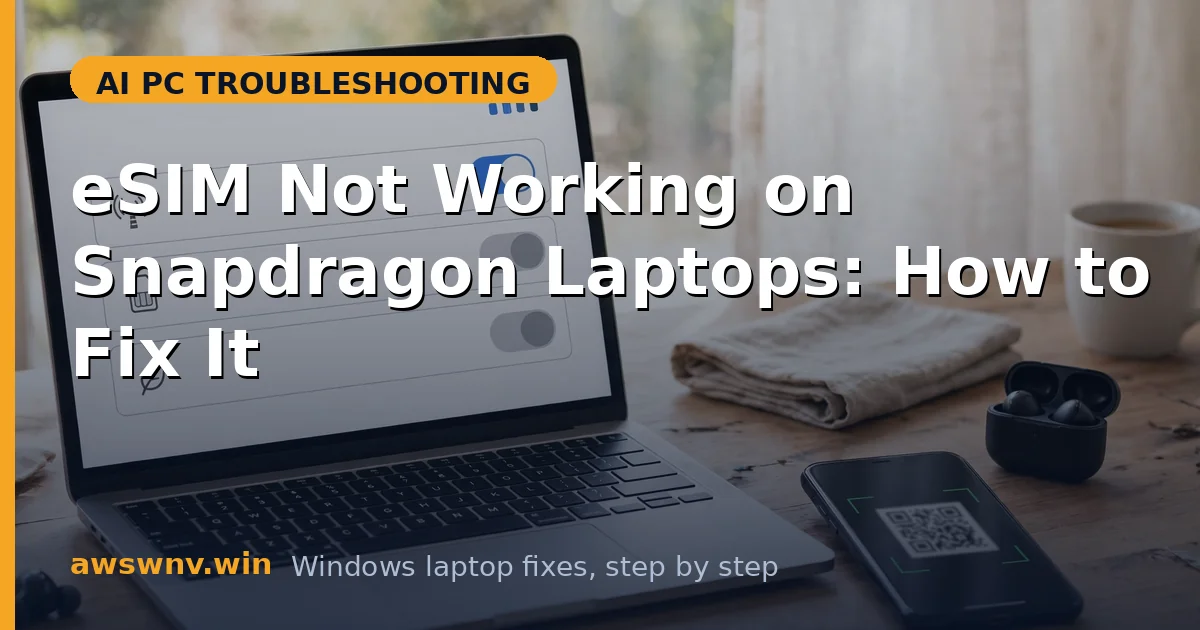
Your Snapdragon laptop has an eSIM, your carrier sent you a QR code, but Settings > Network & internet > Cellular shows no profile — or the profile is there and stubbornly refuses to connect. Cellular on Windows laptops is a three-way handshake between the eSIM chip, the modem driver, and your carrier’s provisioning, and any one of them can stall.
Snapdragon laptops (Surface Pro, ThinkPad, and other Copilot+ machines with 5G) integrate the modem into the platform, which means cellular depends on Qualcomm’s modem driver stack working perfectly. The good news is that eSIM problems are almost always configuration or driver issues, not broken hardware.
This guide walks you through six fixes in order: profile and carrier checks first, then driver repair, then full network resets. Have your carrier’s activation details or QR code ready before you start.
Why this happens
- eSIM profile download failed or is incomplete: The profile download needs a stable internet connection (Wi-Fi) during setup. An interrupted download leaves a corrupt or missing profile that cannot connect.
- Carrier does not support Windows eSIM: Some carriers only provision eSIM for phones. If your carrier has no Windows laptop eSIM support, activation fails no matter what you do on the laptop.
- Cellular modem driver missing or broken: The Snapdragon modem needs its driver to expose the eSIM to Windows. A generic or corrupted modem driver makes the entire Cellular page misbehave.
- Airplane mode or cellular data toggle off: The obvious one — Windows has separate toggles for airplane mode, cellular, and data roaming, and any of them can silently block the connection.
- APN settings wrong or missing: Some carriers need manual APN configuration. An empty or incorrect APN lets the eSIM register on the network but never pass data.
- Windows package or servicing corruption: Cellular provisioning touches deep OS components. Corruption in the underlying servicing stack can break eSIM management — the same class of breakage that stops winget packages from installing .
- eSIM locked or profile limit reached: The eSIM chip holds a limited number of profiles, and carrier locks can block other carriers’ profiles entirely.
How to fix it
Work through these in order — diagnose first, then act.
Fix 1: Verify carrier support and the profile basics
Half of all eSIM failures are provisioning problems, not laptop problems. Confirm the carrier side is correct before touching the machine.
- Contact your carrier (or check their support pages) and confirm they support eSIM activation on Windows laptops — not just phones.
- Ask whether your eSIM is already activated on their side and whether your plan includes data on a laptop device type.
- In Settings > Network & internet > Cellular, check whether any eSIM profile is listed at all — “No eSIM profiles” versus a profile that will not connect are different problems with different fixes.
- Confirm the laptop is not in Airplane mode and that Cellular data is toggled on in the Cellular settings page.
- If the carrier confirms everything on their side but no profile appears, delete any partial profile shown and prepare to re-add it cleanly in Fix 3.
Fix 2: Re-add the eSIM profile on stable Wi-Fi
Profile downloads fail silently on flaky connections. Deleting the broken profile and re-adding it over a solid Wi-Fi connection resolves most provisioning failures.
- Connect to a stable Wi-Fi network — do not attempt profile downloads over a weak or captive-portal connection.
- In Settings > Network & internet > Cellular, select the broken or partial profile and choose Delete (or Remove).
- Restart the laptop so the eSIM chip clears its cached provisioning state.
- Go back to Cellular and choose Add eSIM (or Add a profile), then scan your carrier’s QR code or enter the activation code manually.
- Wait for the download to complete without letting the laptop sleep, then confirm the profile shows as active. If the download fails twice, ask the carrier for a fresh QR code — codes can expire or be single-use.
Fix 3: Check APN settings and data roaming
A profile that registers on the network but shows “No internet” or connects without data is usually an APN problem. The carrier’s access point name tells the modem how to route data.
- In Settings > Network & internet > Cellular > Advanced options (select your profile), find the APN settings section.
- Compare the APN against the one your carrier publishes for Windows devices — carriers sometimes use a different APN for laptops than for phones.
- If the APN is empty or wrong, choose Add an APN (or Edit) and enter the carrier’s APN exactly, including any username, password, or authentication type they specify.
- Toggle Data roaming on if you are outside your carrier’s home network — some eSIM profiles require it even in borderline coverage areas.
- Toggle Cellular data off and on, then test with the browser. Data flowing now means the APN was the whole problem.
Fix 4: Repair the cellular modem driver
If the Cellular page itself is broken — missing options, greyed-out toggles, or no modem detected — the Qualcomm modem driver is the suspect. Corrupt driver stacks tend to fail in clusters — the same class of breakage that hides the NPU from AI toolkit integrations in VS Code . This is a driver repair like any other, and Windows documents the general approach on Windows support .
- Open Device Manager and expand Network adapters — look for the Qualcomm cellular/modem device (often “Qualcomm Snapdragon X” modem or similar).
- If it shows a yellow warning, right-click, open Properties, and note the error code.
- Download the cellular/WWAN driver for your exact model from Lenovo , HP , or Dell — it is usually bundled under Network or Chipset drivers.
- Right-click the modem in Device Manager, choose Uninstall device with “Attempt to remove the driver for this device” checked, restart, then run the OEM installer as administrator.
- After the restart, recheck Settings > Network & internet > Cellular — the modem and eSIM options should now appear correctly.
Fix 5: Reset network settings and re-provision
When individual fixes fail, a full network reset clears corrupted cellular state across the whole stack — profiles, APNs, and cached modem configuration — so you can start clean.
- In Settings > Network & internet > Advanced network settings > Network reset, click Reset now and confirm. The laptop will restart.
- After the restart, reconnect to Wi-Fi first — you need internet to re-download the eSIM profile.
- Re-add the eSIM profile using your carrier’s QR code or activation code, exactly as in Fix 2.
- Re-enter the APN settings from Fix 3 if your carrier requires a manual APN.
- Test the connection. A network reset also clears saved Wi-Fi networks and VPN settings, so expect to reconfigure those afterward.
Fix 6: Check profile limits, carrier lock, and privacy settings
A few remaining blockers live outside the normal troubleshooting path: a full eSIM chip, a carrier lock, or privacy settings that gate cellular provisioning.
- In Cellular settings, count stored eSIM profiles — the chip typically holds only a handful. Delete profiles you no longer use to free space.
- If your laptop was bought through a carrier, check whether it is carrier-locked: try (or ask the carrier about) a profile from a different carrier. A locked device rejects foreign profiles.
- Review Settings > Privacy & security for anything restricting cellular or location services your carrier’s provisioning app might need.
- The same privacy-settings hygiene that fixes AI feature blocks applies here — overly aggressive privacy toggles can silently break provisioning flows.
- If the modem is healthy, the profile downloads, the APN is right, and data still will not flow, the modem hardware or SIM circuitry may have failed — contact your laptop maker’s support, and keep your carrier’s ticket open in parallel since the fault could be on their provisioning side.
Closing
eSIM failures on Snapdragon laptops are provisioning puzzles more often than hardware failures: carrier support, a clean profile download, the right APN, and a healthy modem driver. Work the carrier side and the laptop side in parallel, re-add the profile over stable Wi-Fi, and repair the modem driver before assuming anything is broken.