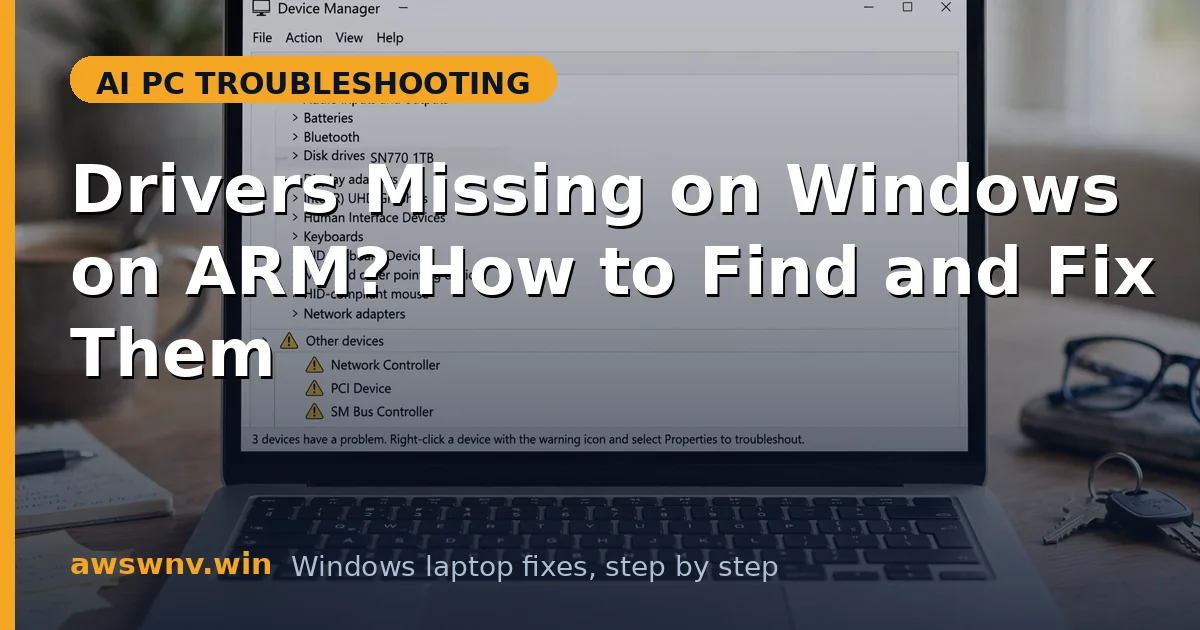
Open Device Manager on a Snapdragon laptop and you might spot yellow warning triangles on devices you expected to “just work” — a fingerprint reader, an old printer, a USB audio interface, or a specialty dongle. On an x86 laptop you’d download the driver and move on. On Windows on ARM, the story is different: drivers live in the Windows kernel, and the kernel cannot be emulated. If no ARM64 driver exists for that device, no amount of compatibility mode will conjure one.
This is the single hardest limit of Windows on ARM, and it’s worth understanding before you waste an afternoon. Applications can be emulated — when they’re slow, our guide on x86 apps running slow on Snapdragon covers that — but drivers must be native ARM64, full stop. An x64 driver is simply a machine language the kernel can’t speak.
The practical picture is better than it sounds: every major laptop maker ships complete ARM64 driver packs for their Snapdragon models, and Windows Update handles most of it silently. The pain concentrates on peripherals — especially older ones — and niche hardware. This guide shows how to identify exactly which driver is missing, where to find a real ARM64 replacement, and what to do when none exists. If you’re also unsure whether your programs themselves are native, see how to check if an app is ARM native .
Why this happens
- Kernel code can’t be emulated: Prism translates user-mode apps, but drivers run in kernel mode where emulation is impossible. Only ARM64-compiled drivers load.
- Manufacturers deprioritize ARM64: Smaller hardware vendors never bothered compiling ARM64 drivers for older products, leaving them permanently unsupported.
- Installer wrappers are x86: Even when an ARM64 driver exists, the vendor’s installer program is often x86-only and crashes — while the actual driver files inside would work fine.
- Windows Update gaps: Microsoft’s driver catalog covers mainstream hardware well but misses specialty devices, leaving them as “Unknown device” entries.
- OEM packs lag behind: Laptop makers bundle ARM64 drivers for built-in hardware, but their support pages update slower than Windows itself, creating temporary mismatches.
- Legacy bus drivers: Old FireWire, PCMCIA-era, and 32-bit-only device classes have no ARM64 path at all — the entire driver stack was never ported.
How to fix it
Work through these in order — diagnose first, then act.
Fix 1: Identify exactly which device is missing its driver
Guessing wastes time. Device Manager tells you precisely what’s wrong if you read it properly, including the hardware IDs you need to search for drivers.
- Press Win + X and open Device Manager.
- Expand each category and note every device with a yellow triangle or listed under “Other devices.”
- Right-click a problem device > Properties > Details tab > change the dropdown to “Hardware Ids.”
- Copy the top hardware ID (e.g., USB\VID_1234&PID_5678) — this is your search key.
- Note whether the device is built into the laptop (OEM’s responsibility) or a peripheral (peripheral maker’s responsibility).
Fix 2: Get built-in hardware drivers from your OEM
For anything soldered into the laptop — fingerprint reader, cameras, Wi-Fi, audio — the laptop maker is the only correct source. Generic drivers from chip vendors are a fallback, not the first choice.
- Go to your maker’s support site: Dell , HP , Lenovo , or Microsoft/Samsung/ASUS equivalents.
- Enter your exact model and select Windows 11 on ARM as the OS if there’s a choice.
- Download the driver pack or the specific missing driver (chipset, biometric, camera, audio).
- Run the installer as administrator and reboot when prompted.
- Re-check Device Manager — the yellow triangle should be gone.
Fix 3: Run Windows Update’s optional driver updates
Microsoft quietly ships a large ARM64 driver catalog through Windows Update, including drivers your OEM hasn’t packaged yet. Many “unknown device” entries resolve here with zero effort.
- Open Settings > Windows Update > Advanced options > Optional updates.
- Expand “Driver updates” and check everything listed.
- Click Download & install, then restart the laptop.
- After rebooting, open Device Manager and verify the problem devices cleared.
- Repeat once more — Windows sometimes stages driver updates across two passes.
Fix 4: Extract drivers from x86 installers manually
Here’s a trick technicians use: the vendor’s setup program may be x86-only and crash, but the ARM64 .inf and .sys files are often sitting inside it. You can install them by hand.
- Download the vendor’s driver package (even if the installer is x86-only).
- Extract it with 7-Zip or WinRAR instead of running the setup.exe.
- In Device Manager, right-click the problem device > Update driver > “Browse my computer for drivers.”
- Point it at the extracted folder (check “Include subfolders”).
- If Windows finds a compatible ARM64 .inf, it installs just the driver — no broken installer needed.
Fix 5: Use class drivers and universal alternatives
When no vendor ARM64 driver exists, Windows’ built-in class drivers cover entire device categories. Printers, audio, storage, and network adapters usually have a generic path.
- For printers: remove the old printer, then re-add it via Settings > Bluetooth & devices > Printers — choose the IPP/Mopria universal driver.
- For USB audio: let Windows install its generic USB Audio class driver instead of the vendor suite.
- For network dongles: the built-in USB NDIS driver handles most adapters.
- Test full functionality; class drivers cover core features but may skip vendor extras (custom EQ, button mapping).
Fix 6: Replace or work around permanently unsupported hardware
Some devices will never get ARM64 drivers — typically hardware from vendors that exited the market or 32-bit-only designs. Recognize the dead end and route around it.
- Check the vendor’s site once for any ARM64 or “Windows 11 ARM” driver — if none, stop hunting.
- Look for a newer replacement device with explicit ARM64/Windows 11 support.
- For must-keep legacy hardware, consider a cheap x86 mini-PC or print server as a bridge (e.g., share the old printer over the network).
- Check Microsoft’s official guidance on Windows on ARM support for the current compatibility picture.
- When buying new peripherals for a Snapdragon laptop, verify “ARM64 driver available” before purchasing.
Closing
Missing drivers on Windows on ARM almost always trace back to one fact: kernel drivers can’t be emulated, so an ARM64 driver must exist. Work the chain — Device Manager diagnosis, OEM pack, Windows Update optional drivers, manual .inf extraction, then class drivers — and you’ll resolve the large majority of cases. For the stubborn remainder, usually old peripherals from vendors who never shipped ARM64 support, replacement beats endless hunting. If a device works but its companion software misbehaves, that’s usually an app problem rather than a driver one — see apps not working on Snapdragon X laptops . If a built-in laptop device (camera, Wi-Fi, fingerprint reader) stays broken after the OEM’s own driver pack, that’s a warranty conversation, not a driver hunt.