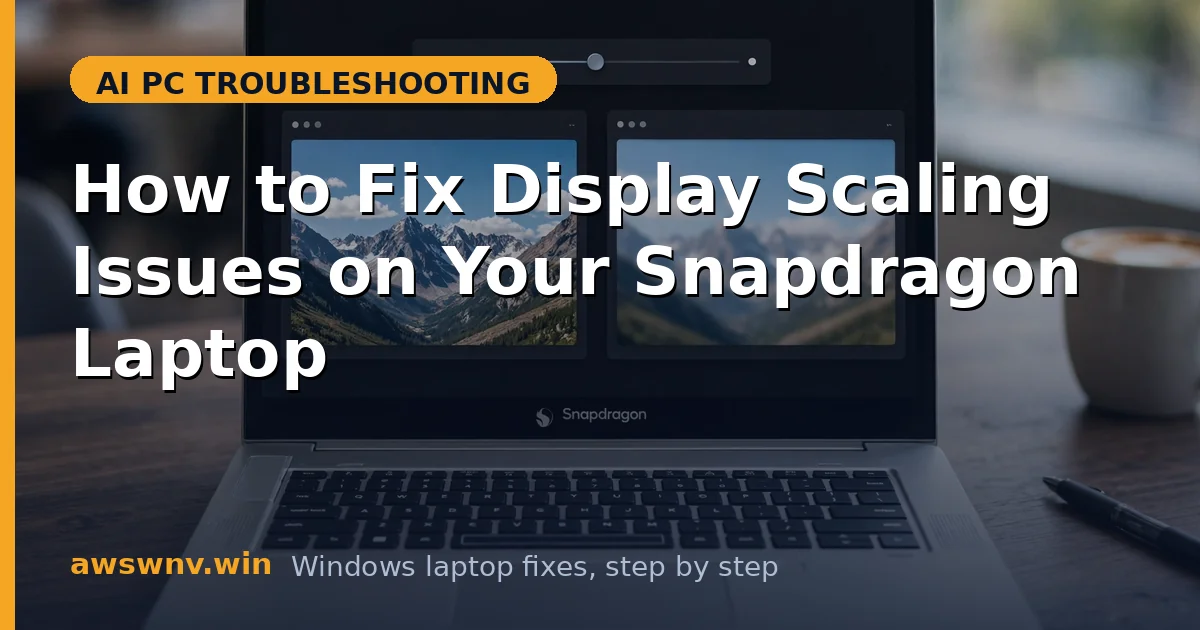
Text looks crisp in Edge but fuzzy in your desktop app, and windows resize oddly across screens. On Windows 11 on ARM, three layers — the system scaler, per-app DPI awareness, and Prism emulation — negotiate how big things render, and any one of them can blur text or mis-size buttons.
Snapdragon X laptops make this more visible than it used to be. High-DPI 2.8K and OLED panels ship at 150 or 175 percent scaling out of the box, and a surprising number of everyday apps — VPN clients, old utilities, some printer software — still run emulated without declaring DPI awareness, so Windows bitmap-scales them into a blur.
The good news: this is configuration, not hardware. This guide gives you six fixes in technician order: system-level scaling first, then per-app overrides, then the emulation and external-monitor layers. Work through them in sequence and compare the same blurry app after each change.
Why this happens
- Non-DPI-aware apps under emulation: Classic Win32 apps that never declared DPI awareness get bitmap-scaled by Windows, and under Prism emulation the scaled result often looks softer than on native x86 machines.
- Wrong global scaling value: The out-of-box percentage suits most users but not all — 175 percent on a 14-inch panel makes some apps overflow their windows, while 125 percent can shrink text below comfort.
- Mixed-DPI multi-monitor setups: Your laptop panel at 150 percent next to a 1080p monitor at 100 percent forces Windows to rescale apps as they cross screens, and apps that do not handle the transition glitch or blur.
- Custom scaling leftovers: A manually typed custom scale (Settings > System > Display > Scale > Custom scaling) overrides the recommended value and is a classic source of weird, uneven rendering — Microsoft warns against it for a reason.
- Outdated ARM graphics drivers: The Adreno GPU driver on Snapdragon X handles the final compositing; an old or generic driver can mishandle per-monitor DPI transitions and leave blurry frames behind.
- Blurry sign-in after display changes: Changing scaling without signing out leaves the shell and some apps rendering at the old scale — a stale session, not a broken driver.
How to fix it
Work through these in order — diagnose first, then act.
Fix 1: Set the correct system scaling and sign back in
Most scaling weirdness starts with a wrong or stale global value. Reset it to the recommended percentage, then sign out so every process restarts at the new scale — skipping the sign-out is why “I changed scaling and nothing happened” is so common.
- Open Settings > System > Display and note the value under Scale — the one marked “(Recommended)” is tuned for your panel.
- If a custom value is active (it shows as a typed percentage rather than a preset), remove it: under Scale > Custom scaling, clear the field and sign out immediately.
- Select the Recommended preset (usually 150% on 13–14" Snapdragon laptops) from the Scale dropdown.
- Click Start > your profile picture > Sign out, then sign back in — do not just restart, sign out so the shell reloads at the new scale.
- Reopen the blurry app and check whether text now renders sharply before touching per-app settings.
Fix 2: Override high DPI behavior for the blurry app
When the system scale is correct but one app stays blurry, the app itself is not DPI-aware. Windows lets you override its scaling behavior per executable — the single most effective fix for fuzzy legacy apps on Snapdragon machines.
- Right-click the app’s shortcut or its .exe file and open Properties > Compatibility > Change high DPI settings.
- Check “Override high DPI scaling behavior” and set Scaling performed by to System (Enhanced) first — this is Windows’ smarter bitmap scaling with text sharpening.
- Launch the app and inspect small text and icons; if it is still fuzzy, try Application (lets the app scale itself) and then System (plain bitmap scaling), testing each.
- Keep whichever looks sharpest — different apps respond to different modes, so there is no universal best choice.
- If the app launches from the Microsoft Store, check for an ARM64-native version first, since native apps like the ones covered in the LG Gram Pro AI Copilot guide sidestep emulation rendering quirks entirely.
Fix 3: Fix scaling on external monitors separately
A second monitor introduces its own scale factor, and Windows applies per-display scaling that some apps mishandle when dragged across screens. Set each display’s scale independently and re-test the transition.
- Connect the external monitor, then open Settings > System > Display and click each display rectangle to select it.
- Set each display to its own Recommended scale — typically 150% for the laptop panel, 100% for a 1080p monitor.
- Turn on “Let Windows try to fix apps so they’re not blurry” under Advanced scaling settings on the same page.
- Drag the blurry app between screens and watch whether it resharpens; if an app glitches mid-drag, close and reopen it on the target display. The same per-display logic applies to external monitor issues on Snapdragon laptops , where detection and scaling problems share root causes.
- If the monitor’s image is the wrong size (black bars or overscan), check the monitor’s own on-screen menu for aspect/overscan settings before blaming Windows.
Fix 4: Clear stale scaling with the Windows scaling troubleshooter
Windows keeps a per-app record of which scaling fixes it has applied, and that record can go stale after updates. The built-in troubleshooter re-evaluates apps and reapplies the right behavior without you editing each one by hand.
- Open Settings > System > Display > Advanced scaling settings.
- Enable “Let Windows try to fix apps so they’re not blurry” if it is off.
- Click “Fix scaling for apps” if Windows shows the notification that blurry apps were detected — accept the recommended fix.
- Sign out and back in so the corrected per-app behavior takes effect everywhere.
- Re-test your problem apps; repeat Fix 2 manually for any that the troubleshooter missed.
Fix 5: Update the Snapdragon Adreno graphics driver
The GPU driver composites the final scaled image, and outdated Adreno drivers on Snapdragon X machines have shipped with real DPI-transition bugs — apps blurring when moved between displays or after wake. The fix comes from your laptop maker, not Windows Update.
- Find your exact model in Settings > System > About, then check Dell , HP , or Lenovo support for a newer graphics/display driver for Windows 11 on ARM.
- Download the display driver package, run it as administrator, and let it finish without interruption.
- Restart when prompted — display driver installs need the reboot to rebind the compositor.
- Re-test blurry apps and monitor transitions at your usual scaling. If Windows Update later replaces the driver, fetch fresh guidance from Microsoft’s Windows support pages on blocking driver updates.
- As a last resort for one stubborn app, check whether the vendor ships an ARM64 build — native AI runtimes like Phi Silica run cleaner on Snapdragon hardware for the same reason native apps render cleaner.
Fix 6: Reset display settings to factory defaults
When layers of tweaks have piled up — custom scales, compatibility overrides, monitor profiles — the fastest path back to sanity is a clean reset. This clears every scaling customization at once, so you rebuild only what you need.
- In Settings > System > Display, set Scale back to Recommended on every connected display and clear any Custom scaling value.
- For each app where you set a DPI override, reopen Properties > Compatibility > Change high DPI settings and uncheck the override boxes.
- Sign out and back in to flush all cached scaling state.
- Re-test the original problem app at defaults; add back only the single per-app override it actually needs.
Closing
Display scaling on a Snapdragon laptop is three systems cooperating — and the fix is almost always at the app layer, not the system layer. Set the recommended scale, sign out, then give each blurry app its own DPI override; native ARM64 builds whenever they exist. Keep the Adreno driver current from your laptop maker, set each monitor’s scale independently, and the fuzzy text disappears without touching any hardware.