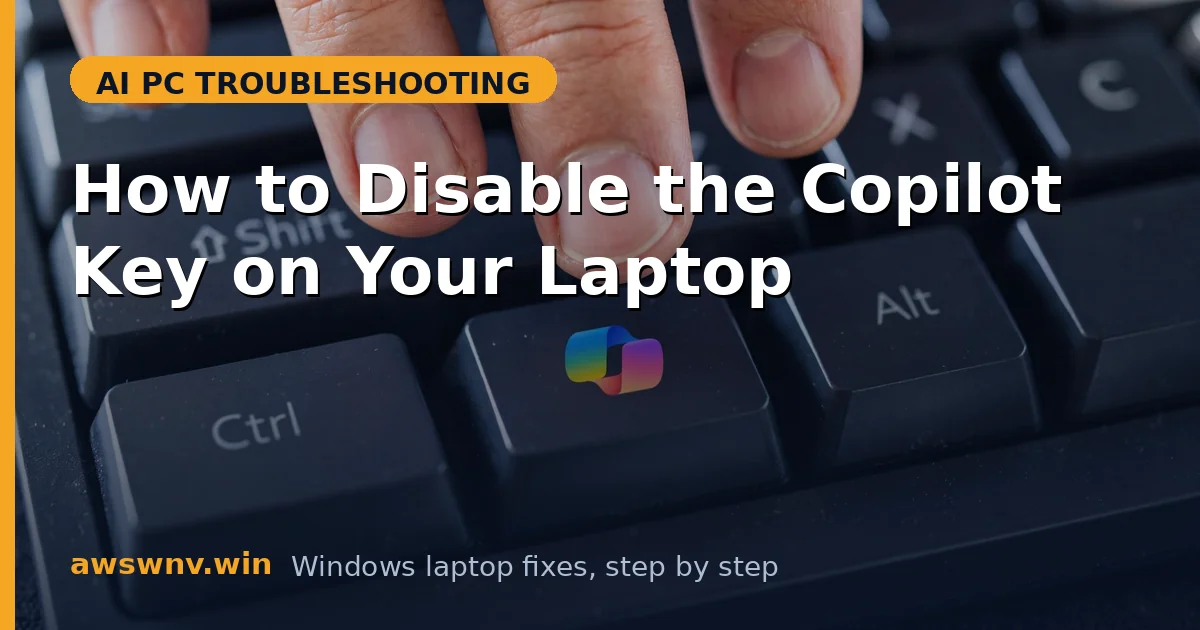
The Copilot key sits right where your fingers expect something else — near the arrow keys, prime territory for accidental presses. One stray tap mid-game or mid-typing and an AI assistant pops up over your work. If you never use Copilot, that key is not a feature; it is a landmine. Fortunately, disabling it is straightforward.
Disabling is different from remapping. Remapping gives the key a new job; disabling makes it do nothing at all. If you would rather repurpose it, our guide on how to remap the Copilot key on Windows 11 covers that path. And if the key is misbehaving rather than just annoying — launching the wrong thing, for example — check why the Copilot key opens the wrong app before you nuke it. One more consideration: on shared machines, disabling the key for your own profile does not affect other Windows user accounts, so family members who like Copilot keep their own setup untouched.
Here are five methods, from the simplest toggle to the most permanent. Pick one and be done with it.
Why this happens
- Awkward placement: On many layouts the key sits beside the arrow keys or right Ctrl, exactly where fast typists and gamers strike accidentally.
- No use for the assistant: If you do not use Copilot, every press is pure interruption with zero benefit.
- Gaming interruptions: A stray press can minimize a fullscreen game or steal focus at the worst moment.
- Shared machines: On a family or work laptop, others may trigger it and get confused by the popup.
- Preference for shortcuts: Some users prefer Win + C or a taskbar icon and want the dedicated key gone entirely.
How to fix it
Work through these in order — diagnose first, then act.
Fix 1: Unassign the key in Windows Settings
The cleanest method — tell Windows the key should do nothing.
- Open Settings with Win + I.
- Go to Personalization and find the Copilot key setting (alternatively: Bluetooth & devices > Keyboard).
- Open the assignment dropdown. If it offers “Do nothing,” “None,” or an unassign option, select it.
- Press the Copilot key several times to confirm nothing happens.
- If your build has no unassign option, only app choices, pick the most harmless app — or move to Fix 2 for a true disable.
- Note that major feature updates can reset this, so bookmark this page in case you need to redo it.
Fix 2: Disable it with PowerToys Keyboard Manager
Microsoft’s own PowerToys can neutralize any key with two clicks.
- Install Microsoft PowerToys from the Microsoft Store if you do not have it.
- Open PowerToys Settings and go to Keyboard Manager.
- Click “Remap a key,” press the Copilot key when prompted, and set its action to “Disable.”
- Click OK. The key is now dead — press it to confirm nothing happens.
- In PowerToys General settings, enable “Run at startup” so the disable persists across reboots.
- This method is fully reversible: delete the remap entry in Keyboard Manager and the key works again.
Fix 3: Disable it permanently with SharpKeys
For a disable that survives reboots without any background software, write it to the registry.
- Download and install SharpKeys (free, open source).
- Click Add, then “Type Key,” and press the Copilot key to capture its scan code.
- In the right-hand column, select “Turn Key Off.”
- Click OK, then click “Write to Registry” and confirm. SharpKeys will warn you that a logout is required — that is normal.
- Log out and back in, or restart, for the change to take effect. The mapping is stored in the registry’s Scancode Map value, which Windows reads at login, so the disable is active before any startup program loads.
- Press the key — silence. To reverse, reopen SharpKeys, delete the entry, write to the registry again, and restart.
Fix 4: Block it with your manufacturer’s utility
Some vendor keyboard tools let you disable special keys directly.
- Open your laptop maker’s utility (Lenovo Vantage, Dell Optimizer, ASUS Armoury Crate, HP Support Assistant).
- Navigate to keyboard or hotkey settings.
- Look for the Copilot key entry and set it to disabled or unassigned.
- Save and restart the laptop so the hotkey service picks up the change.
- Test the key. If the utility lacks the option, update it to the latest version first.
- If the vendor tool cannot do it, fall back to Fix 2 or Fix 3, which work regardless of vendor software.
Fix 5: Use Group Policy or Registry to neuter Copilot itself
If your real annoyance is Copilot popping up (not just the key), disabling the app’s launch behavior solves it at the root.
- Press Win + R, type
gpedit.msc, and press Enter (Windows 11 Pro only). - Navigate to User Configuration > Administrative Templates > Windows Components > Windows Copilot.
- Open “Turn off Windows Copilot,” set it to Enabled, and click OK.
- On Windows 11 Home (no gpedit), open Registry Editor and go to
HKEY_CURRENT_USER\Software\Policies\Microsoft\Windows\WindowsCopilot. - Create a DWORD named
TurnOffWindowsCopilotset to 1 (create the keys if missing). - Restart. The key may still be mapped, but Copilot itself will no longer launch — effectively the same result. Our guide on how to uninstall Copilot on Windows 11 goes further if you want it gone entirely.
Closing
A key you never meant to press should not hijack your screen. Whether you unassign it in Settings, neutralize it with PowerToys, or bury it in the registry with SharpKeys, the fix takes minutes and is reversible. Pick the method that matches your comfort level, test it with a few deliberate presses, and get back to typing without fear. If Copilot itself is unstable rather than just annoying, see Copilot app crashing ; and if the app has vanished from a Copilot+ PC entirely, our Copilot missing on Copilot+ PC guide restores it.