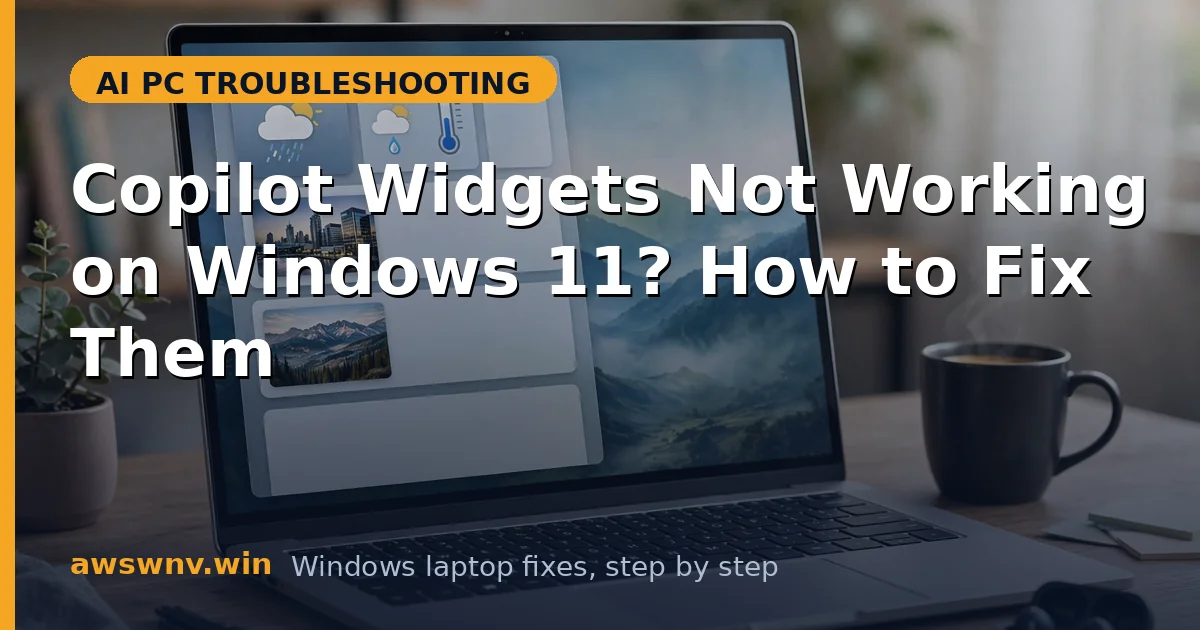
The Widgets board should be a glanceable dashboard — weather, calendar, news, Copilot shortcuts. Instead yours shows blank cards, endless spinners, or the board will not open at all. Widget failures are data-layer problems: the board shell is fine, but sign-in, network, or cache issues starve the widgets of content. On Copilot+ PCs the board also hosts AI-powered widgets, so a broken board feels like a bigger loss.
The diagnostic split matters: board-won’t-open is a Windows feature problem; board-opens-but-widgets-blank is a sign-in/data problem. This guide fixes both in order. If you are specifically missing the daily briefing content, see daily briefing not showing — it builds on the same board.
Press Windows key + W to test the board after each fix, and give each change a few seconds — widget content loads asynchronously, and a hasty retest can look like a failure.
Why this happens
- Not signed into the Widgets board: Personalized widgets need a separate board sign-in.
- Widgets feature disabled: The taskbar toggle for Widgets can be off.
- Corrupted Widgets cache: Stale cache data breaks widget rendering.
- Network filtering: Strict DNS or firewall rules block widget content endpoints.
- Outdated Web Experience Pack: Widgets run on this Store component; old versions have rendering bugs.
- Conflicting region settings: Widget content services vary by region and fail on mismatches.
How to fix it
Work through these in order — diagnose first, then act.
Fix 1: Turn the Widgets board on
If the board will not open at all, the feature itself may be disabled. This happens after some Windows updates that quietly reset taskbar preferences.
- Open Settings > Personalization > Taskbar.
- Make sure the Widgets toggle is on.
- Press Windows key + W — the board should slide in.
- If it opens now, the problem was just the toggle.
Fix 2: Sign into the Widgets board
Personalized widgets need the board’s own sign-in, separate from Windows sign-in.
- Open the Widgets board (Windows key + W).
- Click the profile icon in the board and sign in with your Microsoft account.
- Wait for the widgets to refresh with your data.
- Check whether calendar and Copilot widgets now populate.
Fix 3: Clear the Widgets cache
Stale cache data is the top cause of blank or stuck-loading widgets. The board caches feed content aggressively, and one corrupted entry can poison every widget at once — which is why a cache clear fixes problems that look much deeper.
- Close the Widgets board.
- Open Task Manager and end any “Widgets” processes.
- Alternatively, sign out and back into Windows to clear the board’s session state.
- Reopen the board and check whether widgets render.
Fix 4: Update the Web Experience Pack
Widgets run on the Windows Web Experience Pack from the Microsoft Store. Old versions have rendering bugs.
- Open the Microsoft Store > Library and check for updates.
- Install any update for “Windows Web Experience Pack.”
- Restart the laptop.
- Open the board and verify widgets load.
Fix 5: Check network filtering
Widgets pull content from Microsoft endpoints. Strict DNS, VPNs, or firewalls starve them, and because the board shell loads locally, everything looks fine except the empty cards.
- Disconnect your VPN temporarily and reopen the board.
- If you use custom DNS or ad-blocking DNS, try your ISP’s default temporarily.
- Check firewall logs for blocked Microsoft content endpoints.
- If widgets load off-VPN, adjust your VPN or filter’s allowlist.
Fix 6: Repair the Widgets feature
For stubborn cases, repair the underlying components.
- Install all pending Windows updates and restart.
- Run
sfc /scannowin an elevated Command Prompt. - Confirm your region supports full widget content (Settings > Time & language > Language & region).
- As a related check, our daily briefing guide covers the briefing card specifically, and Microsoft documents Widgets on the Windows support hub .
Closing
Widgets fail at the data layer: board sign-in, cache, the Web Experience Pack, or network filtering. Turn the board on, sign into it, clear its cache, update its engine, and unblock its network path. The board should be a thirty-second glance at your day — these fixes get it back to that. MSI’s AI laptops have their own quirks — see MSI Prestige AI Evo problems — and confirm your AI hardware is healthy with how to check NPU TOPS in Windows 11 .