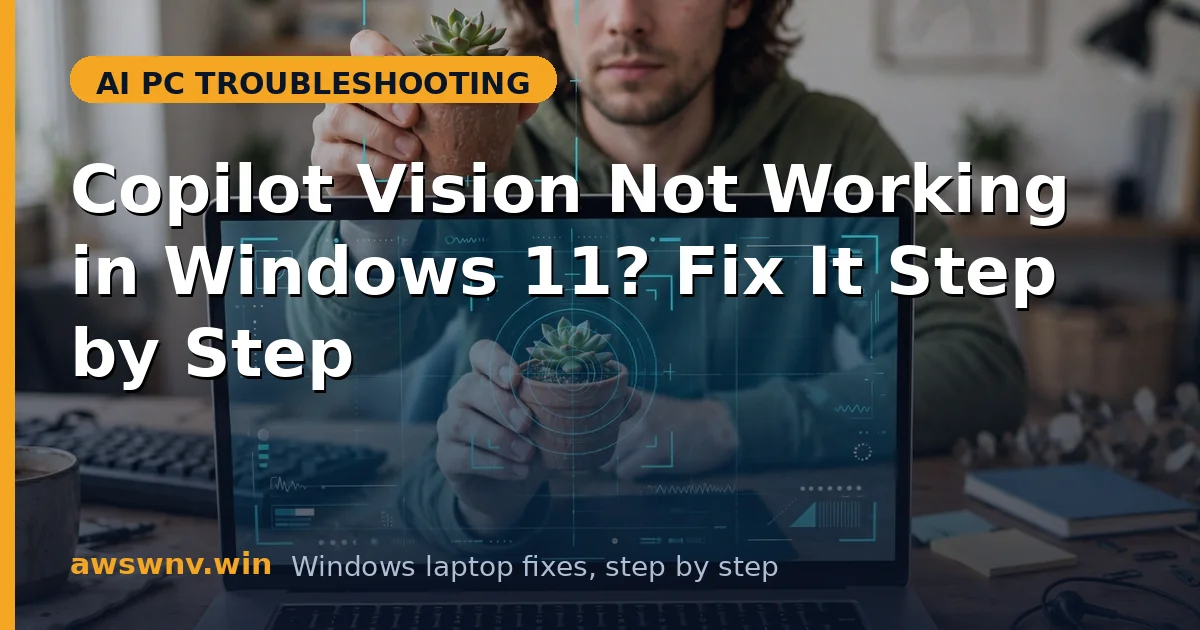
Copilot Vision promises something genuinely useful: an AI that can see your screen and help with what is actually in front of you. When it refuses to start, shows as unavailable, or shares a blank screen, that promise collapses into a greyed-out button. Vision failures are usually about permissions, availability, or app support — not about your PC being broken.
The first job is to separate “not available here yet” from “broken on my machine.” Vision’s rollout is gradual and region-dependent, so a PC that meets every hardware requirement can still lack Vision simply because the feature has not reached it. If Vision is available but fails when used, the causes shift to permissions, graphics, or app compatibility, and those are fixable.
Thermal and performance issues can also masquerade as Vision failures, since Vision leans on the NPU. If your machine throttles, see our guide to AI PC throttling fixes , and Lenovo users should check Lenovo IdeaPad Slim 5x AI problems . If you also have Copilot+ hardware quirks, our guide to Dell Latitude 7455 Copilot+ issues covers the overlapping checks.
Why this happens
- Feature not yet available: Vision rolls out gradually by region and build, so it may simply not have reached your PC yet.
- Outdated Windows build: Vision requires a recent Windows 11 build; older builds do not offer it at all.
- Outdated Copilot app: An old Copilot app version lacks Vision support even on a current Windows build.
- Screen sharing permission denied: Vision needs explicit permission to see your screen, and a denied or revoked permission blocks it.
- Unsupported app or window: Vision supports specific apps and browsers first; unsupported windows cannot be shared.
- NPU driver problem: A missing or broken NPU driver can make Vision fail to initialise.
- Privacy or enterprise policy block: Work or school policies can disable screen-sharing AI features entirely.
How to fix it
Work through these in order — diagnose first, then act.
Fix 1: Confirm Vision is available for you
Before troubleshooting, verify availability. Check your Windows build, region, and Copilot app version against Vision’s requirements, and check Microsoft’s announcements for rollout status. Chasing a fix for a feature that has not arrived yet wastes time.
- Open Settings, go to System, then About, and note your Windows build.
- Open the Microsoft Store and update the Copilot app.
- Open Copilot and look for the Vision option.
- If Vision is absent everywhere, check Microsoft’s Copilot Vision announcements for your region.
- If it is present but fails, continue with the fixes below.
- Note your build and app version for later reference.
Fix 2: Update Windows and the Copilot app fully
Vision depends on both the OS and the app being current. A mismatch — new app on old Windows, or vice versa — is a common reason Vision appears but fails to start.
- Open Settings, go to Windows Update, and install all pending updates.
- Restart when prompted.
- Open the Microsoft Store and update Copilot again.
- Relaunch Copilot and try Vision.
- If Vision still fails, try it in Microsoft Edge first, where support is broadest.
- For update problems, see the official Windows support pages .
Fix 3: Grant screen sharing permission cleanly
Vision cannot work without permission to see the screen, and a previously denied prompt can silently block it forever. Revoking and re-granting permission forces a fresh prompt and clears stale denials.
- Open Copilot and start a Vision session to trigger the permission prompt.
- If no prompt appears, open Settings, go to Privacy & security.
- Find screen sharing or app permissions and locate Copilot.
- Turn the permission off, then back on.
- Restart Copilot and retry Vision.
- Accept the prompt when it appears, and confirm the shared content is visible to Copilot.
Fix 4: Try Vision in a supported app first
If Vision fails in one app but works in Edge, the app is the limitation, not your PC. Testing in Edge establishes a baseline and stops you from fixing a system that is already fine.
- Open Microsoft Edge and navigate to a normal webpage.
- Start Copilot Vision from Edge.
- Ask Copilot a question about the visible page.
- If it works in Edge, the original app is unsupported — wait for support to expand.
- If it fails in Edge too, continue with system-level fixes.
- Try a second supported app to confirm the pattern.
Fix 5: Fix the NPU driver
Vision leans on the NPU for on-device processing, and a broken NPU driver can stop it initialising. A Device Manager check and driver refresh resolves this layer cleanly.
- Press Windows + X and open Device Manager.
- Expand Neural processors and check for warning icons.
- Right-click the NPU and choose Update driver.
- If updating fails, uninstall the device and restart so Windows reinstalls it.
- Confirm the NPU is healthy with no warnings.
- Retry Copilot Vision.
Fix 6: Check privacy and enterprise policies
Work or school PCs may have policies that disable AI screen sharing. If Vision is missing entirely on a managed device, a policy — not a bug — is the likely cause, and only your IT administrator can change it.
- Check whether your PC is managed by a work or school organisation.
- Open Settings, go to Privacy & security, and review AI feature settings.
- Look for greyed-out options, which indicate policy control.
- If managed, ask your IT administrator whether Copilot Vision is permitted.
- On a personal PC, ensure no third-party privacy tool is blocking screen sharing.
- Temporarily disable such tools and retest Vision.
Fix 7: Reset the Copilot app
When permissions, updates, and drivers are all healthy but Vision still fails, the app’s own state may be corrupt. Resetting it clears that state without affecting your files or other apps.
- Open Settings, go to Apps, then Installed apps.
- Find Copilot and open Advanced options.
- Choose Repair first and test Vision.
- If Repair does not help, choose Reset.
- Sign back into Copilot after the reset.
- Retry Vision in Edge and confirm it works.
Closing
Copilot Vision failures divide neatly into “not here yet” and “blocked on my PC,” and the fixes above address the second group completely: updates, permissions, supported apps, and NPU health. Once Vision is running, it changes how you use Copilot — from describing your problem in words to simply showing it. If Vision is still unavailable after all of this, the honest answer is usually rollout timing, and the next Windows update is the most likely delivery vehicle.