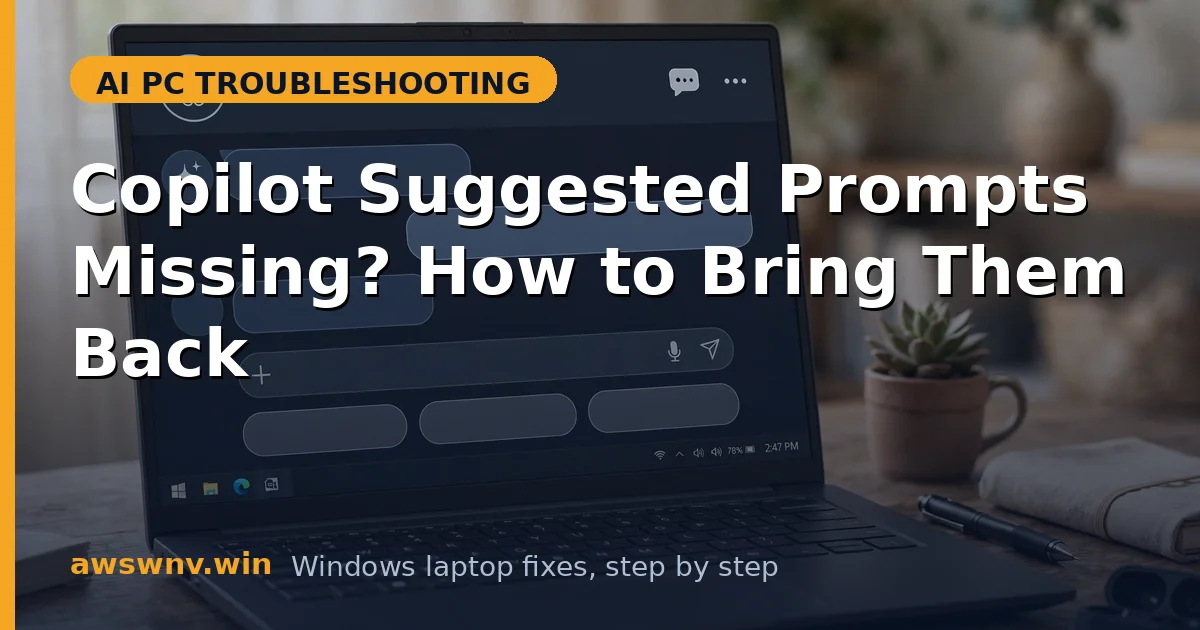
Open Copilot and the home screen feels empty — the suggested prompt tiles that used to greet you are gone. The app still works if you type a question, but the discovery surface that makes Copilot approachable has vanished. On Copilot+ PCs, where suggested prompts sometimes surface NPU-accelerated features like local image generation, their absence can also mean you are missing features you paid for.
This is usually a fetch or render failure, not a removed feature. Suggested prompts load from Microsoft’s servers when the app starts, and anything that breaks that fetch (a corrupt cache, a stale token, an aggressive privacy toggle, a half-applied update) leaves you with a bare home screen. Region mismatches and managed work accounts add two more ways the tiles can legitimately disappear.
The six fixes below run from the fastest checks to deeper repairs: verify the basics, toggle the home settings, refresh the app state, fix your account, update the app, and check region and policy. Test by fully closing and reopening Copilot after each fix.
Why this happens
- Corrupt cached home-screen data: A bad cache entry for the home screen layout makes Copilot render a blank panel instead of fetching fresh tiles.
- Failed suggestion fetch at launch: If the app starts offline or the first request to Microsoft’s servers fails, it can give up silently and never retry until relaunched.
- Account sync problems: Switching Microsoft accounts, or a token that silently expired, can leave the home screen tied to a profile with no suggestions loaded.
- Privacy toggles blocking personalization: Turning off personalization or “improve Copilot” options can suppress the suggested prompts entirely, since the tiles are a personalization surface.
- Outdated or half-updated app: A Store update that applied incompletely can leave the home-screen UI version mismatched with the backend, so tiles fail to render.
- Region or managed-account restrictions: Some regions show fewer tiles, and work or school accounts under IT policy may disable them on purpose.
How to fix it
Work through these in order — diagnose first, then act.
Fix 1: Check the basics — connection, restart, and layout
Before touching settings, rule out the trivial causes. Suggested prompts are server-fetched, so they need a live connection at launch, and a glitched app session can skip the fetch even when you are online. This two-minute check resolves more cases than you would expect.
- Confirm you have a working internet connection — open a web page and make sure it loads promptly.
- Fully close Copilot (right-click its taskbar icon and choose Quit, or end it in Task Manager) — do not just minimize it.
- Reopen Copilot and wait ten seconds on the home screen without typing anything.
- If tiles appear, you are done — the app simply needed a clean fetch.
- If the home screen is still bare, note whether you see an error message or just emptiness — that detail helps later.
Fix 2: Toggle home-screen and personalization settings
Copilot’s settings include options that control the home screen and personalization. A toggle flipped by an update can suppress the suggestion tiles while everything else keeps working.
- In Copilot, open Settings (gear icon or profile menu) and look for home-screen, personalization, or “suggested content” options.
- If you find a personalization or “tailor suggestions to me” toggle turned off, turn it On and restart the app.
- Also check Settings > Privacy & security in Windows — privacy-related toggles like advertising ID or “let apps show me personalized ads” can feed the same pipeline.
- Relaunch Copilot and wait on the home screen for the tiles to load.
- If you deliberately keep personalization off, accept that some suggestion tiles may stay hidden — that is the trade-off, not a bug.
Fix 3: Reset the app to clear the bad home-screen cache
When the basics and toggles do not help, the cached home-screen state itself is usually corrupt — the app keeps loading a broken saved layout instead of fetching fresh tiles. The Settings Reset wipes that saved state while keeping the app installed, forcing a clean rebuild.
- Open Settings > Apps > Installed apps, find Microsoft Copilot, open the three-dot menu, and choose Advanced options.
- Click Repair first to fix any damaged app files, then test.
- If the tiles are still missing, click Reset — this clears the cached home-screen data and forces a fresh fetch.
- Sign back in if prompted, wait on the home screen for a few seconds, and check for tiles.
- For the full cache-clearing playbook (Store cache, temp folders), see the dedicated Copilot cache clearing guide .
Fix 4: Refresh your Microsoft account sign-in
A silently expired sign-in token can break the suggestion fetch even while chat works, because the tiles are tied to your account profile. If Copilot is also forgetting your past conversations , the same broken sync is the cause — fix it and the tiles usually return. Re-signing in forces the app to re-fetch your profile and its associated suggestions — especially effective if the tiles vanished right after a password change or account switch.
- In Copilot, open the profile menu and choose Sign out.
- Fully close the app, reopen it, and sign back in with your usual Microsoft account.
- Wait a minute on the home screen for the account to sync before judging.
- If you have both personal and work accounts, test with your personal account — a managed account policy may be suppressing tiles on the work one.
- If tiles return on one account but not the other, the difference is policy, not a bug — contact your IT admin for the work account.
Fix 5: Update Copilot and Windows to a consistent build
A version mismatch between the app’s home-screen UI and Microsoft’s backend is a classic cause of tiles that never render. The Microsoft Store handles Copilot updates, but they can stall — and Windows itself sometimes gates features behind specific builds. Updating both ends the mismatch.
- Open the Microsoft Store, go to Library, and install any pending Copilot updates.
- Open Settings > Windows Update and install all pending updates, then restart.
- After the restart, open Copilot fresh and wait on the home screen.
- If the Store shows Copilot as up to date but tiles are still missing, check for optional driver updates — on Copilot+ PCs some home tiles depend on NPU availability .
- As a final app-level step, uninstall and reinstall Copilot from the Store for a completely clean version.
Fix 6: Check region settings and managed-device policy
If everything above failed, the tiles may be hidden by policy rather than broken by a bug. Copilot tailors suggested prompts by region, and some regions show fewer or no tiles; work or school devices can disable them via admin policy. This fix confirms what is expected versus what is broken.
- Open Settings > Time & language > Language & region and confirm your country/region matches where you actually are.
- Change it if it is wrong, restart, and test Copilot again. Region mismatches on AI PCs can also break media features — see the Netflix 4K playback guide for Snapdragon laptops for how region and DRM pipelines interact.
- On a work or school device, check with your IT admin whether Copilot suggestions are restricted by policy.
- Test with a personal Microsoft account on the same device — if tiles appear there, the restriction is account policy, not your PC.
- If your region offers no suggestions, type prompts manually — the underlying AI works the same; only the starter tiles are absent.
Closing
Missing suggested prompts look like a removed feature but are almost always a fetch failure — a corrupt cache, a stale token, a flipped toggle, or a version mismatch. The fixes cascade from a simple restart through reset, re-sign-in, and updates, ending at region and policy checks for cases where the tiles are hidden on purpose. Once the tiles return, don’t clear the cache preemptively — a healthy cache is what makes Copilot’s home screen load instantly.