That 512GB drive filled up fast, and now you are wondering whether your Copilot+ PC can take a bigger SSD. The answer depends entirely on which model you bought, because the AI PC market is split between machines with user-replaceable storage and machines where everything is soldered to the board. Upgrading the wrong way can waste money — or worse, void your warranty.
The most upgrade-friendly Copilot+ PCs are the Surface Pro 11 and Surface Laptop 7, which Microsoft designed with a removable M.2 2230 SSD. On the Intel and AMD side, machines like many Lenovo, HP, and Dell AI laptops keep the classic removable 2280 SSD, though some thin models solder it. The storage question often comes up alongside memory: if you are wondering about RAM too, read our guide on whether you can upgrade RAM on a Copilot+ PC .
This guide tells you which models are upgradeable, which SSD to buy, and the exact swap procedure — so you spend money once and get it right.
Why this happens
- Soldered storage: Many thin AI laptops solder the flash chips directly to the motherboard, making upgrades impossible by design.
- Uncommon M.2 2230 size: Surface Copilot+ PCs use the short 2230 format, and buyers often order the standard 2280 by mistake.
- Drive encryption blocks cloning: BitLocker-encrypted drives need the recovery key before any clone or reinstall.
- Wrong generation expectations: Buying a Gen5 drive for a Gen4 slot wastes money with zero speed benefit.
- Opening the wrong screws: Some models hide screws under rubber feet or use pentalobe heads that standard kits lack.
- Firmware-locked SSDs: A few OEMs restrict boot drives to approved part numbers, rejecting third-party SSDs.
How to fix it
Work through these in order — diagnose first, then act.
Fix 1: Confirm your model is actually upgradeable
Before buying anything, verify your exact model allows an SSD swap. Guessing wrong means a drive you cannot install — or a warranty you should not have voided.
- Find your full model name in Settings > System > About (for example “Surface Laptop, 7th Edition”).
- Look up the official service manual or teardown guide for that model.
- Surface Pro 11 and Surface Laptop 7: yes, removable M.2 2230. Most other Snapdragon Copilot+ PCs: no, soldered.
- Intel/AMD AI laptops: check the manual — many Lenovo, HP, and Dell models keep a removable 2280 slot, while thin ultrabooks solder it.
Fix 2: Buy the right drive size and generation
Copilot+ PCs are picky about form factor. The wrong physical size simply does not fit, and an over-specced generation wastes money.
- For Surface Pro 11 / Laptop 7, buy an M.2 2230 NVMe SSD (Gen4) — double-check “2230” on the product page.
- For standard Intel/AMD AI laptops, buy an M.2 2280 NVMe SSD matching your slot’s generation (usually Gen4).
- Stick with reputable brands (Samsung, WD, Crucial, SK hynix) and avoid no-name drives with missing firmware support.
- If you also need more memory, read our guide on whether you can upgrade RAM on a Copilot+ PC before spending — most models cannot.
Fix 3: Back up and get your BitLocker key
Swapping the drive wipes everything. A proper backup plus your BitLocker recovery key turns a risky operation into a routine one.
- Save your BitLocker recovery key from your Microsoft account at account.microsoft.com/devices.
- Back up personal files to OneDrive or an external drive.
- Create a list of installed apps you will need to reinstall.
- Charge the laptop above 50% and unplug it before opening anything.
Fix 4: Create Windows 11 installation media
The new SSD is blank, so you need bootable Windows media. Microsoft’s official tool is the only source you should trust.
- On another PC, download the Media Creation Tool from the official Windows 11 download page .
- Create a bootable USB drive (at least 8GB) with the tool.
- On Snapdragon models, the installer includes ARM64 support automatically — no special ISO needed.
- Keep the USB drive handy; you will boot from it after the physical swap.
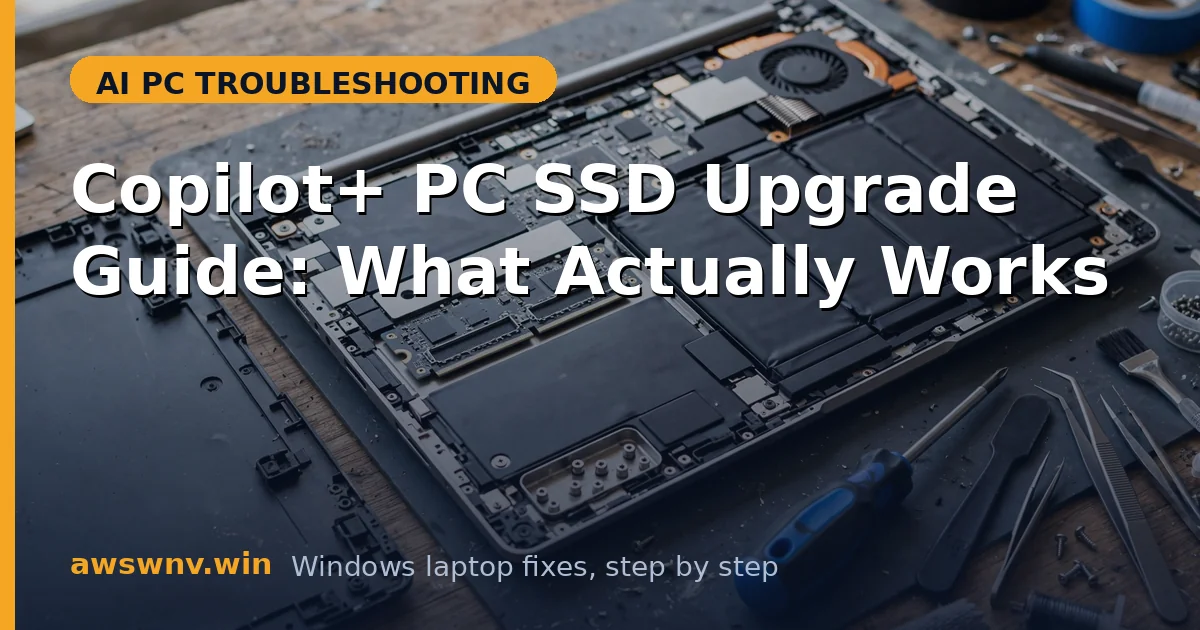
Fix 5: Perform the physical swap carefully
This is the delicate part. Work slowly, keep track of screws, and ground yourself to avoid static damage to the board.
- Power off fully, disconnect the charger, and work on a clean, static-free surface.
- Remove the bottom cover (Surface devices: remove the kickstand/feet screws per the service guide; other models: unscrew the base panel).
- Unscrew the SSD retention screw, slide the old drive out at its angle, and insert the new drive the same way.
- Secure the screw, replace the cover, and boot while holding the boot-menu key to select the USB installer.
Fix 6: Install Windows and verify the drive
After the swap, install Windows, let drivers settle, and confirm the new SSD runs at full speed before you call it done.
- Boot from the USB drive and install Windows 11 on the new SSD.
- Sign in with your Microsoft account — the digital license reactivates automatically.
- Run Windows Update fully; NPU, camera, and Wi-Fi drivers arrive through it on most AI laptops.
- Verify capacity in Settings > System > Storage and run a quick speed check; your old drive can live on in a USB enclosure as backup storage.
Closing
An SSD upgrade is one of the few meaningful hardware improvements you can still make on a Copilot+ PC — but only on models designed for it. Confirm upgradeability, buy the exact 2230 or 2280 drive your model takes, back up with your BitLocker key in hand, and reinstall Windows from official media. Do it right once, and you get years of extra breathing room from a thirty-minute job. Peripheral driver quirks are common on ARM-based AI PCs — see our Canon printer driver guide for ARM64 — and confirm your AI hardware with how to check if your laptop has an NPU .