You set up your new laptop, press the Copilot key, and instead of an AI assistant you get a polite refusal: Copilot is not available in your region. The hardware is ready, the software is installed, but a line on a map says no.
Microsoft gates Copilot by region for regulatory and rollout reasons. The check is based on your Windows region setting and your Microsoft account’s country — not your IP address alone, which is why simply being in a supported country on holiday does not always help, and why the block can follow you. If Copilot is entirely absent rather than blocked, see our guide on Copilot missing on your Copilot+ PC instead. One more thing worth knowing: the region list expands over time, so a block today does not mean a block forever — but waiting without checking is the slowest possible strategy.
The workarounds below are ordered from cleanest to most involved. Start at the top.
Why this happens
- Staged rollout: Microsoft enables Copilot country by country as regulatory approvals land.
- Region setting mismatch: Your Windows region is set to an unsupported country, even if you live elsewhere.
- Account country mismatch: Your Microsoft account was registered in an unsupported country.
- Language requirements: Some regions need specific language packs before Copilot activates.
- Corporate policy: Work or school accounts can have Copilot disabled regardless of region.
- Cached region data: Old region information stuck in the app can keep blocking you after you move.
How to fix it
Work through these in order — diagnose first, then act.
Fix 1: Verify your actual region status
Before changing anything, confirm what Windows believes your region is.
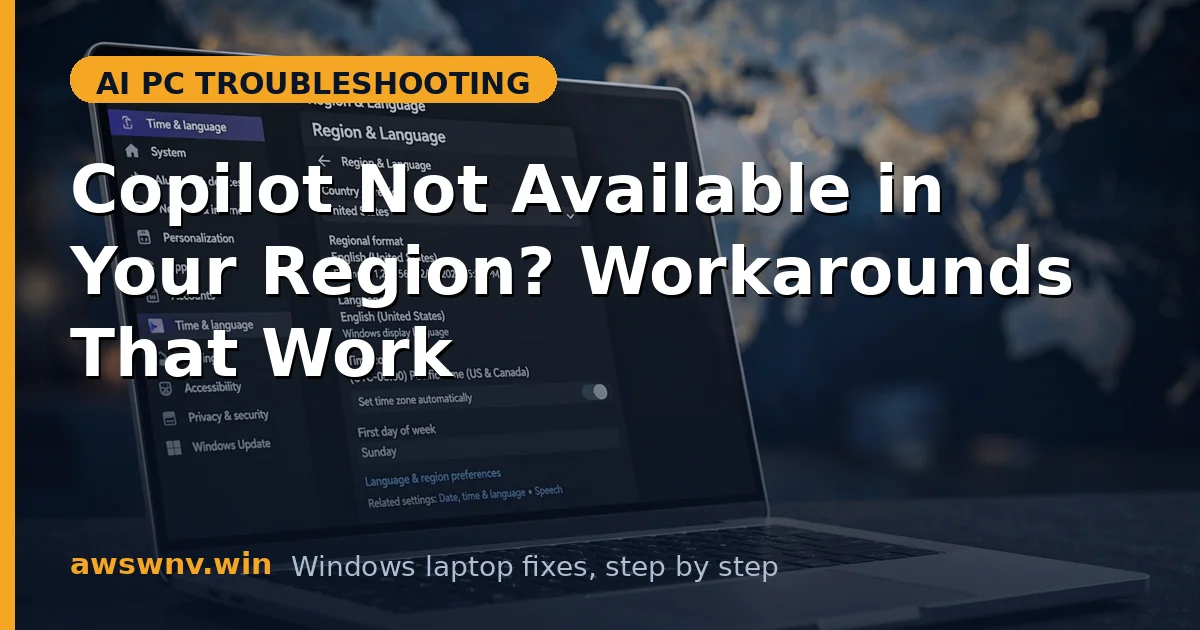
- Go to Settings > Time & language > Language & region.
- Check the “Country or region” dropdown. Is it set to where you actually live?
- Many laptops ship with the region set to the country of manufacture or first sale.
- If it is wrong, change it to your actual country and restart.
- After restarting, open Copilot and test. A surprising number of cases end right here.
- If the region was already correct, the block is account-level or policy-level — continue.
Fix 2: Align your Microsoft account country
Copilot cross-checks your account’s registered country against the region list.
- Go to account.microsoft.com in a browser and sign in.
- Open Your info > Edit profile info (or the region settings section) and check the registered country.
- If it shows an unsupported country, update it to your current one. Note that Microsoft limits how often you can change this.
- Sign out of Copilot on your laptop completely, then sign back in so it picks up the new account data.
- Test Copilot. Account and Windows region now agree, which satisfies the check in most cases.
- If you cannot change the account country (recent change lockout), you may need to wait out the cooldown period.
Fix 3: Install the required language pack
Some regions unlock Copilot only when a supported display language is present.
- Go to Settings > Time & language > Language & region.
- Under Preferred languages, check whether English (United States) is installed. If not, add it.
- You do not need to make it your display language — just having the pack installed can satisfy the requirement.
- Restart after the language pack finishes installing.
- Open Copilot and test again.
- This fix is particularly relevant in regions where Copilot supports only a subset of local languages.
Fix 4: Clear Copilot’s cached region data
If you moved regions or changed settings, stale cached data can keep the old block alive.
- Go to Settings > Apps > Installed apps > Microsoft Copilot > Advanced options.
- Click Reset and confirm. This wipes cached data including stored region flags.
- Reopen Copilot and sign in fresh.
- The app re-evaluates your region on first launch after a reset.
- Test whether access is granted now.
- If it still refuses, the block is being re-applied from current settings, not stale cache — continue.
Fix 5: Check for management or policy blocks
On work or school machines, the “region” message can mask an IT policy.
- Check Settings > Accounts > Access work or school for a managed account.
- Try Copilot with a personal Microsoft account instead of the work account, if permitted.
- Ask your IT administrator whether Copilot is intentionally disabled — many organizations block it.
- On personal machines, check for third-party “privacy” tools that spoof region or block Microsoft telemetry; these can trigger the same denial.
- Disable such tools temporarily and test.
- Never bypass employer policy with hacks on a machine you do not own.
Fix 6: Evaluate the VPN option honestly
A VPN can route around region checks, but it comes with caveats.
- Understand the tradeoff: it usually works technically, but may violate terms of service.
- If you proceed, use a reputable VPN provider — free VPNs are a privacy risk unto themselves.
- Connect to a server in a supported region, then reset Copilot (Fix 4) so it re-evaluates.
- Test Copilot while connected.
- Test Copilot while connected. If it works, the region check is being satisfied by the VPN endpoint — but expect occasional re-verification prompts.
- Be aware that Microsoft can detect VPN usage and may still deny access or flag the account. The cleaner long-term path is waiting for official rollout to your region — check Microsoft’s announcements periodically. Meanwhile, if your real goal is checking hardware readiness, our guide on Copilot+ PC requirements is region-independent. And never pay for a “region unlocker” tool; they are overwhelmingly scams or malware dressed as utilities.
Closing
Region blocks are frustrating because nothing is broken — the software works, the hardware qualifies, and a setting says no. Aligning your Windows region, account country, and language pack resolves the legitimate cases. For the rest, patience beats sketchy unlocker tools: Microsoft keeps expanding the list, and your Copilot+ PC will be ready when your region arrives. While you wait, verify your hardware is ready with how to check if your laptop is a Copilot+ PC .