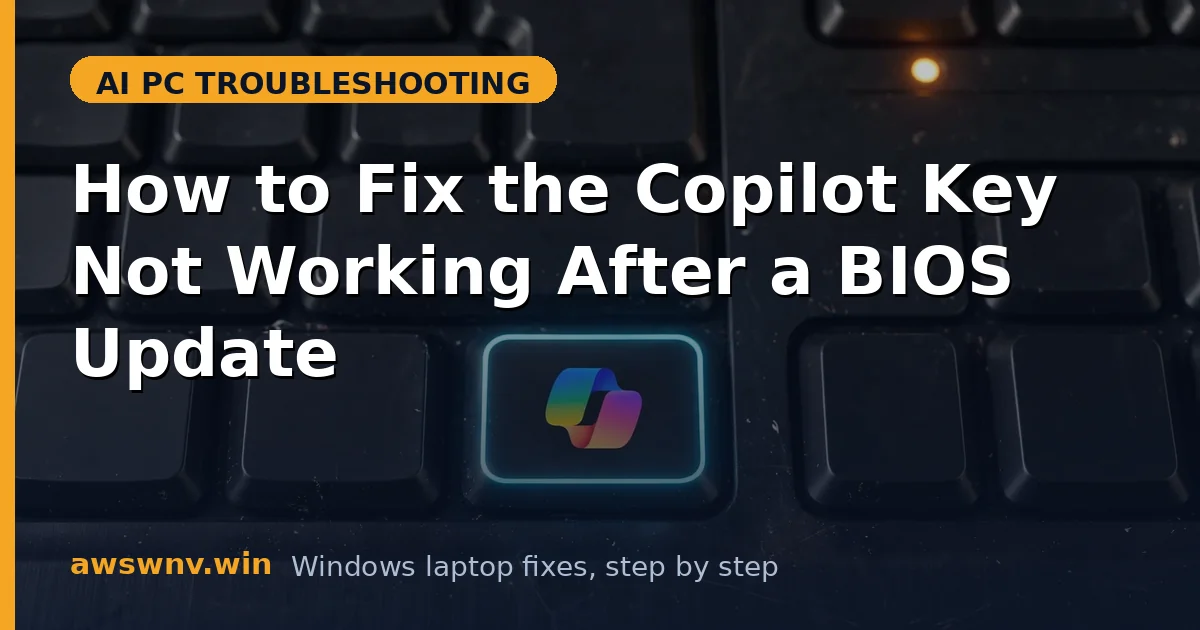
Your Copilot key worked yesterday. You installed a BIOS update, the laptop restarted, and now pressing that key does nothing — no Copilot window, no error, no flicker. Every other key works fine, which makes the failure feel strangely specific. It is: the Copilot key lives at the intersection of keyboard firmware, BIOS settings, and Windows key mapping, and a BIOS update touches all three.
BIOS updates routinely reset settings to defaults, refresh the embedded controller firmware that scans the keyboard, and change how special keys are reported to Windows. Any one of those changes can silence the Copilot key while leaving the rest of the keyboard untouched. The good news is that the key itself is almost never physically damaged by an update.
This guide restores it in order: confirm the key is truly dead, check the BIOS settings the update may have reset, repair the keyboard driver and Windows mapping, and finish with firmware options. Work through the fixes in sequence and test the key after each step.
Why this happens
- BIOS settings reset to defaults: Many BIOS updates restore factory defaults, which can disable the Copilot key function, function-key behaviour, or special-key handling without any warning.
- Embedded controller firmware changed: The embedded controller scans the keyboard matrix, and a new version may report the Copilot key differently — or not at all — until Windows gets a matching driver.
- Keyboard driver mismatch: Windows may keep an old keyboard driver that does not understand the new firmware’s key codes, so the Copilot keypress never reaches the Copilot app.
- Windows Copilot mapping lost: The update can coincide with a Windows change that unregisters the Copilot key’s launch action, leaving a working key with nothing to launch.
- Copilot app disabled or uninstalled: If the Copilot app was removed, disabled, or blocked by policy during the same maintenance window, the key appears dead even though it sends its signal correctly.
- Fast startup caching old firmware state: Windows Fast Startup can cache keyboard and controller state across reboots, so the new firmware mapping does not take effect until a full shutdown clears it.
How to fix it
Work through these in order — diagnose first, then act.
Fix 1: Test the key properly and rule out a stuck state
Before changing settings, establish whether the key sends anything at all. A key that sends the wrong code needs a different fix from a key that sends nothing, and a stuck modifier or Fast Startup cache can fake a dead key entirely. Two minutes here directs every later step.
- Restart the laptop fully — use Shift + Shut down for a true cold boot, not a normal restart, to clear any Fast Startup cache.
- Press the Copilot key alone, with no other keys held, and watch for any response — a window, a taskbar highlight, or a system sound.
- Open an online keyboard tester or a text editor and press the key: if a character or code appears, the key sends a signal and the problem is mapping, not hardware.
- Test the key on the Windows lock screen and in a different user account if you have one, to rule out a per-account setting.
- If the key does nothing everywhere, move to Fix 2 — the BIOS or firmware layer is the likely cause.
Fix 2: Check BIOS settings the update may have reset
This is the fix most people skip, and the one most often responsible after a BIOS update. Updates restore defaults, and defaults do not always match the configuration your laptop shipped with. A quick BIOS tour can restore the key in minutes. The same reset-to-defaults pattern affects other special keys too, including Copilot keys on external keyboards when their firmware defaults change.
- Restart into BIOS setup (usually F2, F12, or Del at boot — check your maker’s splash screen).
- Look under Advanced, Configuration, or Keyboard for Copilot key, special keys, function key behaviour, or hotkey mode options.
- Enable the Copilot key function if it is off, and restore function-key behaviour to how it was before the update (often Multimedia or Function mode, depending on your model).
- Save and exit, boot into Windows, and test the key immediately.
- If no Copilot option exists in BIOS, note your BIOS version — you will need it for the firmware steps later — and move to Fix 3.
Fix 3: Reinstall the keyboard driver and update the chipset
If BIOS settings are correct but the key still does nothing, Windows is misreading the firmware’s key codes. Reinstalling the keyboard driver and the chipset package — which carries the embedded-controller interface — realigns the two sides. This is routine driver hygiene, and it resolves a large share of post-update special-key failures.
- Open Device Manager > Keyboards, right-click your keyboard entry, and choose Uninstall device (do not tick driver removal unless offered for this device).
- Restart the laptop; Windows will reinstall the keyboard driver automatically on boot.
- Download the latest chipset and keyboard drivers for your exact model from Dell , HP , or Lenovo support.
- Install the chipset package first, then any keyboard or hotkey utility from your maker, restarting when asked.
- Test the Copilot key after the restart; if it now opens Copilot, stop here — the driver mismatch was the cause.
Fix 4: Repair the Copilot app and its Windows mapping
A key that sends a signal but launches nothing points at the app or its mapping, not the keyboard. The Copilot app may have been disabled, unregistered, or had its key shortcut cleared during the update window. Repairing the app and re-registering its launch action restores the link. A related app-side failure pattern — where the app itself, not the key, is broken — is covered in Valorant Vanguard support problems on ARM , which shows how app compatibility and key behaviour must be diagnosed separately. If Copilot’s own web features are also broken, see Copilot web search missing — that is a separate app issue.
- Open Settings > Apps > Installed apps and confirm Copilot is installed; if it is missing, reinstall it from the Microsoft Store.
- In Settings > Apps > Installed apps, click Copilot’s menu, choose Advanced options, and use Repair (not Reset) first.
- Open Settings > Personalisation > Taskbar and confirm Copilot is not disabled or hidden by a policy or taskbar setting.
- Press Windows + C as a test: if that opens Copilot, the app works and only the dedicated key’s mapping is lost — continue to Fix 5 for remapping.
- If neither the key nor Windows + C opens Copilot, run Settings > System > Troubleshoot > Other troubleshooters and check Microsoft’s Windows support pages for Copilot launch issues before continuing.
Fix 5: Remap and test with PowerToys as a diagnostic
PowerToys Keyboard Manager does two jobs here: it proves whether Windows receives any key event at all, and it provides a working Copilot shortcut while you finish the repair. If PowerToys can see the key, the hardware and firmware are fine and only the mapping needs fixing.
- Install Microsoft PowerToys from the Microsoft Store if you do not have it, and open Keyboard Manager.
- Choose Remap a key, press the Copilot key, and see whether PowerToys detects a keypress and what code it reports.
- If it detects the key, remap it to the Copilot shortcut (or to launching the Copilot app) and test it immediately.
- If PowerToys detects nothing, the key event never reaches Windows — return to Fix 2 and Fix 3, because the problem is still in BIOS or driver territory.
- Keep the remap only as a temporary workaround; a working dedicated key should not need PowerToys permanently, and the next fix addresses the firmware root cause.
Closing
A Copilot key that dies after a BIOS update is almost never a broken key — it is a reset setting, a mismatched driver, or a lost app mapping. Check BIOS first, reinstall the keyboard and chipset drivers second, repair the Copilot app third, and only then blame firmware. In most cases one of those steps brings the key back without any hardware repair.