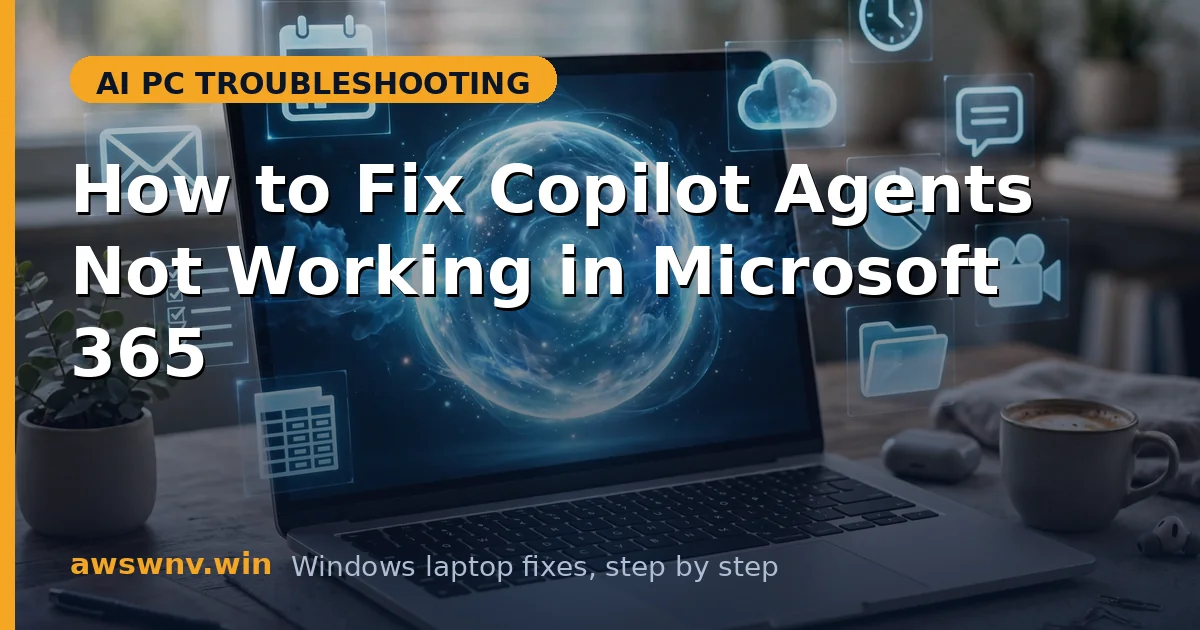
You built a Copilot agent — or your IT team published one — and now it just sits there. It will not open, it answers with an error, or it spins when you ask it to do the one thing it was made for. This is especially frustrating because agents promise real automation: drafting from SharePoint files, pulling ticket data, summarizing meetings. When the agent fails, the whole workflow you built around it collapses too.
A Copilot agent is a chain of dependencies: your license, your tenant’s admin settings, the agent’s configuration and data connections, and the client you talk to it from. A break anywhere in that chain looks like “the agent is not working.” Most agent failures are not bugs in the agent itself — they are licensing gaps, disabled admin toggles, expired data connections, or an outdated Teams client.
Start at Fix 1 and move down; each step rules out one link in the chain. This account-first pattern also steadies other app troubles on modern laptops, whether that is Discord misbehaving on an Arm Windows machine or .NET tooling acting up on Arm64 . And if your laptop has been unstable since a firmware change, hardware-level faults like Lenovo Yoga Slim NPU issues can produce app symptoms that look like software bugs but are not.
Why this happens
- Missing Copilot license: the agent requires a Microsoft 365 Copilot license your account does not have.
- Admin-disabled agents: IT turned agents off tenant-wide or restricted them to certain groups.
- Expired data connections: the agent’s SharePoint or Graph connections lost authentication silently.
- Outdated Teams client: an old Teams build cannot render newer agent experiences, failing only on desktop.
- Agent unpublished: the agent was never published to your audience, or was removed after you added it.
- Conditional Access blocking: security policies block the agent’s backend calls while M365 apps still work.
- Corrupted Teams cache: stale client data breaks the agent chat surface though the server side is fine.
How to fix it
Work through these in order — diagnose first, then act.
Fix 1: Verify your license assignment
Before touching anything technical, confirm your account is entitled to use the agent. Check myaccount.microsoft.com for a Microsoft 365 Copilot license, since agents that take actions across apps typically require one. If the license is missing, no client-side fix will help — this is a procurement step. Also confirm the agent is still published to you, not a leftover draft preview.
- Check your licenses at myaccount.microsoft.com under Subscriptions.
- Look specifically for a Microsoft 365 Copilot entitlement.
- Ask your IT admin to confirm the license is assigned, not just purchased.
- Verify the agent still appears as published in your Teams apps list.
Fix 2: Check admin and tenant settings
If licensing is fine, the next link is governance. Admins manage agents in the Microsoft 365 admin center and Copilot Studio’s governance controls — they can block publishing, restrict agents to security groups, or disable data connectors. Ask your admin to verify agents are enabled for your tenant and your account is in scope. This one conversation resolves a large fraction of “works for them, not for me” cases.
- Ask your admin to open Copilot settings in the Microsoft 365 admin center.
- Confirm agents are enabled and your user or group is included.
- Check whether the specific agent is approved or blocked by policy.
- Verify the data connectors the agent needs are allowed in your tenant.
Fix 3: Re-authenticate the agent’s data connections
Agents that read SharePoint, Outlook, or third-party systems authenticate through connections that expire — often silently, often after a password change or a Conditional Access update. The agent then fails at the exact moment it fetches data, which looks like a broken agent when really its credentials lapsed. The agent owner needs to open it in Copilot Studio and re-authenticate each connection, then republish.
- Open the agent in Copilot Studio as the owner or maker.
- Go to the agent’s connections or knowledge sources.
- Re-authenticate each connection showing an error or expiry warning.
- Republish the agent and test it yourself before telling users it is fixed.
Fix 4: Update or reinstall the Teams client
When an agent works in the browser at teams.microsoft.com but fails in the desktop app, the client is the culprit. Enterprise machines with restricted update policies can fall far behind. On Arm laptops, make sure you have the native Arm64 Teams build rather than an emulated x64 one. A clean reinstall also clears the local cache that corrupts the agent chat surface. Microsoft’s official support hub documents the current Teams install and update paths.
- In Teams settings, check for updates and install any found.
- Test the agent at teams.microsoft.com in Edge to compare behavior.
- If desktop-only failure persists, uninstall Teams completely.
- Install the latest native Teams build for your architecture and retest.
Fix 5: Clear the Teams cache and check Conditional Access
If a current Teams client still fails, clear its local cache, which stores the agent conversation scaffolding — the new Teams keeps cache data that a plain reinstall sometimes leaves behind. Separately, ask your admin whether Conditional Access policies changed recently: agents make backend API calls that can trip device-compliance or location policies even when Teams signs in fine. This commonly breaks agents on unmanaged home networks or new devices.
- Fully quit Teams, including from the system tray.
- Clear the Teams cache folders documented for the new Teams client.
- Restart Teams, sign in, and retry the agent.
- Ask your admin to check Conditional Access logs for blocked agent calls.
Closing
Copilot agent failures are dependency failures far more often than agent bugs: license, admin policy, expired connections, or an outdated client. Walk the chain in order and you will usually find the broken link by Fix 4. Keep a note of which fix worked, because agents tend to break the same way twice — connections expire on a schedule, and licenses get dropped in renewals. If everything checks out and the agent still fails for everyone, open a ticket with Microsoft support with the agent ID and a failing timestamp, since only they can see the backend telemetry.