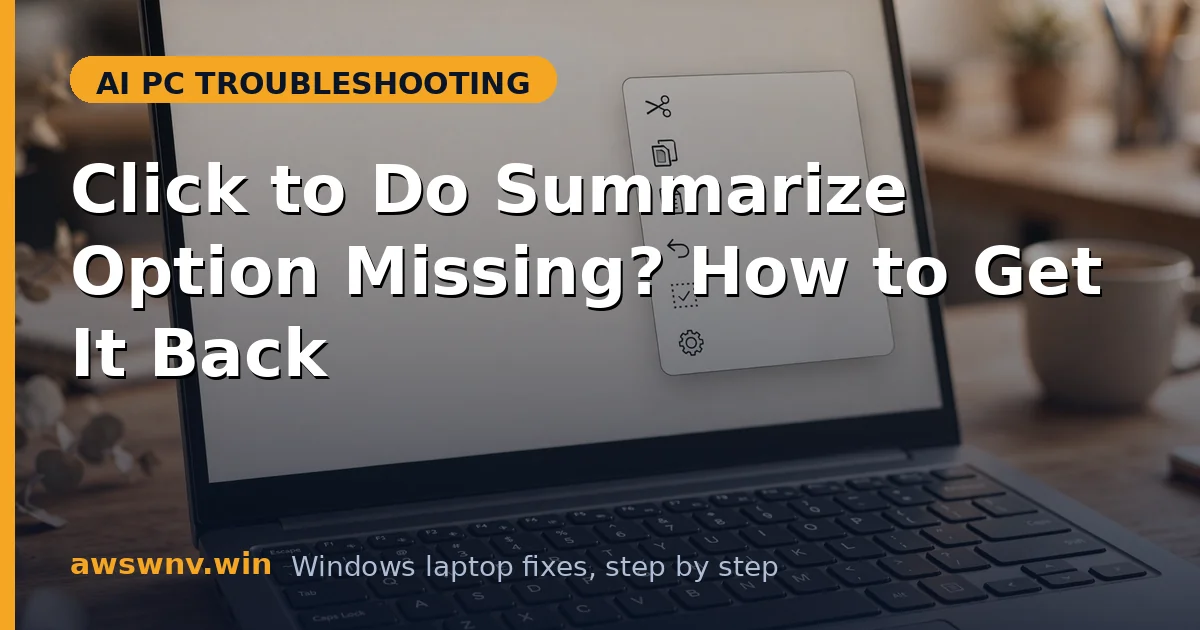
You select a long article, invoke Click to Do, and expect the Summarize option — but it is nowhere in the menu. Rewrite is there, other actions are there, just not Summarize. This selective disappearance is a configuration problem, not a hardware one: the action failed to register, the model component is incomplete, or the selection did not qualify.
Summarize shares most of its machinery with Rewrite — the Phi Silica model, the NPU, the Click to Do framework — so when Rewrite works and Summarize does not, you can skip the deep hardware checks and focus on the action layer. This guide does exactly that. If Rewrite is also broken, fix that first with our Click to Do Rewrite guide ; if the whole menu is gone, see Click to Do missing from the right-click menu .
Test with a full paragraph selected in Notepad after each fix.
Why this happens
- Action failed to register: The Summarize action definition did not load, even though the framework runs.
- Selection too short: Summarize hides itself for tiny selections that are not worth summarizing.
- Incomplete model components: Part of the AI stack installed but the Summarize path did not.
- Feature flag not enabled: Microsoft rolls actions out gradually; your build may not have the flag yet.
- Unsupported app context: Some apps expose text in ways that suppress certain actions.
- Stale Click to Do cache: The action menu cached an old definition list.
How to fix it
Work through these in order — diagnose first, then act.
Fix 1: Select enough text
Summarize hides for short selections. Rule out the trivial cause first.
- Open Notepad and paste or type a full paragraph (5+ sentences).
- Select the entire paragraph.
- Invoke Click to Do (Windows key + click on the selection).
- Check whether Summarize now appears — if it does, your original selection was simply too short.
Fix 2: Toggle Click to Do off and on
This forces the action definitions to reload, which restores actions that failed to register.
- Open Settings > Privacy & security > Click to Do and turn the feature off.
- Restart the laptop.
- Turn Click to Do back on.
- Test Summarize with a long paragraph in Notepad.
Fix 3: Install pending Windows updates
Missing actions often arrive in the next cumulative or feature update. An outdated build is the most common real cause.
- Open Settings > Windows Update and install everything pending.
- Check optional updates for AI component packages and install those too.
- Restart and test Summarize again.
- If Rewrite broke too along the way, our Rewrite fix guide repairs the shared model layer.
Fix 4: Clear the Click to Do action cache
A stale cache can hold an old action list without Summarize. Clearing it forces a fresh registration.
- Close all apps and sign out of Windows, then sign back in (this clears per-session caches).
- Alternatively, restart the laptop for a full cache reset.
- Invoke Click to Do on a long selection in Notepad.
- Check the full action list — Summarize should now be present.
Fix 5: Verify region and language support
If your region or display language is not in the rollout, Summarize may legitimately be unavailable — and no local fix will conjure it.
- Check Settings > Time & language > Language & region for your country and display language.
- Compare against Microsoft’s published Click to Do availability (see the Windows support hub ).
- If unsupported, switching region is not recommended — wait for the rollout instead.
- If supported, continue to Fix 6; the problem is local.
Fix 6: Repair the AI components
When the action is still missing on a supported configuration, the model components need repair.
- Confirm the NPU is healthy — some actions need on-device inference; our NPU BIOS enable guide covers firmware-level checks.
- In Windows Update history, look for failed AI component updates and reinstall them.
- Run
sfc /scannowin an elevated Command Prompt to repair system files. - Restart, then test Summarize on a long selection in both Notepad and Edge.
Closing
A missing Summarize is an action-registration problem, not a broken laptop. Select enough text, reload the feature, update Windows, clear the cache, verify your region, and repair the AI components — in that order. When Summarize reappears, it is worth the effort: instant on-device summaries of anything you read, with no data leaving your PC. Brand-specific AI PC issues overlap — see HP EliteBook Ultra AI PC problems .