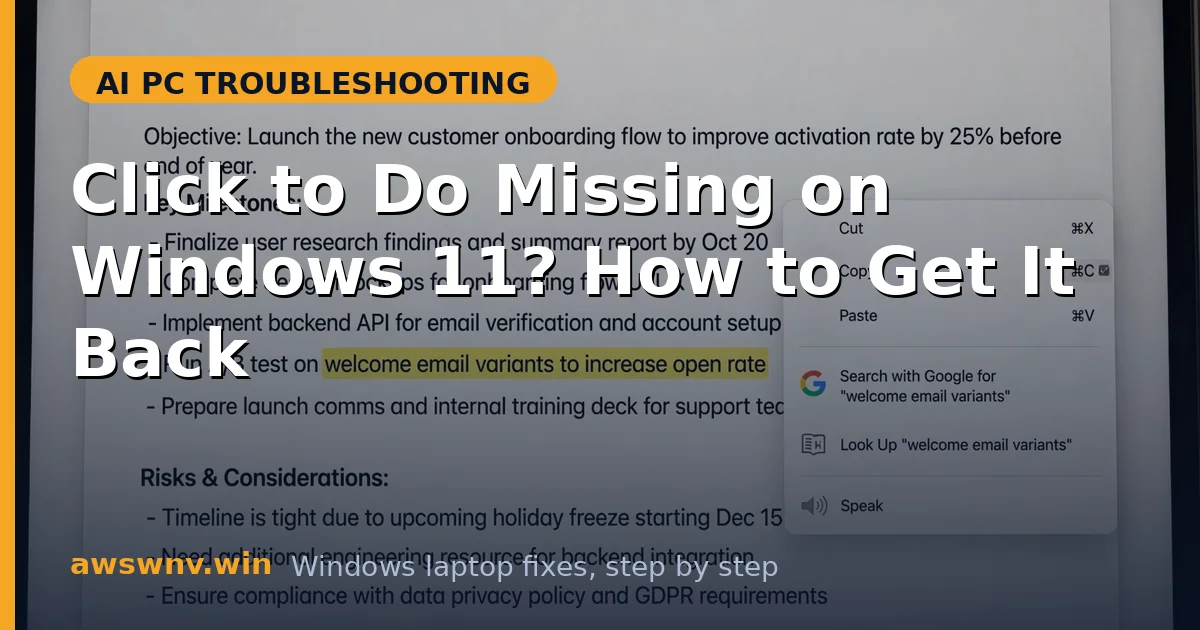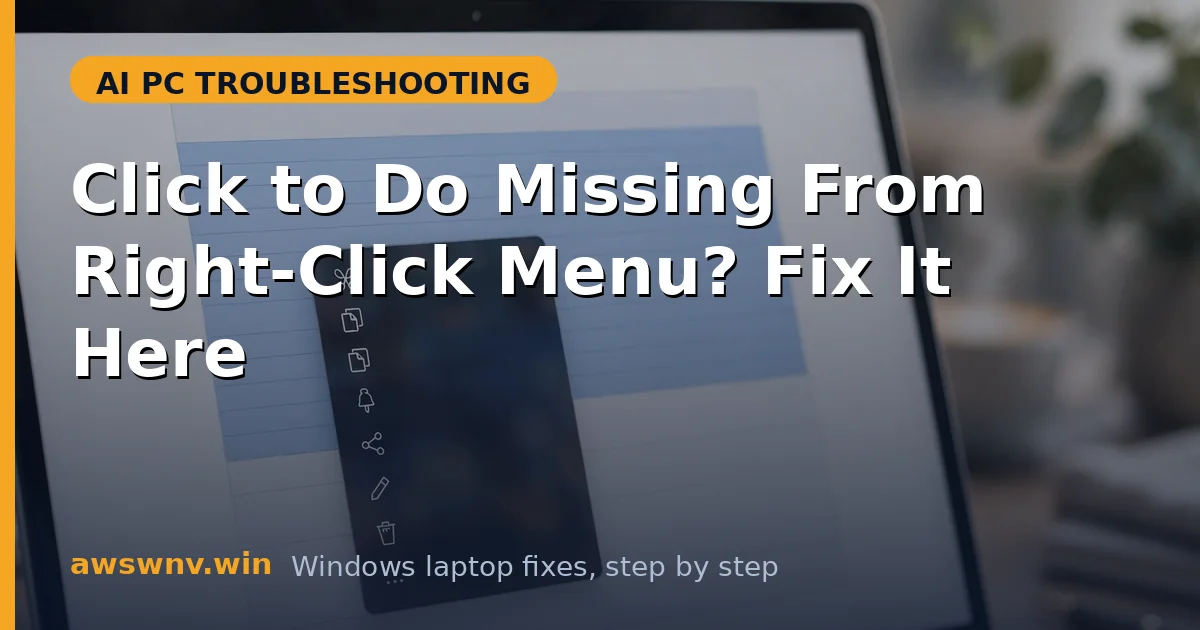
Right-clicking selected text used to offer Click to Do’s AI actions — Rewrite, Summarize, and more — and now the menu shows none of them. The feature has not been removed; its shell integration broke, its toggle got reset, or you are testing in an app that never supported it. This guide separates those cases fast.
The key diagnostic is Notepad. If Click to Do appears there but not in your app, the app is the limit. If it appears nowhere, the Windows integration needs repair. Either way the fixes below are ordered from quickest to deepest.
Related action-level problems have their own guides: Rewrite not working and Summarize missing . Start with the toggle and Explorer checks below — most users find the menu back within minutes.
Why this happens
- Feature toggle reset: A Windows update turned Click to Do off in Settings.
- Shell extension failed to load: The context-menu integration crashed or failed to register.
- Explorer needs a restart: The menu cache holds a stale state without the Click to Do entry.
- Testing in an unsupported app: Custom text rendering in some apps never triggers the menu.
- No text actually selected: Click to Do text actions require an active selection; an empty right-click shows nothing.
- Group policy or registry disable: Enterprise policies or tweaking tools can suppress the feature.
How to fix it
Work through these in order — diagnose first, then act.
Fix 1: Verify the feature toggle
Start in Settings. If the master switch is off, no menu integration can work.
- Open Settings > Privacy & security > Click to Do.
- Turn the feature on if it is off.
- Confirm the activation shortcut is enabled.
- Select text in Notepad and test both the shortcut and the right-click menu.
Fix 2: Restart Windows Explorer
The context menu is rendered by Explorer. A restart reloads the shell extensions, including Click to Do’s.
- Open Task Manager, find “Windows Explorer” under Processes.
- Right-click it and choose Restart — your screen will flicker briefly.
- After the desktop returns, select text in Notepad and right-click.
- Check whether the Click to Do entry has returned.
Fix 3: Test in Notepad to isolate the app
If the menu works in Notepad but not your app, the app never supported the integration — and no Windows fix will add it.
- Open Notepad, type a sentence, select it, and right-click.
- If Click to Do appears here, your Windows integration is healthy.
- Test the same selection in your target app to confirm the limitation.
- For unsupported apps, use the keyboard shortcut instead of the menu — the shortcut path sometimes works where the menu does not.
Fix 4: Re-register the shell integration
When the menu is missing everywhere including Notepad, the shell registration is broken. Toggling the feature forces re-registration.
- Turn Click to Do off in Settings, then restart the laptop.
- Turn Click to Do back on.
- Restart Windows Explorer via Task Manager (Fix 2).
- Test in Notepad again.
Fix 5: Check for policy or tweaker interference
Enterprise policies and “debloater” scripts sometimes disable AI features. If you ran any tweaking tool, it may be the culprit.
- Think back to any privacy/debloat scripts run on this PC.
- Check Settings > Privacy & security for any greyed-out (policy-locked) Click to Do toggle.
- On work machines, ask IT whether AI features are disabled by policy.
- Undo the relevant tweak or policy if you control the machine, then restart.
Fix 6: Update Windows and repair system files
A corrupted shell component or an outdated build can permanently suppress the menu entry until repaired.
- Install all pending Windows updates and restart.
- Run
sfc /scannowand thenDISM /Online /Cleanup-Image /RestoreHealthin an elevated Command Prompt. - Restart once more and test in Notepad.
- If voice features are also acting up, our voice mode fix covers the related permission layer, and Microsoft documents the feature on the Windows support hub .
Closing
A missing right-click entry is almost always the toggle, the Explorer cache, or an unsupported app — not a dead feature. Verify the switch, restart Explorer, isolate with Notepad, re-register the integration, check for policy interference, and repair the system files. One of these restores the menu, and once it is back it tends to stay back. Brand-specific Copilot+ issues are common — see Dell Latitude 7455 Copilot+ issues .