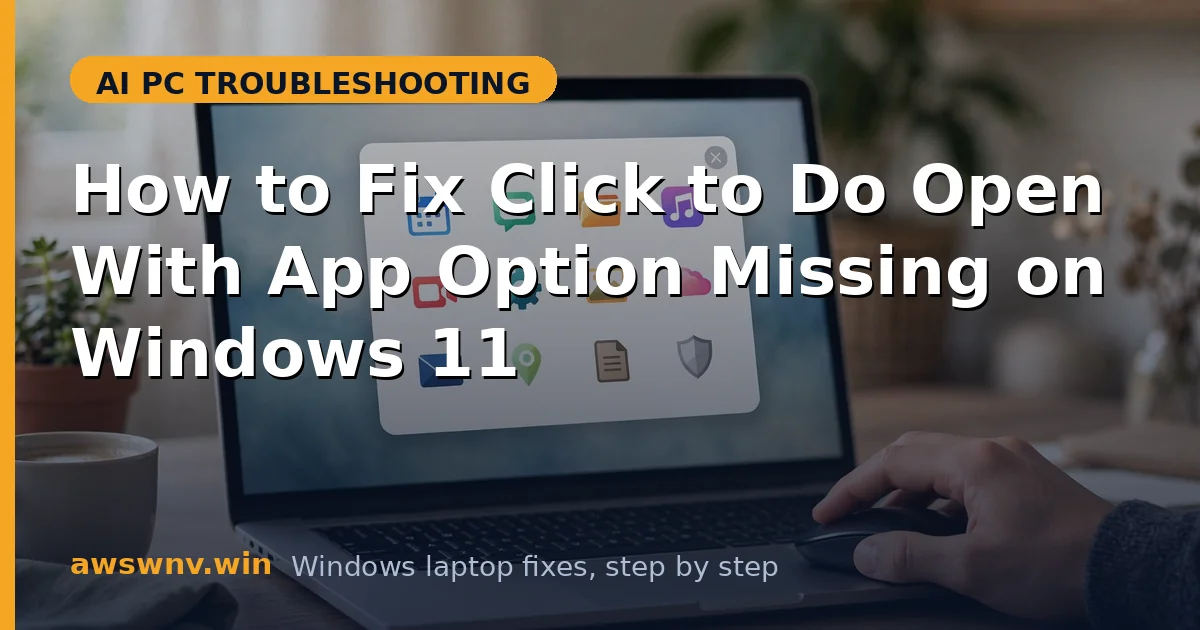
Open with app is Click to Do’s bridge to the rest of your PC: select text or an image and send it straight to the right application. When the option is missing from the menu, that bridge is out — you are back to copy, switch apps, paste, repeat.
The action depends on Windows knowing which apps can handle your selection: registered file handlers, share targets, and app capabilities. If that registration data is stale or the feature configuration is damaged, the option vanishes while simpler actions remain. It is the same registration-dependency failure as Copilot Canvas not working , where a feature disappears because its app registration broke.
Six fixes below: verifying the trigger context, repairing app registrations, resetting the feature, and working around stubborn cases. Test on both text and image selections after each step.
Why this happens
- No capable app registered for the content: Open with app only appears when Windows finds apps that declare they can handle the selection type. On a fresh or minimal install, there may genuinely be nothing to offer.
- Stale default-app registrations: Corrupt or outdated default-app and file-association data makes Windows unable to resolve handlers — the option disappears even though capable apps are installed.
- Selection type unsupported: The action appears for content types with registered handlers. Exotic selections may simply have no registered destination.
- Feature configuration corrupt: A damaged Click to Do configuration can drop the action selectively, the same selective-drop pattern as Click to Do Draft with Copilot missing .
- Policy restricting app launching: Managed devices may block the app-launching action while allowing text-transformation actions.
- App itself damaged: If the target app’s registration is broken (common after partial uninstalls), Windows drops it from handler lists — Intel AI Playground NPU detection -style detection failures follow the same ‘registered but unreachable’ logic.
How to fix it
Work through these in order — diagnose first, then act.
Fix 1: Test with content that definitely has handlers
Confirm the option is truly missing rather than correctly hidden for handler-less content.
- Select plain text in Notepad — text practically always has handlers (Notepad, Word, browsers).
- Trigger Click to Do with Windows key + click and look for Open with app.
- Also test on an image file’s content or a selected image.
- If the option appears for text but not your original selection, that content type genuinely lacks registered handlers.
Fix 2: Verify capable apps are installed
The action needs destinations. A bare-bones PC may simply have none for your content.
- For text: ensure at least Word/WordPad-class apps or browsers are installed.
- For images: ensure Photos or another image app is installed and functional.
- Install one mainstream handler app for your content type and retest.
- If the option appears after installing an app, the PC was simply missing destinations.
Fix 3: Repair default apps and file associations
Stale association data is the most common fixable cause. Refresh it.
- Go to Settings > Apps > Default apps and review the defaults for relevant file types.
- Reset a suspicious default: choose a different app, then change it back — this rewrites the registration.
- For a broader reset, use the Reset option for all default apps (you will re-set your preferences after).
- Restart and retest Click to Do on your standard selections.
Fix 4: Reinstall or repair the target app
A damaged app drops out of handler lists silently. Repair the app you expected to see.
- Open Settings > Apps > Installed apps, find the target app, and choose Modify/Repair if offered.
- If no repair option exists, uninstall and reinstall the app from the Microsoft Store or vendor site.
- Launch the repaired app once so it re-registers its handlers.
- Retest Click to Do — the option should now list the healthy app.
Fix 5: Reset the Click to Do configuration
When handlers are healthy but the action is still missing, the feature’s own menu data is suspect.
- Toggle Click to Do off and on in Settings > Privacy & security.
- Restart the PC to rebuild the action menu.
- Retest on text in Notepad and an image.
- If still missing, run
sfc /scannowelevated to check system integrity.
Fix 6: Check policy and use manual workflows meanwhile
On managed PCs the action may be intentionally unavailable — and there is always a manual path.
- Look for ‘managed by your organization’ notices in Click to Do settings.
- Ask IT whether app-launching actions are permitted on your device.
- Meanwhile: Copy, Win + Tab or Alt + Tab to the app, paste — three keystrokes replace the missing action.
- Keep Windows updated; handler-resolution improvements ship in regular updates.
Closing
A missing Open with app action is a handler-resolution problem: no capable apps, stale registrations, or a corrupt feature menu. Test on content with obvious handlers, verify destinations are installed, refresh default-app registrations, repair the target app, and reset Click to Do. The bridge between your selection and your apps is rebuilt from the registration data up. For handler and registration issues beyond app repair, Microsoft’s Windows support hub is worth consulting.