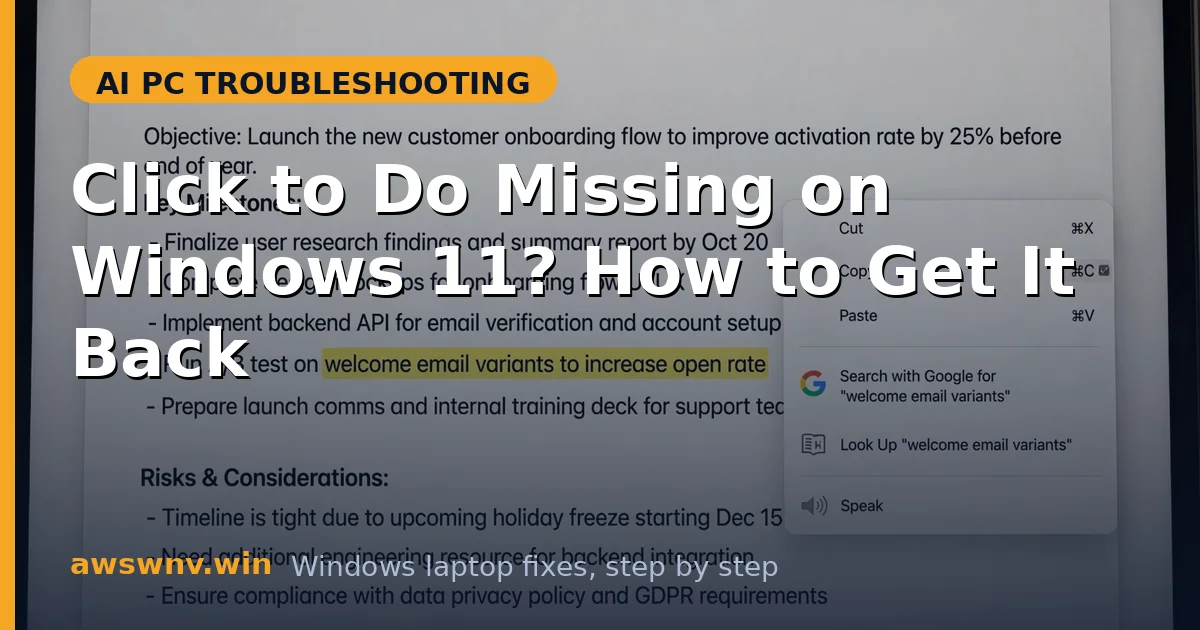
You hold the Windows key, click on a paragraph, and nothing happens. No glowing overlay, no action menu, no text options — just the ordinary screen staring back at you. Click to Do is supposed to turn anything on your display into something you can act on, so when it simply does not show up, the feature feels completely broken.
The most common cause is not a broken feature at all, but the wrong trigger. A quick tap of the Windows key opens Start, while Click to Do needs the key held down during the click. Beyond that, the feature has real requirements: Copilot+ hardware, a current Windows build, enabled AI settings, and screen content it can actually read. If any of those is missing, the overlay stays hidden without an error message.
This guide works through the trigger, the hardware check, the settings, and the repair steps in order. Start with the shortcut, because it fixes the problem in seconds for many people, then move to the deeper checks. If Copilot itself is absent rather than just this overlay, the guide on Copilot missing on Copilot+ PC covers that wider problem first.
Why this happens
- Wrong shortcut technique: Tapping the Windows key opens Start, while Click to Do requires holding the key down and clicking on screen content.
- Non-Copilot+ or unsupported hardware: Click to Do needs a qualifying neural processing unit and Copilot+ certification, so it never appears on incompatible PCs.
- Feature disabled in settings: AI features can be turned off in Windows settings, by a privacy choice, or by an organisation policy.
- Outdated Windows build: Click to Do rolls out in staged Windows updates, so an older build may simply not include it yet.
- Unreadable screen content: Protected windows, secure apps, and custom-rendered interfaces can block the screen reading Click to Do depends on.
- Corrupted AI components: A failed update or damaged system component can leave the overlay registered but unable to launch.
How to fix it
Work through these in order — diagnose first, then act.
Fix 1: Use the correct Click to Do trigger
Most reported cases end here, because the shortcut is easy to get slightly wrong.
- Open a page with ordinary selectable text, such as a website in your browser.
- Press and hold the Windows key down, keeping it held rather than tapping it.
- While still holding the key, click directly on a word or sentence in the text.
- Watch for the overlay and action menu to appear around the clicked content.
- If Start opens instead, you released the key too early, so hold it firmly and try again.
Fix 2: Confirm your PC supports Click to Do
There is no point repairing a feature your hardware cannot run, so verify eligibility early.
- Open Windows Settings and check the system information for Copilot+ PC branding or NPU details.
- Confirm your processor is a Copilot+ qualified chip by checking the manufacturer’s specifications.
- Go to Settings, then Windows Update, and install every pending update before concluding the feature is absent.
- Restart your laptop after updating, since AI features often activate only after a reboot.
- If your PC is not a Copilot+ PC, Click to Do will not appear, and no setting can add it.
Fix 3: Turn Click to Do and AI features back on
A disabled toggle hides the overlay completely, even on fully compatible hardware.
- Open Windows Settings and go to the privacy, AI, or Copilot+ settings section for your build.
- Look for Click to Do or AI features and confirm the main toggle is switched on.
- Check any sub-options that limit Click to Do to certain content types and enable text and image actions.
- If your device is work-managed, check for an organisation message saying AI features are controlled by policy.
- Return to a browser page, hold the Windows key, click text, and test whether the overlay appears now.
Fix 4: Test in a different app and screen area
If the overlay works somewhere but not in one app, the app or window is the barrier, not the feature.
- Test Click to Do on plain text in a browser, which is the most reliable surface for it.
- Then test the same gesture in the app where it failed, using ordinary text rather than an image.
- Try a different screen area, avoiding video players, secure windows, and password fields.
- If it works in the browser but nowhere else, the failing app likely blocks screen reading by design.
- Update that app to its latest version, since developers gradually add compatibility with Click to Do.
Fix 5: Run Windows Update and repair system components
Staged rollouts and damaged components both hide the overlay, and updates plus a repair address both.
- Open Settings, go to Windows Update, and install all available updates, including optional ones.
- Restart your laptop and test Click to Do again on a browser page.
- If it still fails, open an administrator terminal and run the system file checker to repair damaged files.
- Wait for the scan to finish, restart again, and retest the Windows-key-plus-click gesture.
- If the feature appeared briefly after an update and vanished again, check for a newer cumulative update that may have re-enabled it.
Fix 6: Reset the feature state with a clean sign-in and restart
A stuck feature state sometimes survives ordinary restarts, so a fuller reset of the session can release it.
- Sign out of Windows completely, rather than merely locking the screen or closing the lid.
- Sign back in, wait for all startup apps to settle, and open a browser page.
- Hold the Windows key and click on text to test Click to Do in a clean session.
- If it still does not appear, create a temporary local user account and test Click to Do there.
- Success on a new account points to a damaged user profile, while failure on both points to a system-level problem needing a Windows repair install.
Closing
Click to Do usually hides for a simple reason: the wrong key gesture, disabled AI settings, an outdated build, or hardware that never supported it. Check the trigger first, verify Copilot+ eligibility second, and only then repair system components — that order saves you from reinstalling Windows for a shortcut mistake. Related display and input quirks often share a platform cause, whether it is an external webcam ARM Windows issue blocking screen capture or an LG Gram 14 AI issue where a model-specific driver limits AI features. For official Windows feature guidance, Microsoft’s Windows support hub and the Windows 11 download page are the safest references.