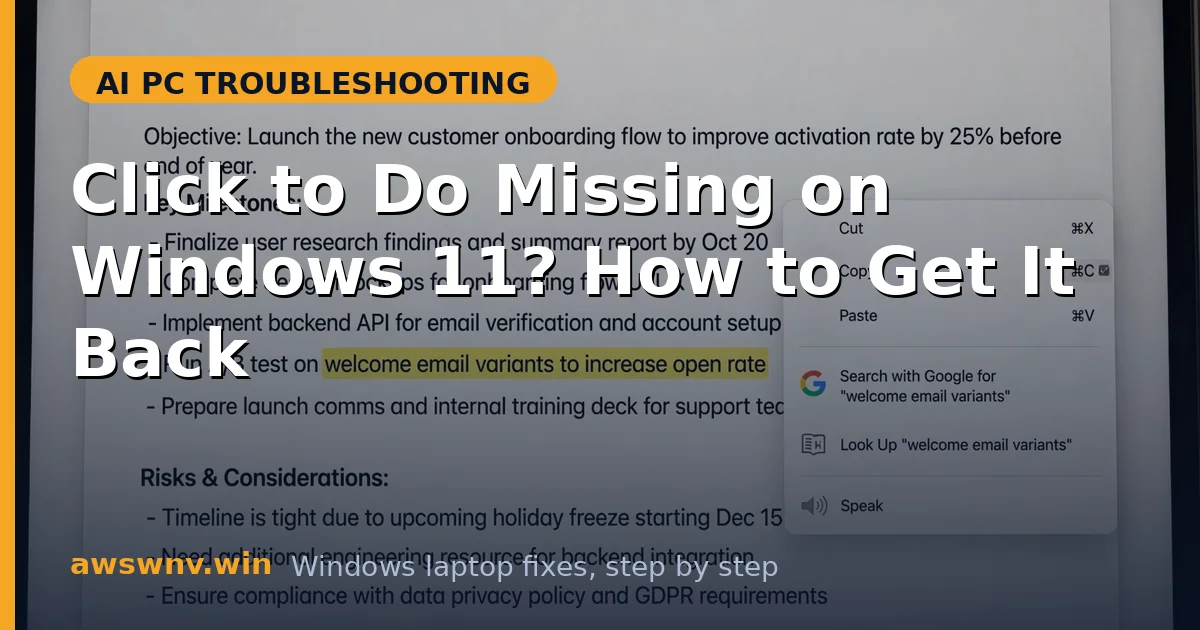
Click to Do has two halves: text actions (summarize, rewrite, search) and image actions (visual search, copy text from images, background blur). Many Copilot+ owners find the text half working perfectly while the image half is simply absent — invoking Click to Do on a photo shows a stunted menu or nothing at all.
Image actions depend on a separate, heavier on-device vision model than text actions. That model has to download, fit into NPU memory, and pass stricter hardware checks. Any failure along that chain silently drops the image actions while text actions sail on.
This guide covers six fixes in order, from confirming you are invoking it on a real image through model downloads, NPU state, and the power settings that can starve the vision model.
Why this happens
- The vision model has not downloaded yet: Image actions need an extra on-device model that Windows fetches after setup. On a fresh install or a metered connection, the download may never complete.
- NPU is idle or unavailable: Vision models are the most NPU-hungry part of Click to Do. If the neural processor is stuck at zero percent usage or disabled, the image pipeline cannot start.
- Invoking on a non-image surface: Image actions trigger on actual images — photos, screenshots, image files. Video frames, canvas elements, and DRM-protected surfaces yield no image actions.
- Battery saver or power policy blocks the model: Loading the vision model is power-intensive, so battery saver can suppress it — the same trade-off behind sleep battery drain on Snapdragon laptops.
- Click to Do image actions disabled in Settings: The image-action toggles can be off while text actions stay on, especially after a privacy-hardening script ran.
- Feature flags out of sync: When Windows feature rollouts are incomplete, related AI surfaces misbehave together — if your Quick Settings are also missing AI entries , the underlying feature enablement is likely the culprit.
How to fix it
Work through these in order — diagnose first, then act.
Fix 1: Invoke Click to Do on a genuine image the right way
Before changing anything, confirm the problem is real and not an invocation issue. Image actions only appear when Click to Do detects an image under the cursor. Test on a known-good image like a photo in the Photos app.
- Open the Photos app and open any photo (a real image file, not a video).
- Press Win + Q, or select part of the image and Win + click.
- Check whether image actions (visual search, copy text from image, blur background) appear.
- Try a screenshot: press Win + Shift + S, capture a region, then invoke Click to Do on it.
- If image actions appear on photos but not in your target app, the app surface is the limitation.
Fix 2: Confirm the vision model has downloaded
Windows downloads Click to Do’s image model separately, and it is easy to miss. A metered connection, paused updates, or a fresh install can leave the download incomplete indefinitely — with no error in the menu itself.
- Go to Settings > Windows Update, install every pending update, and restart.
- Set your network as non-metered: Settings > Network & internet > Wi-Fi > your network, toggle Metered connection off.
- Leave the laptop plugged in and idle for 30–60 minutes so background model downloads complete.
- Check Settings > Privacy & security > Click to Do for any model-download status or error.
- Retest on a photo in the Photos app after the wait.
Fix 3: Check that the NPU is active and actually working
The vision model runs on the NPU, and image actions are the first casualty when the neural processor is down. If the NPU entry is missing or permanently idle in Task Manager, fix that before anything else.
- Open Task Manager (Ctrl + Shift + Esc) > Performance and look for the NPU entry.
- Invoke Click to Do on an image and watch for NPU activity; if it sits at zero, see why the NPU can be stuck idle .
- In Device Manager, verify the NPU has no warning icon; reinstall the driver from your laptop maker’s support page if needed.
- Confirm you are on a Copilot+ PC with a 40+ TOPS NPU — image actions require the full Copilot+ hardware bar.
- Restart and retest.
Fix 4: Turn off battery saver and check the power plan
Battery saver trims background AI workloads, and the vision model is one of the first things cut. If image actions appear when plugged in but vanish on battery, power policy is your answer.
- Turn Battery saver off in Settings > System > Power & battery.
- Set the power mode to Best performance or Balanced while testing.
- Plug in the charger and retest Click to Do on an image.
- If actions return on AC power, test AI features plugged in, then tune the battery plan afterward.
- Check your laptop maker’s power utility (Lenovo Vantage, MyASUS, Dell Optimizer) for an AI/NPU power toggle and allow AI workloads.
Fix 5: Verify the Click to Do toggles in Settings
Click to Do’s settings page has separate controls, and the image-related ones can be off while text actions run fine. Privacy scripts and enterprise baselines disable exactly these toggles.
- Open Settings > Privacy & security > Click to Do and confirm the main toggle is on.
- Enable any image or visual-related toggles (wording varies by build).
- Check Settings > Privacy & security > General for disabled AI options the feature depends on (Microsoft’s Windows support hub documents the current layout).
- Sign out and back in, then retest on a photo.
Fix 6: Repair Windows’ AI components with an in-place upgrade
If the model is downloaded, the NPU works, power is fine, and toggles are on — yet image actions are still missing — a Windows component is likely corrupt. An in-place upgrade refreshes every system component, including the AI stack, while keeping files and apps.
- Download the latest Windows 11 ISO from the official Windows 11 download page .
- Mount the ISO, run setup.exe, and choose Keep personal files and apps.
- Let the repair install complete (30–60 minutes), then install all Windows Updates.
- Leave the machine idle and plugged in for an hour so AI models re-download.
- Test Click to Do image actions on a photo — the full action set should now appear.
Closing
Missing Click to Do image actions almost always trace to the vision model’s chain of dependencies: the download, the NPU, the power policy, or the toggles. Text actions working is a useful clue — it proves Click to Do itself is fine and narrows the hunt to the image pipeline.