A liquid spill followed by a battery that will not charge is one of the few laptop problems where the wrong first move makes everything worse. Powering on a wet laptop to “see if it still works” is exactly how a survivable spill becomes a dead motherboard. The correct sequence is strict: power off, disconnect, dry thoroughly, then and only then test.
This guide covers that sequence in detail, with the safety warnings up front where they belong. Speed matters in the first minutes; patience matters in the days after.
Why this happens
- Liquid shorted the charging circuit. Water across the motherboard’s power circuitry disrupts charging immediately.
- Corrosion on the battery connector. Even after drying, mineral deposits and corrosion block the battery connection.
- The battery protection circuit tripped. Liquid inside or on the pack can trigger the protection circuit permanently.
- Sugary residue keeps corroding. Coffee, soda, and juice leave conductive, corrosive residue that keeps damaging contacts long after the liquid dries.
- The charger or port was affected. Liquid in the charging port corrodes the pins the adapter needs.
- The embedded controller was damaged. The EC manages charging, and liquid damage to it produces persistent charging failures.
How to fix it
Work through these in order. Do not skip the drying phase, no matter how impatient you feel.
Fix 1: Emergency response in the first minutes
What you do right now determines whether this is recoverable.
- Hold the power button until the laptop shuts off completely. Do not use the Start menu; shut it down now.
- Unplug the charger and disconnect every peripheral: USB devices, docks, external monitors.
- If the battery is removable, remove it immediately. This electrically isolates the system.
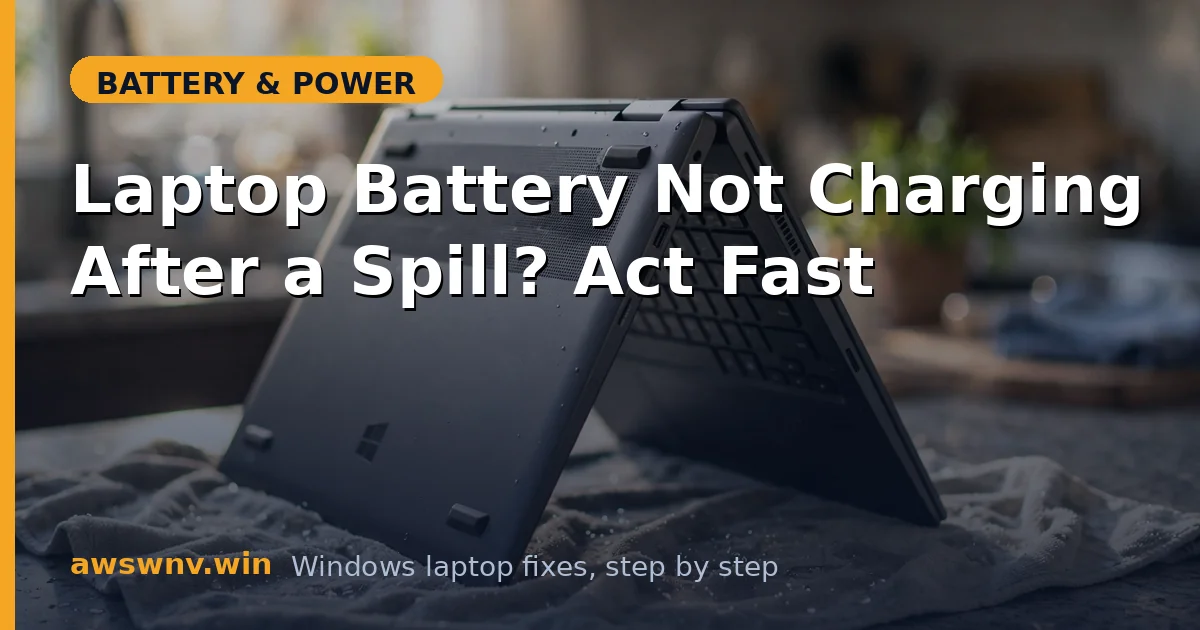
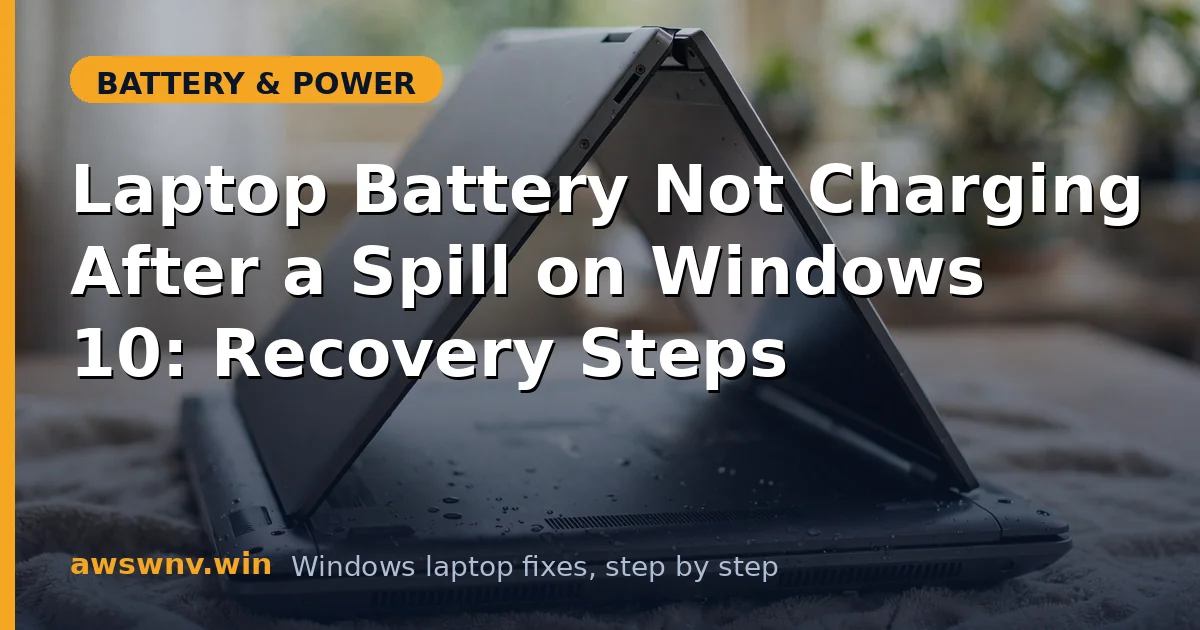
- Flip the laptop upside down in an inverted V or tent position so liquid drains out through the keyboard rather than deeper into the chassis.
- Blot visible liquid with a lint-free cloth. Do not shake the laptop, which spreads liquid to dry areas.
- Do not use a hair dryer on hot settings. Heat can warp components and push moisture deeper.
Fix 2: Dry thoroughly for 48 to 72 hours
Patience here is the actual fix for many spill cases.
- Keep the laptop upside down in a dry, ventilated room for at least 48 hours. Seventy-two is better for large spills.
- A fan blowing room-temperature air across it helps. Do not apply direct heat.
- Ignore the rice advice. Rice is a poor desiccant and introduces starch dust. Airflow and time are what work.
- If the spill was sugary, the drying does not remove the residue. Plan on professional cleaning even if the laptop seems fine afterward.
- Do not plug in the charger during this period. Not once, not to check.
Fix 3: Inspect the charging port and battery contacts
After drying, look for visible damage before applying power.
- Shine a light into the charging port. Look for corrosion, discoloration, or sticky residue on the pins.
- If the battery is removable, inspect its contacts and the laptop’s battery bay for corrosion or residue.
- Gently clean accessible contacts with a cotton swab lightly dampened with isopropyl alcohol of 90 percent or higher. Let it evaporate fully.
- Do not scrape pins with metal tools. Bent or broken pins need professional repair.
- If corrosion is heavy or you see green or white crusty deposits, stop here and take it to a shop. That level of corrosion needs ultrasonic cleaning.
Fix 4: Test with the charger after drying
The moment of truth, done carefully.
- With the battery removed if possible, plug in the original charger.
- Watch for normal LED behavior and try powering on.
- If it boots on AC power, the core system survived. Shut down, reinsert the battery, and test charging.
- If the battery charges normally now, run a battery report to check its health. Spills can weaken cells even when charging resumes.
- If the battery still will not charge, continue to the next fixes. For the diagnostic version of this process, see laptop battery not charging after spill troubleshooting .
Fix 5: Try a different charger and clean the port deeply
Rule out the possibility that the spill killed the adapter or the port rather than the battery.
- Inspect the charger’s connector for corrosion or residue and clean it with isopropyl alcohol.
- Test with a known-good charger of the correct wattage if one is available.
- If a different charger works, the original adapter took the damage. Replace it.
- If the port itself is corroded but the motherboard is fine, a shop can often replace just the DC jack or USB-C port.
Fix 6: Reset the power system
Spills can latch the charging controller into a fault state that persists after drying.
- Shut down, unplug, and remove the battery if removable.
- Hold the power button for 30 seconds to drain residual power.
- Use the battery reset pinhole if your model has one.
- Reconnect and test charging. Controllers that latched a fault during the spill sometimes clear with a full reset.
- In Device Manager, reinstall the Microsoft ACPI-Compliant Control Method Battery driver to clear any driver-level confusion from the event.
Fix 7: Get professional cleaning or replace the battery
Some spill damage is beyond home repair, and recognizing that saves the laptop.
- If charging still fails after full drying, cleaning, and resets, take the laptop to a reputable repair shop. Ask specifically for board-level cleaning and corrosion treatment.
- Tell the technician exactly what spilled, how much, and whether the laptop was on. Sugary spills need different treatment than water.
- If the battery alone is the casualty, replace it with a genuine battery for your exact model. Do not reuse a battery that was soaked; internal damage is invisible.
- Back up your data as soon as the laptop boots reliably. Spill damage can progress over weeks as corrosion spreads.
- For the 24H2-specific angle, see laptop battery not charging after spill in Windows 11 24H2 .
Closing
Liquid spills reward fast action and punish impatience in equal measure. Kill the power immediately, dry for days not hours, clean what you can see, and get professional help for what you cannot. Most laptops survive spills when the sequence is followed; most die when someone powers on “just to check.” Do not be that person.