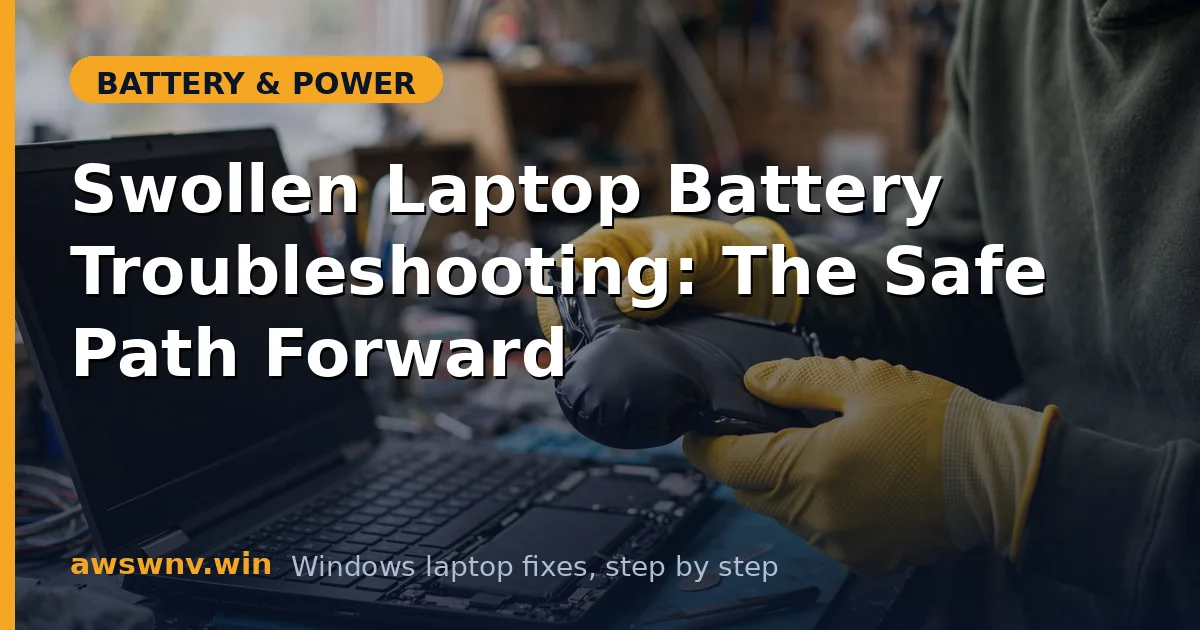
This is the troubleshooting companion to is a slightly swollen battery safe . That article covers immediate safety; this one walks the diagnostic path: confirming the swelling, ruling out lookalikes, checking warranty and recall options, and choosing the right replacement route. Take it step by step — there’s no emergency here, just a job to do properly.
Work calmly and in order. Nothing here requires rushing — just not ignoring.
Why this happens
- Gas buildup from electrolyte decomposition. The root mechanism — heat, age, and overcharging break the electrolyte down into trapped gas.
- Charge controller faults. A malfunctioning charge circuit can overcharge the pack slightly on every cycle, a slow swelling pump.
- Blocked vents cooking the pack. Chronic overheating from dust-choked cooling accelerates the chemistry.
- Defective batch. Some packs swell young — check whether your model had a battery advisory.
- Post-spill corrosion. Liquid damage near the battery can create parasitic currents that stress the cells (see spill recovery ).
- Mechanical pressure. A warped chassis or overtightened aftermarket screws pressing on the pack.
- Charging in extreme heat. Regularly charging in a hot car or sunlit room pushes cell temperatures past safe limits, accelerating the gas-generating breakdown far beyond normal aging.
How to fix it
Work through these in order — diagnose, secure, then resolve.
Fix 1: Confirm swelling vs. lookalikes
- Power off, unplug, and set the laptop on a known-flat table. Rock it gently — rocking means internal pressure.
- Sight along the bottom cover for bowing; check the trackpad for upward lift and stiff clicks.
- Rule out lookalikes: a warped plastic bottom cover from heat looks similar but the laptop still sits flat; a failing trackpad cable doesn’t bow the chassis.
- If you have a previous photo of the laptop’s profile, compare — swelling is gradual and easy to normalize (“has it always looked like that?”).
- Check the keyboard deck too: on some models the battery sits under the keyboard, and swelling first shows as keys that feel springy or sit unevenly rather than a bottom-cover bulge.
Fix 2: Assess urgency honestly
- Low urgency: slight bow, laptop powered off, sitting on tile, no heat, no smell — schedule replacement within days.
- Medium urgency: noticeable trackpad lift or the laptop is your daily driver — back up today, minimize use, replace this week.
- High urgency: heat, sweet/chemical smell, hissing, rapid growth, or discoloration — power off, get it onto concrete outside, and call the fire non-emergency line.
- Be honest about which category you’re in; most cases are low-to-medium.
Fix 3: Secure the machine
- Back up critical data on AC power, quickly and without heavy workloads.
- Power off and unplug. Don’t charge the swollen pack again.
- Store on a non-flammable surface away from flammables until service.
- If the battery is externally removable, remove it now (latches/sliders, lift straight out) and store the pack separately in a metal container — the laptop is then safe to use on AC.
Fix 4: Check warranty, recall, and consumer programs
- Find your serial number and check warranty status on the manufacturer’s site: Dell , HP , Lenovo .
- Search “
battery recall” — manufacturers run battery safety programs that outlast standard warranties. - If covered, follow their process — they may send a prepaid safe-shipping box with specific instructions.
- Document the swelling with photos before service, including the serial sticker — useful for warranty claims.
Fix 5: Choose the replacement route
- Manufacturer service center: best for in-warranty and recall cases; guaranteed genuine parts.
- Reputable local repair shop: fastest for out-of-warranty; ask them to confirm they’ll use a genuine or OEM-grade pack.
- DIY: only for externally removable batteries. Internal swollen packs are a pro job — the fire risk from a slipped tool isn’t worth the savings.
- Get a quote that includes proper disposal of the old pack.
Fix 6: Verify the repair
- After replacement, confirm the chassis sits flat and the trackpad clicks normally.
- Run the laptop on battery through a full discharge to verify the new pack behaves — check in with
powercfg /batteryreportthat design and full charge capacities look right. - Enable the charge limit (80% cap or Conservation Mode) immediately — don’t repeat the conditions that swelled the last one.
Fix 7: Set up prevention
- Charge limit on, from day one with the new pack.
- Monthly visual check: flat-table test takes five seconds.
- Keep vents clean and the laptop on hard surfaces — heat is the silent partner in every swelling story.
- Learn the numbers side of battery health in design capacity vs full charge capacity .
Fix 8: Monitor the replacement pack
- New pack installed? Don’t just forget about it — run
powercfg /batteryreportafter the first full charge and save it as your baseline. - Do the flat-table test monthly; catching the next swelling at “barely noticeable” is far better than at “trackpad won’t click.”
- If the replacement starts swelling within the first year, suspect the charging circuit or a defective batch — take it back under warranty immediately rather than waiting.
- Keep the charge limit on from day one — the habit that would have saved the last pack is the one that saves this one.
Closing
Swelling troubleshooting is short because the answer is short: confirm it, secure it, replace it. The diagnostic work matters because it catches the lookalikes and the warranty coverage — but once swelling is confirmed, replacement is the only destination. Keep the monthly flat-table check and the charge limit as permanent habits, and the next pack should never reach this state. Swelling caught early is a cheap battery swap; swelling caught late can mean a warped chassis too.