“No battery is detected.” The laptop runs fine on the charger, but Windows insists there is no battery — no percentage, no icon, nothing. It is unsettling, but in most cases the battery is sitting right there, perfectly good, and Windows simply cannot see it — yet.
Detection failures are about communication: the driver, the physical connection, or the firmware standing between Windows and the pack. Fix the communication and the battery reappears — usually within minutes. Work through the steps below from software to hardware. If your battery is detected but misbehaves in other ways, the battery health check is the better starting point.
Why this happens
- Corrupted ACPI battery driver. The driver Windows uses to talk to the battery is damaged or missing.
- Loose or corroded battery connector. The physical connection between pack and motherboard is broken.
- Battery controller failure. The pack’s internal electronics died even though the cells are fine.
- BIOS disabled or disconnected the battery. Ship mode, battery disconnect options, or a firmware glitch.
- Windows update replaced the driver. A bad driver version broke communication.
- Deeply discharged pack. A battery drained to zero can go silent until trickle-charged back.
- Motherboard battery circuitry fault. Rare, but the sensing circuit itself can fail.
- BIOS update changed battery handling. Firmware updates sometimes alter how the embedded controller reports the pack, and a failed or interrupted flash can leave detection broken until the BIOS is reflashed.
How to fix it
Work through these in order — start with Fix 1 and only move on if the battery stays undetected.
Fix 1: Reinstall the ACPI battery drivers
This fixes the majority of cases. Open Device Manager, expand Batteries. Right-click Microsoft ACPI-Compliant Control Method Battery and choose Uninstall device — check the box to delete the driver software if offered. Do the same for Microsoft AC Adapter if listed. Click Action > Scan for hardware changes at the top of Device Manager. Windows reinstalls both drivers fresh. Restart the laptop and check the taskbar battery icon. If the battery appears, let it charge to 100 percent uninterrupted before judging its health — a pack that has been invisible for a while needs a full cycle to report honestly. Microsoft covers driver reinstallation basics at Microsoft’s Windows support hub .
Fix 2: Power-cycle to wake a deeply discharged pack
A battery drained to absolute zero can go completely silent — no detection, no LED. Shut down, plug in the original charger, and leave the laptop powered off for at least two hours. Do not try to boot it during this time; the pack may need a slow trickle charge before its controller wakes up enough to identify itself. After two hours, boot and check Device Manager. If the battery appears, let it charge to 100 percent uninterrupted before judging its health.
Fix 3: Do a full hard reset
Shut down completely, unplug the adapter, and remove the battery if removable. Hold the power button for 30 seconds. Reconnect the adapter only, boot into Windows, then shut down, reinstall the battery, and boot again. Check Device Manager > Batteries — the ACPI battery device should now be listed without warning icons. This resets the embedded controller’s battery interface, which can get wedged after failed updates or deep discharges.
Fix 4: Reseat the battery and clean contacts
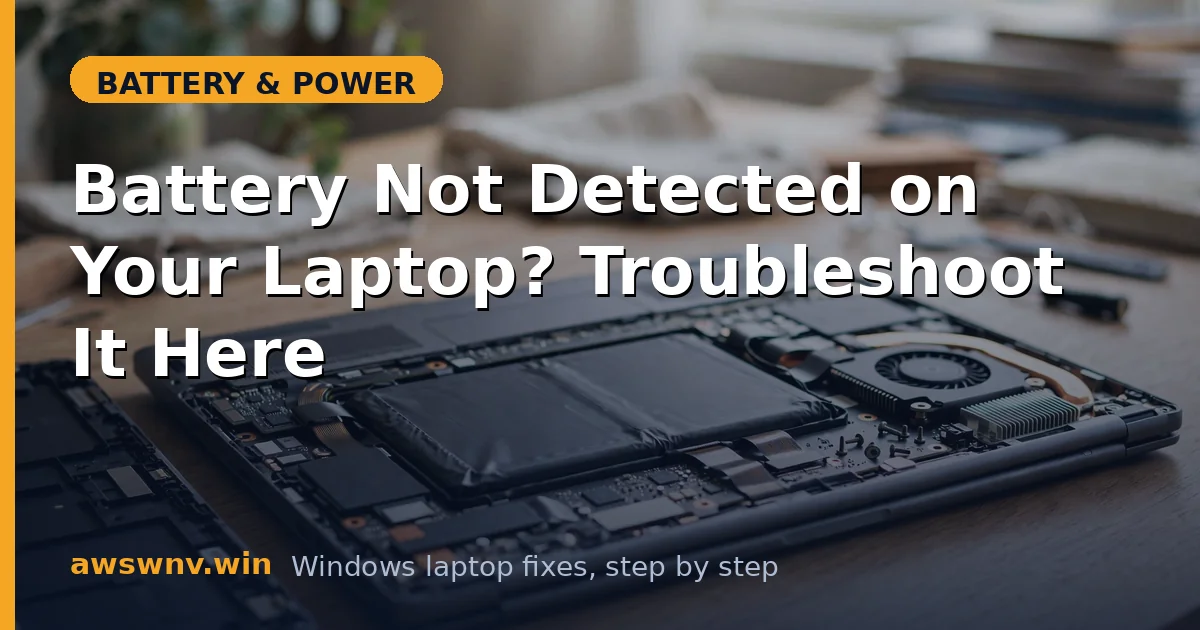
For removable batteries: power off, remove the pack, and inspect the terminals for corrosion, bent pins, or debris. Clean both sides with a dry microfiber cloth and reinstall firmly. For internal batteries: if you are comfortable opening the laptop and it is out of warranty, disconnect the adapter, open the bottom panel, unplug the battery connector from the motherboard, inspect it, and reconnect it firmly. A connector loosened by a drop or thermal cycling is a classic cause of sudden “not detected” errors.
Fix 5: Check the BIOS for battery settings
Restart and enter the BIOS/UEFI (F2, Del, F1, or F10 by brand). Look for anything battery-related: Battery Disconnect, Ship Mode, Battery Health, or power settings that might disable the pack. If you find a disconnect or ship-mode option enabled, disable it, save, and exit. Also check that you are on the latest BIOS — flash an update from the manufacturer’s support site with the adapter connected, since firmware bugs in battery detection get fixed regularly. After any BIOS change, boot into Windows and recheck Device Manager.
Fix 6: Test with a known-good battery
If the battery is removable and you can borrow an identical pack — same model, same part number — test with it. If the borrowed battery is detected immediately, your pack’s controller is dead and the battery needs replacing (even if the cells might be fine, the pack is a sealed unit). If no battery is detected either way, the fault is in the laptop: the connector, the sensing circuit, or the motherboard. This test cleanly separates battery faults from laptop faults.
Fix 7: Update chipset drivers and consider hardware repair
Download the latest chipset drivers for your exact model from the manufacturer’s support site — the chipset driver package includes the power-management interfaces Windows uses to see the battery, and an outdated one can silently break detection. Install, reboot, and recheck. If the battery remains undetected after all software and reseating steps, the motherboard’s battery interface is likely faulty. Get a diagnostic quote from a repair shop; also check whether the machine is still under warranty, since board-level faults are exactly what warranties cover. Our no-battery-after-update guide covers additional update-specific angles.
Closing
“No battery detected” sounds final, but it is usually a driver or a connection — both fixable without new parts. Reinstall the ACPI driver, trickle-charge a flat pack, reseat the connector, and check the BIOS, and the battery almost always reappears. When it does not, the borrow-a-battery test tells you definitively whether to replace the pack or repair the laptop — no more guessing.