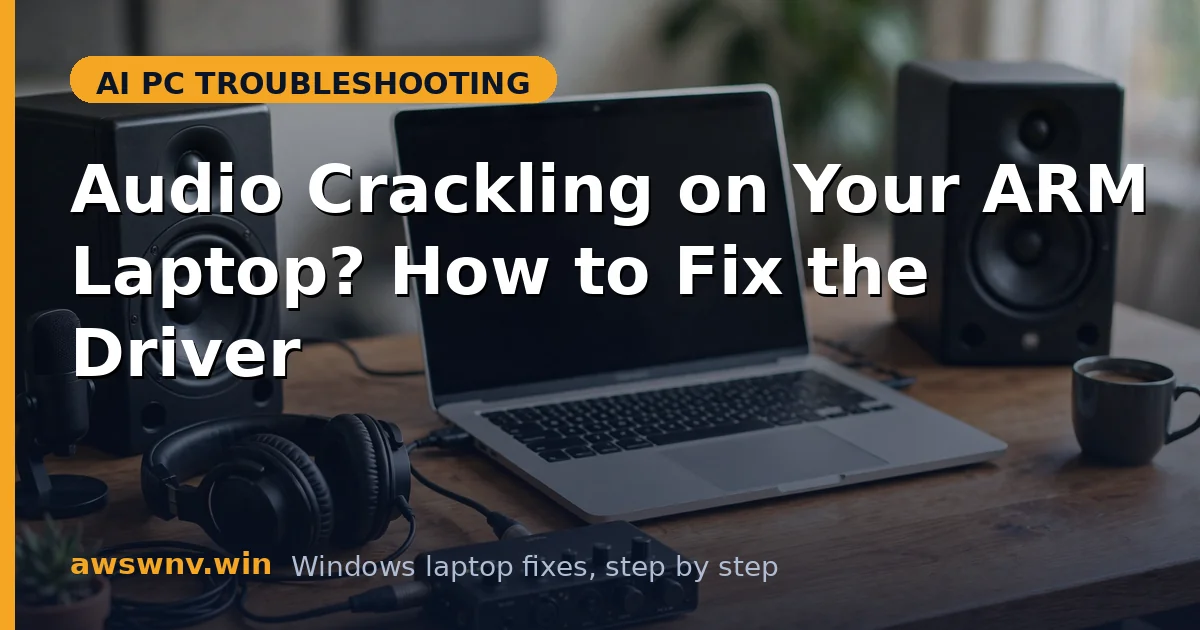
Music stutters, video calls pop, and every notification sounds like it is coming through a broken speaker. Audio crackling on an ARM laptop is one of those problems that ruins everything at once, because sound touches every app — music, meetings, videos, and games all share the same audio path, and when that path glitches, nothing sounds right.
The frustrating part is that the speakers themselves are almost never the problem. Crackling on Snapdragon laptops usually comes from timing: the audio driver delivering sound buffers late, power management throttling the audio pipeline, or an enhancement layer mangling the signal before it reaches your ears. These are software timing problems, and they are fixable once you find which layer is late.
This guide works through the audio chain in order, from quick settings to a clean driver reinstall. If you recently moved your files and settings to this machine, the migration steps in AI PC migration issues can reveal settings carried over from the old laptop that now conflict. And if the system feels sluggish in other ways too, Windows Search AI indexing stuck covers background services that can starve the audio pipeline.
Why this happens
- Audio buffer underruns: The driver delivers sound late because the CPU or audio service is busy, producing pops and gaps.
- DPC latency spikes: A misbehaving driver delays the audio pipeline, and even millisecond delays are audible as crackles.
- Aggressive power management: The audio chip or CPU is throttled to save battery, starving the audio stream at low volume or idle.
- Conflicting audio enhancements: Virtual surround, loudness equalization, and vendor effects can distort the signal on ARM drivers.
- Wrong sample rate or format: A mismatch between the app’s output format and the driver’s settings causes resampling artifacts.
- Generic driver instead of OEM driver: Windows Update may install a basic audio driver that lacks ARM-specific timing fixes.
- Bluetooth interference: Wireless audio adds its own latency and interference, which sounds identical to driver crackling.
How to fix it
Work through these in order — diagnose first, then act.
Fix 1: Test wired audio to isolate the problem
Before changing drivers, find out whether the crackling lives in the audio pipeline at all. Wired headphones bypass Bluetooth entirely, and the built-in speakers bypass external hardware, so testing both splits the problem cleanly. If wired audio is clean, the fault is Bluetooth or the headset — not the driver — and the rest of this guide does not apply.
- Plug in wired headphones or earbuds and play a local music file.
- Listen for a full minute; note whether crackling happens at the same moments or randomly.
- Unplug and test the built-in speakers with the same file for comparison.
- If both are clean, the problem is Bluetooth — re-pair the headset and move closer to the laptop.
- If both crackle, continue with the driver and settings fixes below.
Fix 2: Turn off audio enhancements
Audio enhancements are the most common single cause of crackling on ARM laptops. Features like loudness equalization and virtual surround reprocess every sample in real time, and on some ARM audio drivers that processing introduces timing glitches. Disabling enhancements is reversible and takes a minute, which makes it the best early test.
- Right-click the speaker icon in the taskbar and open Sound settings.
- Select your output device, then open its Properties or Advanced settings.
- On the Enhancements tab, tick Disable all enhancements and click Apply.
- Play the same audio that crackled before and compare the result.
- If crackling stops, re-enable enhancements one at a time to find the offending effect.
- Leave the offending effect off permanently, or check for a driver update that fixes it.
Fix 3: Match the sample rate and audio format
When an app outputs audio at one sample rate and the driver expects another, Windows resamples on the fly, and that resampling can produce audible artifacts on underpowered or misconfigured pipelines. Setting a standard format — 16-bit, 48000 Hz — removes the resampling step for most content and often silences crackling immediately.
- In Sound settings, open your output device’s Properties and go to the Advanced tab.
- Set the default format to 16 bit, 48000 Hz (DVD Quality) and click Apply.
- Test the audio that previously crackled, especially video and video calls.
- If crackling persists, try 24 bit, 48000 Hz as an alternative.
- Avoid exotic rates like 192000 Hz unless your hardware and content genuinely need them.
- Repeat for each output device you use, since settings are per-device.
Fix 4: Reinstall the OEM audio driver
A generic Windows audio driver may play sound, but it lacks the timing and power-management tuning the laptop maker built into the ARM-native driver. Reinstalling the OEM driver replaces the whole audio stack cleanly, including any corrupted driver files that a simple update would leave behind.
- Find your laptop’s exact model and download the latest audio driver from the maker’s support site.
- Open Device Manager, expand Sound, video and game controllers, and note the audio device name.
- Right-click the audio device, choose Uninstall device, and tick Delete driver software if offered.
- Restart the laptop so Windows clears the old driver state completely.
- Install the downloaded OEM driver package and restart again.
- Re-test with enhancements still disabled, then re-enable them one by one if desired.
Fix 5: Stop power management from starving the audio pipeline
ARM laptops aggressively manage power, and that is normally a virtue — except when the audio chip or its bus is put to sleep between sounds. The result is a pop at the start of every notification and crackling during quiet passages. Disabling power saving for the audio device and choosing a balanced power plan keeps the pipeline awake without a meaningful battery cost.
- In Device Manager, open the audio device’s Properties and go to Power Management.
- Untick “Allow the computer to turn off this device to save power” if the tab exists.
- Go to Settings, System, Power, and select Balanced instead of Best power efficiency.
- If your laptop offers a manufacturer power utility, set it to Balanced rather than Silent.
- Test quiet audio, such as a podcast, where power-saving pops are most obvious.
- If background services are also hogging the CPU, check Windows Search AI indexing stuck for the service-side fix.
Fix 6: Check DPC latency and update the chipset drivers
If crackling survives every audio-specific fix, the cause may be another driver delaying the whole system. Deferred Procedure Call latency spikes from network, storage, or chipset drivers delay audio processing just enough to be audible. Updating the chipset and platform drivers from the laptop maker, and closing latency-heavy background apps, removes the most common sources.
- Download and install the latest chipset and platform drivers from your laptop maker’s support site.
- Close background apps that hammer the disk or network, such as cloud sync tools, and retest.
- Run Windows Update and install all optional driver updates it offers.
- If crackling follows a migration from an old machine, review AI PC migration issues for carried-over driver conflicts.
- Test audio after each driver update so you know which one made the difference.
- On-screen helper tools can also compete for resources; if Click to Do acts up too, see Click to Do text actions missing for its own fix path.
Closing
Audio crackling on an ARM laptop sounds like a hardware failure, but it is almost always a timing problem in software — enhancements, sample rates, power saving, or the wrong driver. Work through the fixes in order, testing the same audio clip after each step, and you will find the layer that was glitching. If every fix fails and crackling affects the built-in speakers even in the BIOS diagnostics, contact the manufacturer, since that points to a genuine hardware fault. Microsoft’s audio troubleshooting guidance is at the Windows support hub .