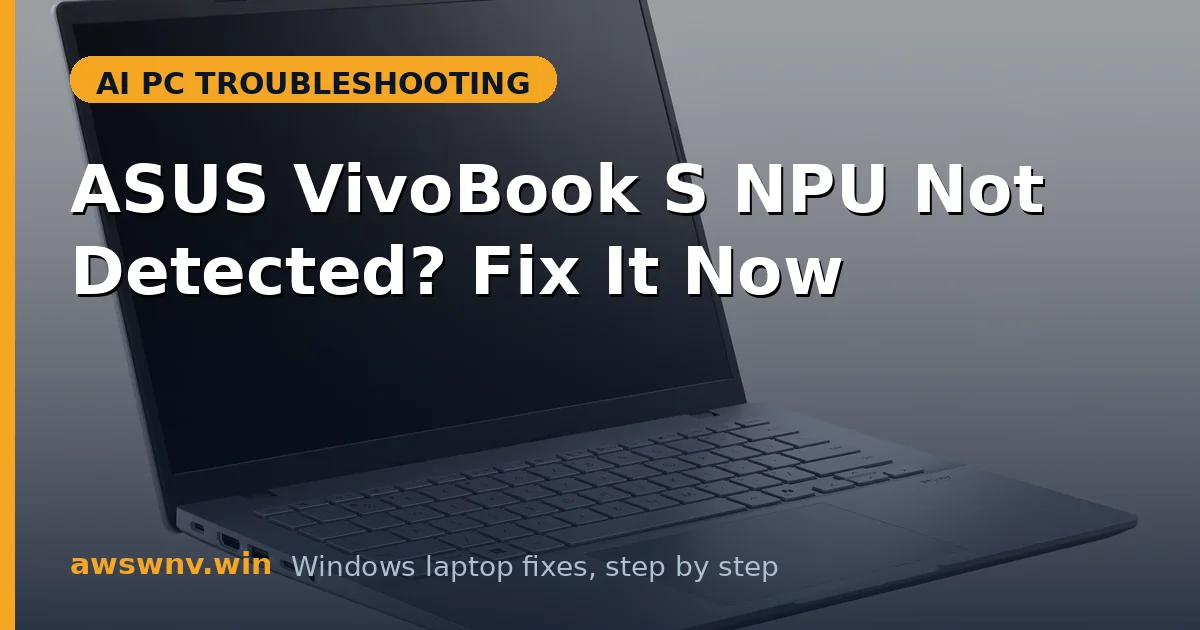
The ASUS VivoBook S lineup — S 14, S 15, S 16 in Intel Core Ultra and AMD Ryzen AI flavors — brings Copilot+ AI to ASUS’s mainstream thin-and-lights. But “NPU not detected” is a recurring VivoBook S complaint: Device Manager shows no Neural processors, Intel AI Boost fails to install, or AI features that worked yesterday are gone today.
ASUS’s wrinkle is driver packaging: the NPU driver hides inside chipset/MEI and graphics packages rather than shipping as a standalone “NPU driver,” so owners don’t know what to download. Add MyASUS vs Windows Update version fights, and the NPU becomes the casualty. This guide follows the ASUS-specific trail — MyASUS first, correct package identification second, clean reinstall third. For Acer’s AI laptop with similar symptoms, see Acer Swift 14 AI Copilot problems ; for Dell’s, Dell XPS 13 Snapdragon problems ; for Samsung’s, Samsung Galaxy Book5 NPU driver .
If heat comes with the NPU trouble, AI PC running hot fix covers cooling alongside.
Why this happens
- NPU driver hidden in chipset packages: Owners download “graphics drivers” and miss that the NPU driver ships in the chipset/MEI package — so it never gets installed.
- MyASUS vs Windows Update conflicts: The two channels overwrite each other’s NPU driver versions, breaking initialization.
- BIOS too old: Early VivoBook S BIOS versions had NPU enumeration bugs; later releases fix detection.
- Interrupted driver installs: The multi-part Intel AI Boost install is fragile — a reboot mid-install corrupts it.
- NPU fused off or BIOS-disabled: Rare, but some SKUs or BIOS resets leave the NPU disabled in firmware.
- Windows feature update regressions: 24H2-era updates broke NPU detection on several VivoBook configurations pending matched drivers.
How to fix it
Work through these in order — ASUS’s channels first.
Fix 1: Update via MyASUS and Windows Update
Let ASUS’s updater run before anything manual — it knows which packages your exact VivoBook S needs.
- Open MyASUS (preinstalled; Microsoft Store if missing) > System Update.
- Install all critical updates, especially BIOS, chipset/MEI, and graphics.
- Keep the laptop on AC power throughout — BIOS updates must not be interrupted.
- Then run Windows Update to full clear, including optional drivers.
- Reboot and check Device Manager for the Neural processors category.
Fix 2: Identify the correct NPU driver package
Downloading the wrong package is the classic VivoBook S mistake. Get the right one from ASUS’s site.
- Go to ASUS support, enter your exact VivoBook S model (e.g., S5507QA vs S5606MA — they differ!).
- Select Windows 11 and open the Chipset and Graphics/VGA sections.
- For Intel models: the NPU (Intel AI Boost) driver is in the Intel Chipset/MEI package and/or the graphics driver — download both.
- For AMD Ryzen AI models: the NPU driver ships with the AMD chipset driver from ASUS (or AMD’s driver page ).
- Note the version numbers — you’ll compare after installation.
Fix 3: Clean-reinstall the NPU driver stack
When versions have fought each other, only a clean reinstall untangles the stack. Order matters: chipset first, then graphics.
- In Device Manager, uninstall the NPU device if present (check “delete the driver software”).
- Also uninstall the related chipset/MEI entries showing warnings.
- Reboot into a clean state — don’t let Windows auto-install yet (pause Windows Update temporarily if needed).
- Install ASUS’s chipset/MEI package first, reboot, then the graphics package, reboot.
- Verify: Device Manager shows Neural processors without warnings; Task Manager > Performance shows the NPU graph.
Fix 4: Check BIOS for NPU settings
If Device Manager shows no Neural processors category at all, firmware may be the gate.
- Reboot into BIOS (F2 or Del on ASUS, tapped during boot).
- Look through Advanced settings for NPU, AI Boost, or neural processor toggles.
- Ensure any such option is Enabled; also check that the iGPU isn’t disabled (the NPU stack can depend on it).
- Save and exit, boot to Windows, re-check Device Manager.
- If no NPU options exist in BIOS, that’s normal on many VivoBooks — the NPU should simply enumerate with correct drivers.
Fix 5: Fix MyASUS power profile throttling
Sometimes the NPU is detected but AI features crawl — MyASUS power profiles may be starving it.
- Open MyASUS > Customization > Power & Performance (or Fan profile).
- Switch from Whisper/Battery saver to Standard or Performance temporarily.
- Test the AI feature (Studio Effects, Recall) under the higher profile.
- If it works, keep Standard for daily use — Whisper mode’s savings aren’t worth broken AI.
- Also check Windows power mode (Settings > System > Power) isn’t on extreme saver.
Fix 6: Escalate to ASUS with model precision
ASUS support is model-number-driven — precision gets you past the scripts.
- Document your exact model (e.g., VivoBook S 15 S5507QA), BIOS version, and driver versions installed.
- Run MyASUS’s System Diagnostics and save any failure reports.
- Screenshot Device Manager showing the missing Neural processors category.
- Contact ASUS support with the package — mention the clean reinstall already attempted.
- For NPU absence surviving BIOS updates and clean driver stacks, request hardware diagnosis; the NPU is part of the SoC.
Closing
VivoBook S “NPU not detected” is usually a driver-packaging problem, not a dead chip: the NPU driver hides in chipset/MEI packages, MyASUS and Windows Update fight over versions, and old BIOS versions fail to enumerate it. Work MyASUS → correct package → clean reinstall → BIOS check, and the Neural processors category appears in the large majority of cases. What doesn’t appear after all of that — with current BIOS and clean ASUS drivers — is a firmware or silicon issue, and ASUS service is the right destination with your documentation in hand.