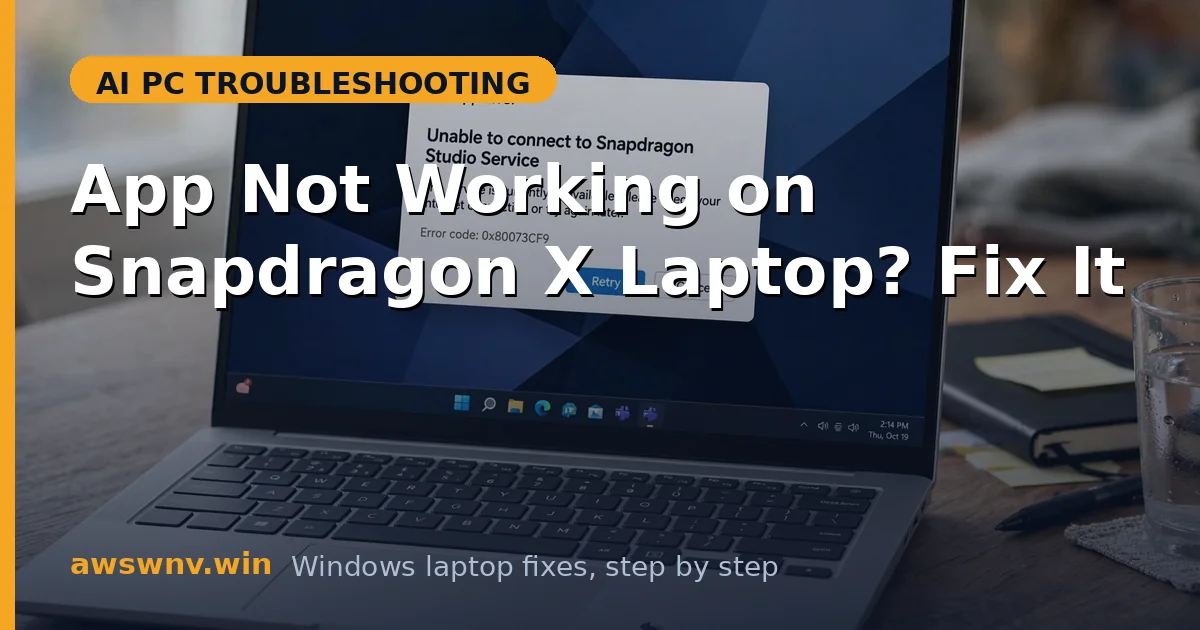
Your new Snapdragon X laptop is fast, silent, and lasts forever on battery — and then you install that one essential app, and it refuses to run. Maybe it crashes on launch, maybe the installer errors out, maybe it installs but behaves bizarrely. Welcome to the one real compromise of Windows on ARM: app compatibility.
Here is what is happening. Your Snapdragon laptop speaks ARM; most Windows software was written for x86/x64 processors. Microsoft’s Prism emulator translates on the fly, and it handles the vast majority of apps surprisingly well. But emulation has hard limits: kernel-mode drivers, anti-cheat systems, and deep OS hooks cannot be translated, so apps depending on them fail. If a printer will not work on your ARM laptop , that is the driver limit in action; VPN troubles are covered in VPN not working on Windows on ARM .
The fixes below move from easiest to most involved.
Why this happens
- x86-only binaries: The app was compiled solely for Intel/AMD processors with no ARM build.
- Kernel driver dependency: Emulation cannot translate kernel-mode drivers — a hard wall.
- Anti-cheat systems: Most anti-cheat requires kernel access, which emulation cannot provide.
- Installer architecture checks: Some installers refuse to run when they detect ARM, even if the app would work.
- Outdated emulation: Early Prism versions struggled with apps that current versions handle fine.
- Missing ARM64EC support: Apps mixing architectures can confuse older emulation layers.
How to fix it
Work through these in order — diagnose first, then act.
Fix 1: Check for an ARM-native version first
The best fix is not needing emulation at all.
- Visit the app developer’s official download page and look for an “ARM64” or “Windows on ARM” build.
- Major apps with native versions include Chrome, Edge, Firefox, Office, Slack, Zoom, Spotify, and Adobe’s core apps — the list grows monthly.
- Uninstall the x86 version completely before installing the ARM64 build to avoid conflicts.
- After installing, verify in Task Manager > Details (add the Architecture column) that it shows ARM64.
- Native apps launch faster and use less battery than emulated ones — always prefer them.
- If no native version exists, continue to the emulation fixes below.
Fix 2: Update Windows to the latest build
Prism emulation improves with every Windows update. An old build may fail where a current one succeeds.
- Go to Settings > Windows Update and install everything pending.
- Emulation got major upgrades across 2024-2025; running a 2026 build matters.
- Restart after updating, then retry the problematic app.
- If the app previously crashed on launch, test again — many “broken” apps were fixed by emulation updates alone.
- Keep Windows Update active going forward; compatibility is a moving target that improves.
- Check the Microsoft Update Catalog if Windows Update seems stuck on an old build.
Fix 3: Run the app in compatibility mode
Windows can apply compatibility shims that help some emulated apps.
- Right-click the app’s executable or shortcut and choose Properties.
- Go to the Compatibility tab.
- Try checking “Run this program in compatibility mode for” and select Windows 10 or Windows 8.
- Also try “Run as administrator” — some apps fail on ARM purely due to permission assumptions.
- Click OK and launch the app to test.
- If one combination works, keep it; if none help, uncheck everything to avoid masking the real issue.
Fix 4: Reinstall cleanly with the right installer
Corrupted or wrong-architecture installs are common after migrating from an old PC.
- Uninstall the app completely from Settings > Apps > Installed apps.
- Delete leftover folders in Program Files and AppData if you are comfortable doing so.
- Download the installer fresh from the developer’s official site — do not reuse an old installer from your previous laptop.
- During install, watch for architecture options and choose ARM64 if offered, x64 otherwise.
- If the installer itself refuses on ARM, try extracting it or look for a portable/ZIP version of the app.
- Test the fresh install before restoring old settings or plugins, which can reintroduce the problem.
Fix 5: Identify the hard limits honestly
Some apps cannot work under emulation, and knowing which saves hours.
- Check the app’s system requirements or FAQ for Windows on ARM statements.
- Apps requiring kernel drivers (certain VPNs, hardware utilities, some antivirus) will not work — this is architectural, not fixable.
- Games with kernel-level anti-cheat (many competitive shooters) are the most common hard failure.
- For these, your options are: the web version, a remote desktop to an x86 machine, or an alternative app.
- Our guide on how to check if an app is ARM native helps you audit your must-have list before committing to the platform.
- Do not waste days fighting a hard limit — redirect that energy to finding the workaround.
Fix 6: Use web apps and alternatives as bridges
When the native app will not cooperate, sidestep it.
- Check if the service has a web app — many “desktop-only” tools work fully in Edge or Chrome.
- Install the web app as a PWA (Edge menu > Apps > Install this site as an app) for a native-like experience.
- Look for ARM-native alternatives: the ARM software catalog grows every month.
- For enterprise-only tools, ask IT about web or virtualized versions.
- Keep a list of your non-negotiable apps and re-test them after each Windows feature update — compatibility improves steadily.
- And remember the big picture from is a Copilot+ PC worth it : the battery and AI gains are real; the app gaps are the price, and they keep shrinking.
Closing
App compatibility is the tax on Snapdragon’s incredible efficiency — real, but shrinking every quarter. Check for native versions first, keep Windows current, and be honest about the hard limits (kernel drivers, anti-cheat). Most daily apps already work; the holdouts are increasingly niche. And every Windows update makes the list shorter.