Creators were promised that AI laptops would transform creative work — and in 2026, for the right workflows, that promise is finally real. Background removal that used to pin your CPU now runs silently on the NPU while you keep editing. Transcription, auto-captions, noise reduction, and generative fill increasingly happen on-device — fast, with no client footage uploaded to the cloud. But none of that happens by accident: the spec sheet decides which of these workflows fly and which crawl.
Marketing throws TOPS numbers, GPU names, and display specs at you without explaining which matter for your actual work. A video editor, a photographer, and a motion designer need genuinely different machines, and the most expensive AI laptop is not the best for every creator. Worse, memory is soldered and the NPU cannot be upgraded later, so a wrong guess at purchase follows you for years.
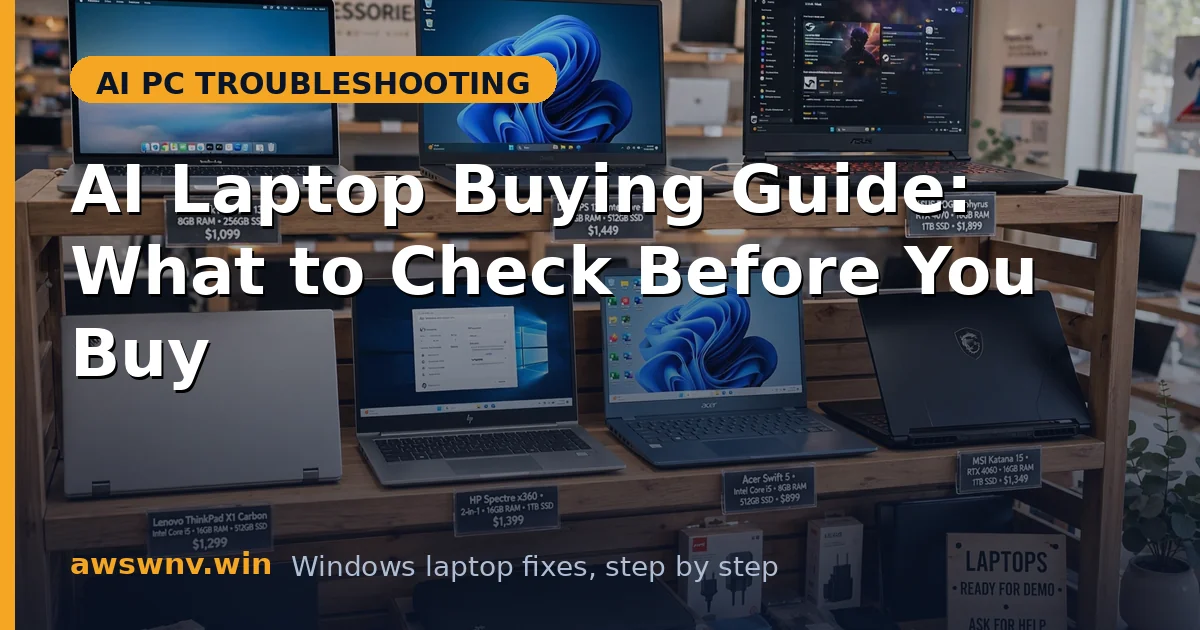
This guide gives you a creator’s buying framework in six stages: mapping workflow to hardware, choosing a platform, nailing the RAM/storage/display trifecta, setting up software, enabling NPU features, and maintaining the machine. If video is your primary work, also see our picks for the best AI laptops for video editing in 2026 for model-level recommendations.
Why this happens
- NPU TOPS decide which AI features unlock: Copilot+ certification requires 40+ TOPS, and that threshold gates on-device features like Cocreator and advanced Studio Effects. Below it, those workloads fall back to the CPU or simply do not appear.
- The GPU still does the heavy rendering: Timeline exports, 3D rendering, and CUDA-accelerated effects scale with GPU power. The NPU handles background AI tasks concurrently — the two complement each other rather than competing.
- Soldered RAM makes the memory choice permanent: 32 GB shared between CPU, GPU, and NPU is comfortable; 16 GB forces constant paging once timelines and local models pile up. There is no adding more later.
- Display quality is a creative tool, not a luxury: Color accuracy, gamut coverage, and brightness determine whether your edits look right anywhere else. A fast NPU cannot fix a washed-out panel.
- Battery life versus performance is a real tradeoff: Discrete-GPU creator laptops render faster but die faster unplugged; NPU-centric thin machines edit all day on battery but export slower. Your shooting and travel pattern picks the winner.
- Software ARM compatibility varies by plug-in: Main Adobe apps run natively on Snapdragon now, but niche plug-ins, capture utilities, and audio interfaces lag behind — the ecosystem around the app matters as much as the app.
How to fix it
Work through these in order — diagnose first, then act.
Fix 1: Map your workflow to hardware before looking at models
Spec sheets are meaningless without a workload. Write down what you actually do all day — the machine that edits wedding videos and the one that designs brand identities are different computers.
- List your primary apps — Premiere, DaVinci, Photoshop, Lightroom, Blender, Figma — and rank them by daily hours, since the top two dictate the hardware.
- Note your media: footage resolution, RAW photo volume, typical project sizes. Resolution and bitrate drive GPU, RAM, and storage needs directly.
- Decide how much AI assistance you want on-device: background removal, transcription, and generative fill lean on the NPU, while classic color and cutting lean on CPU/GPU.
- Be honest about mobility: a creator who edits on location needs battery and lightness; a studio-desk creator can trade both for raw GPU power.
Fix 2: Choose your platform: Snapdragon, Intel, AMD, or discrete GPU
Each 2026 platform has a personality, and matching it to your workflow matters more than chasing the highest number on any single benchmark.
- Pick Snapdragon X Elite/Plus for maximum battery life and the most mature Copilot+ feature set — ideal for photo, design, and light video on the move.
- Pick Intel Core Ultra or AMD Ryzen AI for strong all-rounders with excellent app compatibility and NPU acceleration covering most creative AI tasks.
- Add a discrete NVIDIA GPU (RTX 4060-class or better) if you render video daily, work in 3D, or rely on CUDA plug-ins — nothing integrated matches it.
- Do not choose on TOPS alone: a 45-TOPS NPU with a weak GPU and 16 GB of RAM edits worse than a balanced machine with a slower NPU.
Fix 3: Get the RAM, storage, and display trifecta right
These three are permanent or painful to change, so they deserve more attention than the processor name. Get them right and the machine ages gracefully; get them wrong and nothing compensates.
- Buy 32 GB of RAM for video and photo work, 16 GB only for light design and writing — it is soldered and shared with the NPU and GPU.
- Get at least 1 TB of fast NVMe storage; 4K footage and scratch disks eat 512 GB drives within months, and external SSDs cannot match internal speed for active projects.
- Demand a color-accurate display: 100% sRGB minimum, DCI-P3 for video, Delta E under 2, 400+ nits if you work near windows — OLED is lovely but check burn-in mitigations.
- Confirm the ports: SD or microSD for cameras, HDMI 2.1 for monitors, and enough USB-C bandwidth for your dock — dongle life gets old fast.
Fix 4: Set up creative software in the right order
A creator laptop with apps installed in the wrong order performs like a lesser machine: drivers first, then the creative stack, then AI features — each layer depends on the one below.
- Finish Windows Update and install the latest GPU and NPU drivers before installing any creative app — NVIDIA discrete GPUs get Studio drivers from NVIDIA’s download page , while Intel-based machines can use the Intel driver detection tool .
- Install native ARM64 builds where they exist (Adobe’s ARM installers, DaVinci Resolve) and test launch, media import, and export before adding plug-ins.
- Install plug-ins one vendor at a time, since a single incompatible x64 plug-in can destabilize an otherwise native app on Snapdragon.
- Point scratch disks, media cache, and autosaves at the fastest internal drive, and keep 20% of the SSD free so caching never chokes.
Fix 5: Enable the NPU-accelerated creator features
This is the payoff for buying an AI laptop. Several features hide in settings menus, and switching them on deliberately separates an AI laptop from a regular one with a fancy sticker.
- In DaVinci Resolve’s preferences, enable neural engine acceleration and test background removal and auto-captioning to feel the NPU take load off the GPU.
- In Photoshop, confirm neural filters and generative fill run on-device where supported, without cloud round-trips for client-sensitive work.
- Enable Windows Studio Effects for webcam and microphone so calls and recordings get NPU-powered framing, blur, and noise suppression without taxing your editing apps.
- If on-device model features refuse to cooperate, our guide to Phi Silica not working on Windows 11 covers the local-model stack creators depend on — and if draft-with-Copilot goes missing , fix it before deadline week.
Fix 6: Maintain thermals, drivers, and backups like a professional
Creator workloads are the hardest sustained loads a laptop faces; a maintenance routine protects performance and the client work on the drive.
- Update GPU and NPU drivers monthly, and test a short export after each update rather than discovering a regression mid-project.
- Keep vents clear and use a cooling stand for long renders; sustained heat throttles the CPU, GPU, and NPU together, stretching export times.
- Back up active projects automatically to an external drive and cloud storage; a single copy of client work is a professional liability.
- Re-verify display color every few months, since panels drift — your edits are only as accurate as the screen you grade on.
Closing
The best AI laptop for a creator in 2026 is not the one with the biggest TOPS number — it is the balanced machine where a capable NPU, enough GPU, 32 GB of RAM, fast storage, and a color-accurate display show up together. Map your workflow first, choose the platform that fits it, and switch the NPU features on deliberately. Do that, and the AI laptop becomes a quiet partner handling the tedious parts while you handle the creative ones.