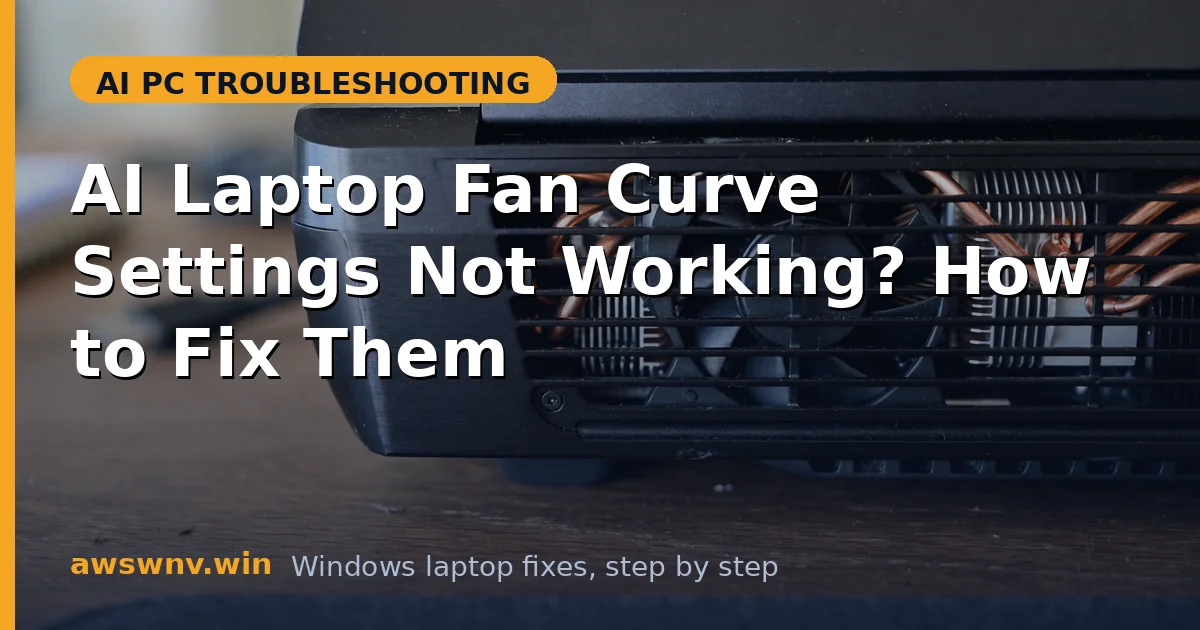
Fan noise is one of those problems that feels small until it follows you all day. A fan that roars during a quiet meeting, refuses to slow down at idle, or ignores every setting you change can make an otherwise good AI laptop hard to live with. Fan curve settings are supposed to solve that, letting you choose silence when the work is light and cooling when it matters.
On many AI laptops, though, those settings do not behave as expected. You drag a slider, click apply, and nothing changes. Or the setting works until the next restart, when the old noisy behaviour returns. Sometimes the control app itself is missing, greyed out, or crashes when you open it.
The cause is usually a clash between layers: the maker’s control app, Windows power plans, BIOS firmware, and sometimes a third-party tool all trying to control the same fan. This guide sorts out that stack, from the simplest checks to a clean reinstall, and shows you safe alternatives when a custom curve simply is not supported on your model.
Why this happens
- Maker app out of date or missing: Fan curves live in the laptop maker’s control software, not in Windows itself. If that app is outdated, uninstalled, or never installed after a reset, there may be no curve to change.
- BIOS or firmware overrides the app: Some laptops enforce a firmware fan profile that overrides app settings, especially in quiet or performance modes. The app may appear to accept changes that firmware then ignores.
- Windows power plan conflicts: A power plan that forces maximum processor performance can keep temperatures high, so the fan follows the heat rather than your curve. The curve may be working, but the workload never lets it stay quiet.
- Conflicting fan tools: Running two control apps at once, or a generic fan utility alongside the maker’s app, can cause settings to fight each other and revert unpredictably.
- Corrupted profiles or permissions: A damaged app profile, a settings file locked by another process, or running the app without administrator rights can stop changes from saving.
- Hardware limits on thin laptops: Some ultra-thin AI laptops offer only preset modes — silent, balanced, performance — rather than a fully custom curve. Expecting a custom graph on such a model will always disappoint.
- Driver or sensor problems: If a temperature sensor or chipset driver reports wrong values, the fan may spin fast at low real temperatures, or stay slow while the laptop heats up.
How to fix it
Work through these in order — diagnose first, then act.
Fix 1: Use the maker’s control app, not a generic tool
Start with the software your laptop was designed for. Generic fan tools often cannot talk to modern AI laptop firmware, while the maker’s app controls both the fan and the power profile together.
- Identify your exact laptop model, then download its control app from the maker’s support page.
- Uninstall any third-party fan control tools before opening the maker app, to avoid conflicts.
- Open the maker app, choose the fan or thermal section, and test a preset such as Silent or Balanced first.
- If presets work but a custom curve does not, your model may only support presets, which is normal for many thin laptops.
- Note which preset you prefer, so you can return to it after updates or a reset.
Fix 2: Update the control app, drivers, and BIOS
Fan behaviour is firmware behaviour. An update to the control app, chipset driver, or BIOS often restores missing sliders, fixes a stuck fan, or corrects a sensor reading.
- Update the maker control app to its latest version from the maker’s store page or support site.
- Install Windows updates, including optional driver updates, then restart the laptop.
- Check the maker’s support page for a BIOS update for your exact model and install it carefully on AC power.
- Open the control app again and test whether the fan curve or preset now responds.
- If an update removes a feature you used, check the release notes and maker forums before assuming it is a bug.
Fix 3: Remove conflicts and reset the fan profile
If two tools or a corrupted profile are fighting over the fan, resetting to a clean state is faster than tweaking sliders that keep reverting.
- Close all fan and system-tuning apps, then uninstall any you do not need.
- Open the maker app and reset its thermal profile to defaults.
- Restart the laptop, then set your preferred preset once, without opening other tuning tools.
- Test at idle and under load, and check whether the setting survives a full shutdown and restart.
- If it still reverts, create a fresh Windows user profile as a test to rule out a corrupted user settings folder.
Fix 4: Fix the power plan behind the fan
A fan curve cannot make a laptop quiet if the power plan keeps the processor hot. Align the power plan with the fan preset you want, so both layers pull in the same direction.
- Open Settings, then System, then Power, and choose Balanced for everyday work.
- In the maker app, match that choice with Balanced or Silent, rather than mixing Best performance with a quiet fan.
- Close heavy background tasks and browser tabs while testing, so heat does not mask the fan change.
- Use Best performance only for genuinely demanding work, and switch back when it finishes.
- Recheck fan behaviour after an hour, because some curves react slowly to avoid constant speed changes.
Fix 5: Check sensors, vents, and hardware health
A fan that ignores settings may be responding to real heat or a faulty sensor. Cleaning vents and checking diagnostics can reveal a hardware cause that no slider will fix.
- Check vents for dust and use the laptop on a hard surface with clear airflow.
- Run the maker’s diagnostics tool and look for fan, sensor, or thermal warnings.
- Listen for grinding or rattling, which suggests a failing fan rather than a settings problem.
- Monitor temperatures with the maker app or Task Manager performance view during a known workload.
- If diagnostics report a fan or sensor fault, contact support instead of forcing the fan with an unofficial tool.
Fix 6: Accept presets and use safe workarounds
If your model genuinely offers no custom curve, you can still get a quieter laptop by controlling heat at its source, rather than fighting firmware you cannot change.
- Use Silent mode for meetings, writing, and browsing, and Performance mode only for rendering or gaming.
- Reduce background load by closing unused apps and pausing sync during quiet work.
- Use a laptop stand for better airflow, which lets the fan stay slower at the same temperature.
- Keep the laptop out of hot rooms and direct sunlight while working.
- If noise remains unbearable at idle after all fixes, ask the maker whether a firmware update or service check is available for your model.
Closing
Fan curve problems are usually a stack problem, not a single broken slider. Use the maker’s app, keep it and the firmware updated, remove conflicting tools, and match the power plan to the fan preset you want. When a model only offers presets, that is a design limit, not a fault you can fix with an unofficial tool — and controlling heat and background load will still make a real difference to noise. If the fan stays loud, erratic, or silent under heavy load after these steps, treat it as a possible hardware issue and get it checked. Similar AI features can also ignore settings when their supporting services fail, as with microphone noise removal covered in AI noise removal microphone fix . A context menu that will not cooperate has the same flavour of frustration, explained in Click to Do open with not working , and model-specific quirks are common on thin AI laptops like those in Asus Zenbook A14 AI issues . For official Windows help, see Microsoft Windows support , and for maker drivers check Lenovo support or HP support .